August 2025
With the xSuite Helix release of “Daring Dodo”, we have improved many components. With the new tile Archive Document Manager (V2), we have integrated functionalities for the archive administration (V2) more closely into the user interface. This makes it easier for archive administrators to access archive documents and settings.
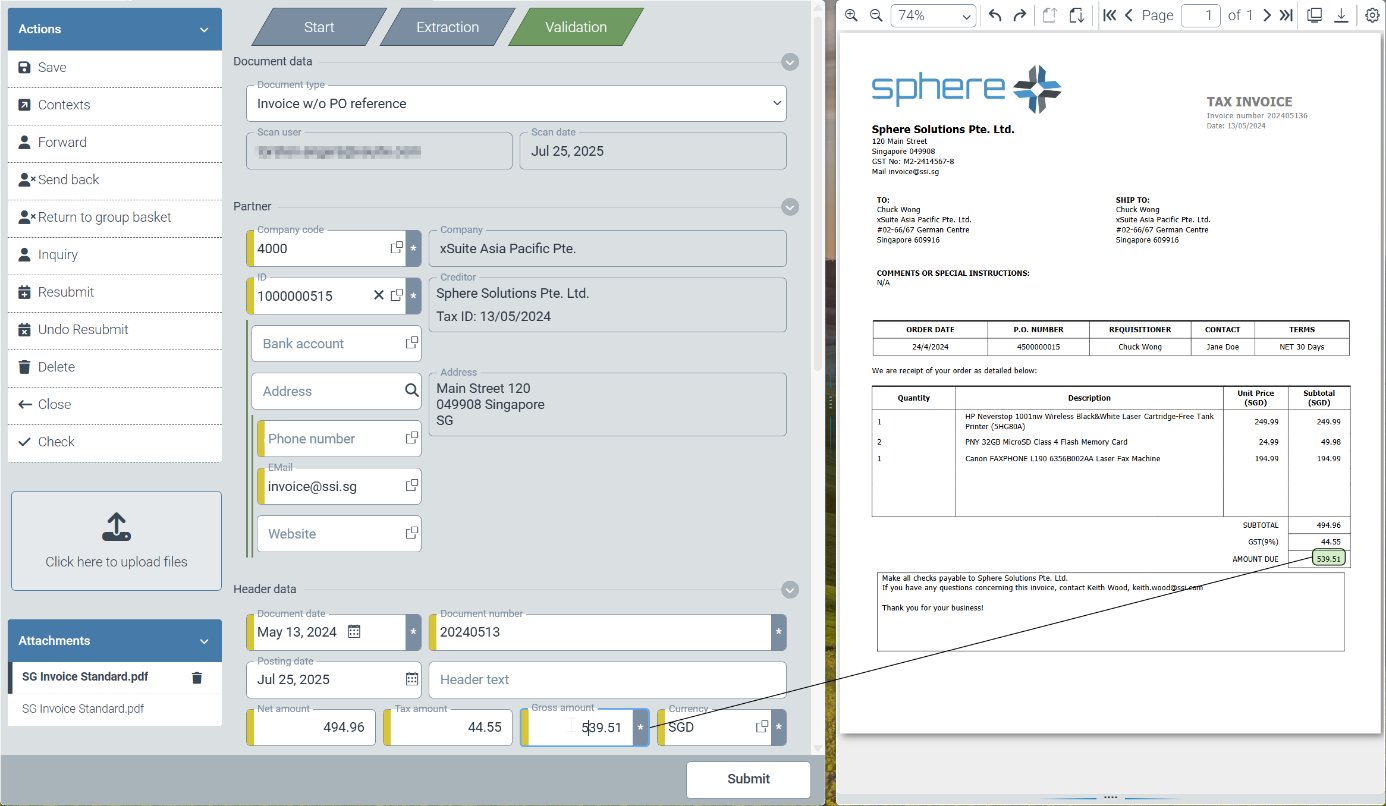
The changes also support workflow users in their validation work. In the validation steps, users can highlight the respective reference in the original document displayed next to it by clicking on a data field in the user interface. References from LLM-supported document extraction are now also highlighted.
New Functions
Easy access to Archive V2 administration via new dashboard tile
Linking data fields with references in the xSuite Viewer
Administration of Archive V2
We have integrated the following functions for archive administration (V2) into the new Archive Document Manager (V2) tile:
Search for non-indexed documents (e.g., from an SAP connection via ArchiveLink or CMIS)
Resetting the indexing status of documents
Setting and removing the post-indexing status of SAP ArchiveLink documents
Changing the date for post-indexing SAP ArchiveLink documents
(Bulk) deletion of archive documents
Setting and deleting legal holds
Integrating the new tile into your personal dashboard
The new Archive Document Manager (V2) tile is available to administrators who have a tenant with Archive V2 access.
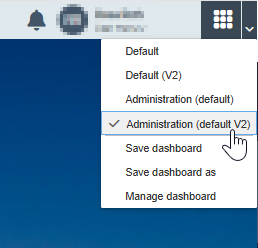
The tile must first be added to the app catalog of the dashboard using the  button in the title bar. To do this, activate the Dashboard checkbox for the tile.
After rearranging the tiles, you can save the dashboard as follows:
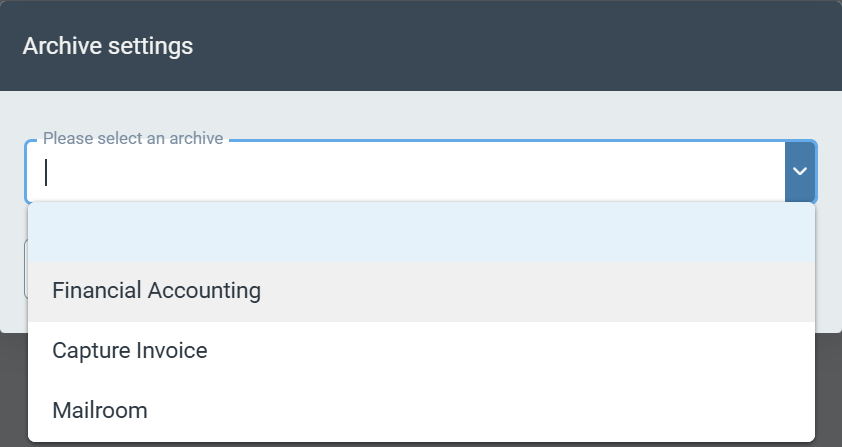
After clicking on the tile, you must select the archive in which your documents are located. You can also select the archive in the upper part of Archive Document Manager V2.
 |
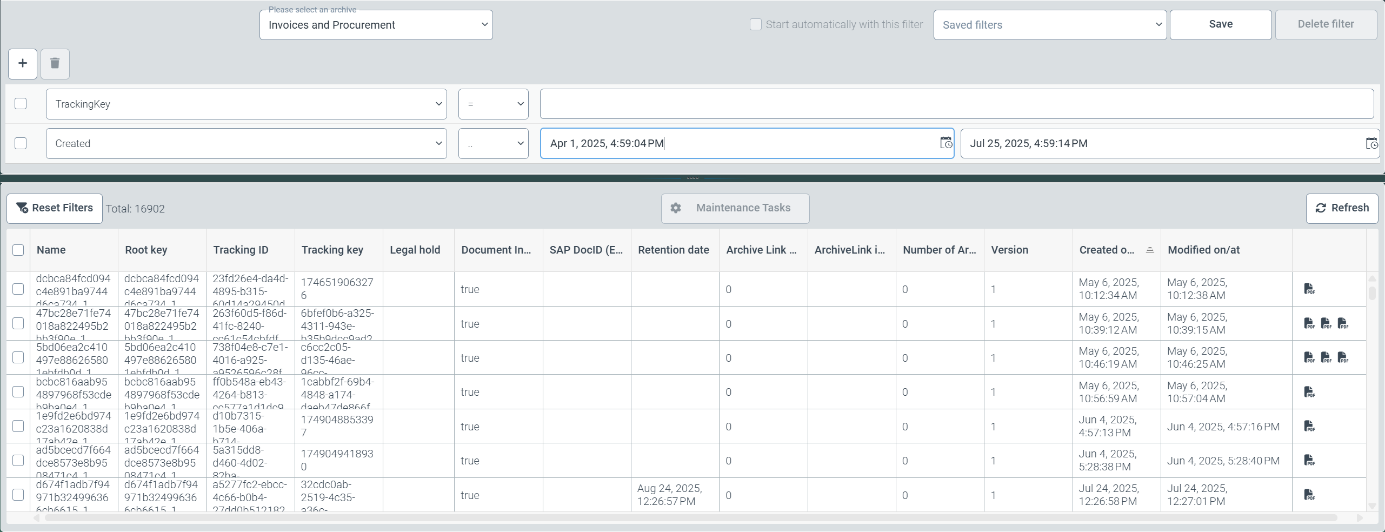
In the upper part of Archive Document Manager V2, you can also define search queries (filters) for different technical field contents.
 |
Searching for documents
The following technical fields are available as search filters in a drop-down list:
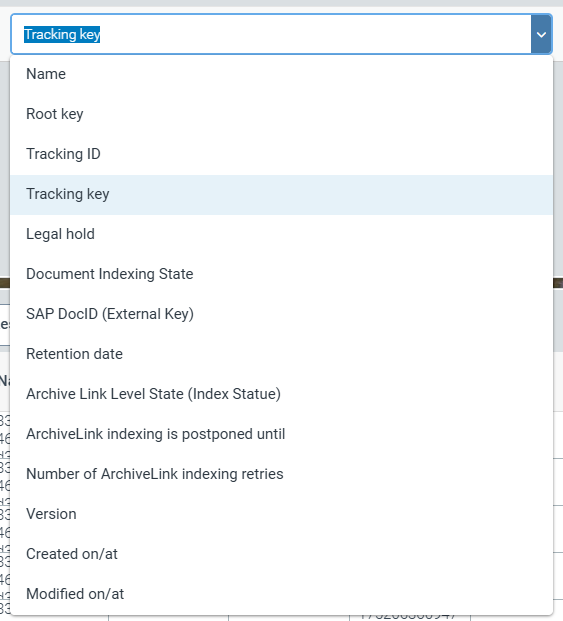 |
Document key and root key
Tracking ID and Tracking key
Legal hold
Document is indexed (full text)
SAP document ID
Retention date
Indexing status for ArchiveLink documents
Next indexing run for ArchiveLink documents
Counter for indexing retries of ArchiveLink documents
Version number of a document
Storage date/time of a document
Date/time of modification of a document
The archive documents found based on the selected search criteria are listed as search results in the lower section of Archive Document Manager V2. The columns in the document list are named according to the technical fields from the drop-down list.
Notice
Dates and times are specified in UTC time and must be adjusted according to the desired time zone.
You can change the order in which the documents are displayed by clicking on the column headers.
You can save search queries and filter settings by clicking on the Save button and access them later via the Saved filters drop-down list.
Clicking on the Reset Filters button removes all filter criteria for the current search and displays every single document of an archive in the list.
The total number of documents after applying a search is displayed to the right of the Reset Filters button.
By clicking on the icon(s) in the last column of the document list, you can display the respective file attachments for the document.
Document administration
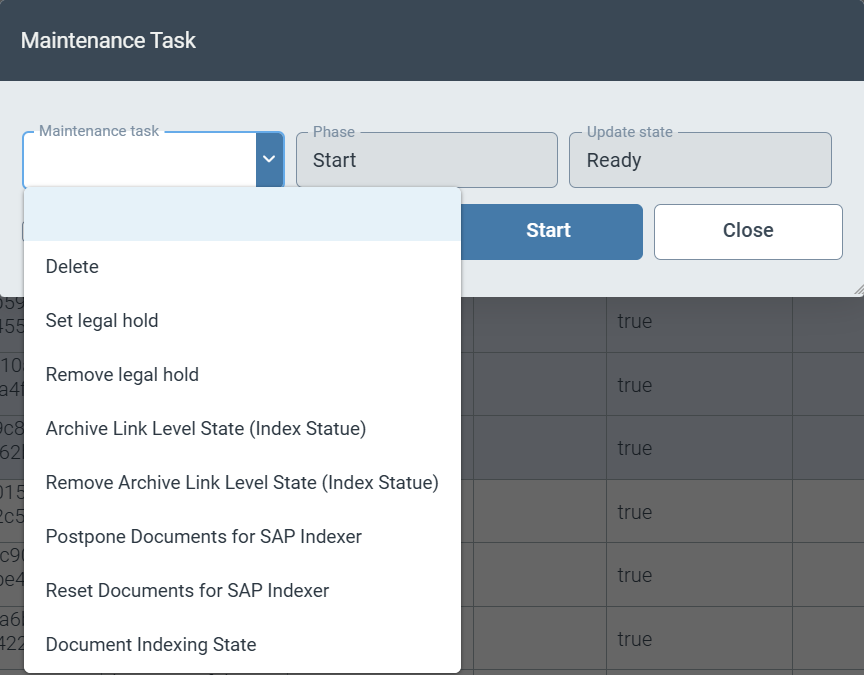
To delete documents or make changes to the technical fields, you must select the relevant documents using the checkbox in the first column. Use the Maintenance Tasks button to mark tasks for deletion or update the content of technical fields.
The following maintenance operations are currently available for the documents you have selected:
Delete
Set and remove legal hold
Set and remove the status for indexing ArchiveLink documents
Postpone of the next execution date for indexing the ArchiveLink document (by the time period set in the content server configuration)
Complete reset of the indexing status of ArchiveLink documents
Set the flag for (full-text) indexing of documents
 |
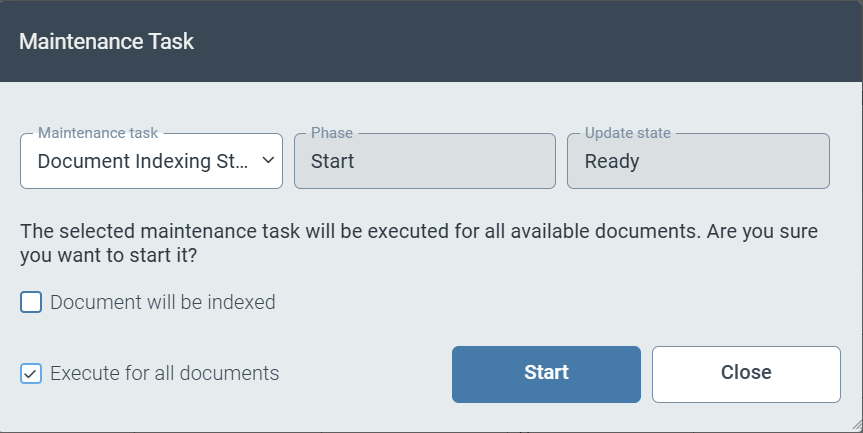
For all maintenance tasks, you can specify that the maintenance process will take place for all archive documents by activating the Execute for all documents checkbox.
 |
Notice
The selection made using the checkboxes for the documents displayed in the document list only applies to the documents that are visibly selected in the list. The number of documents displayed is limited for technical reasons.
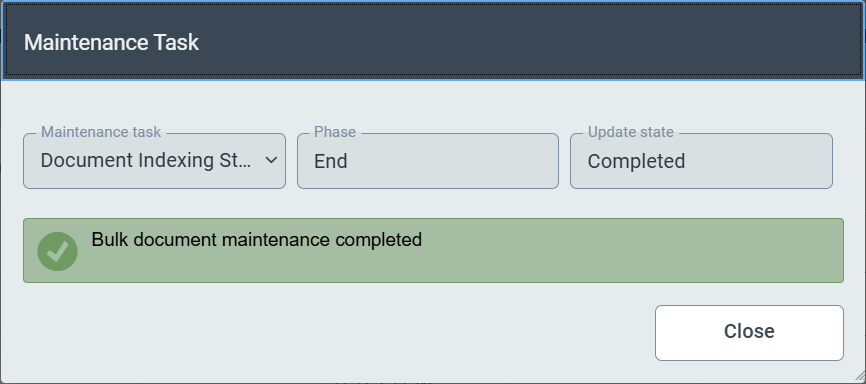
Clicking on the Start button instructs xSuite Helix to execute the maintenance task. Depending on the scope of the task and system load, execution may take a few seconds. Successful transfer of the task to the xSuite Helix backend system is confirmed with a success message:
 |
Linking data fields with references in the viewer
Visible document information in index fields can now contain additional information in the background. As the first piece of additional information, the coordinates of the locations found in the documents are stored by xSuite Helix for these fields and transferred into the workflow.
Users can see this functional enhancement in all xSuite Helix workflow steps that contain editable fields.
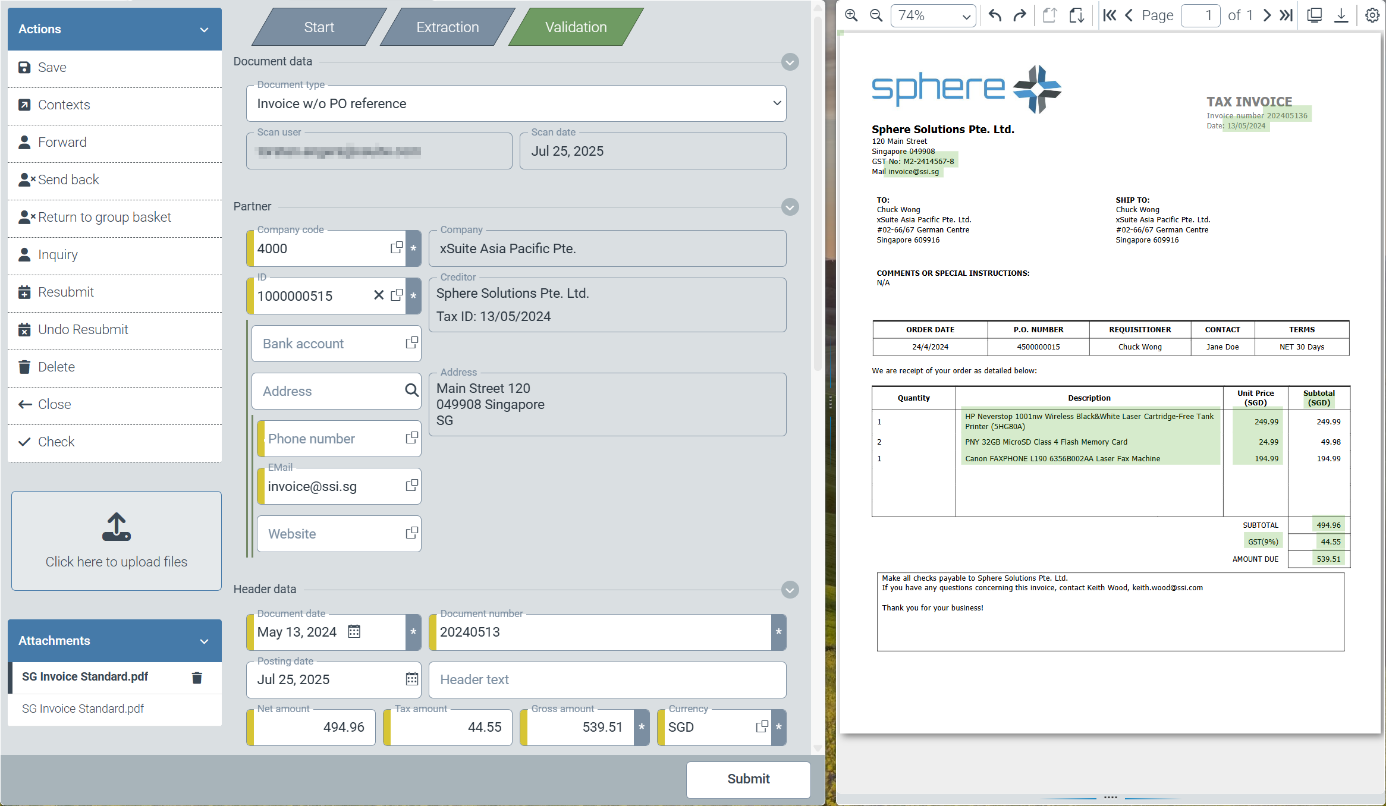 |
Editable fields with additional contextual information are highlighted in the field information area at the edge of the respective data field.
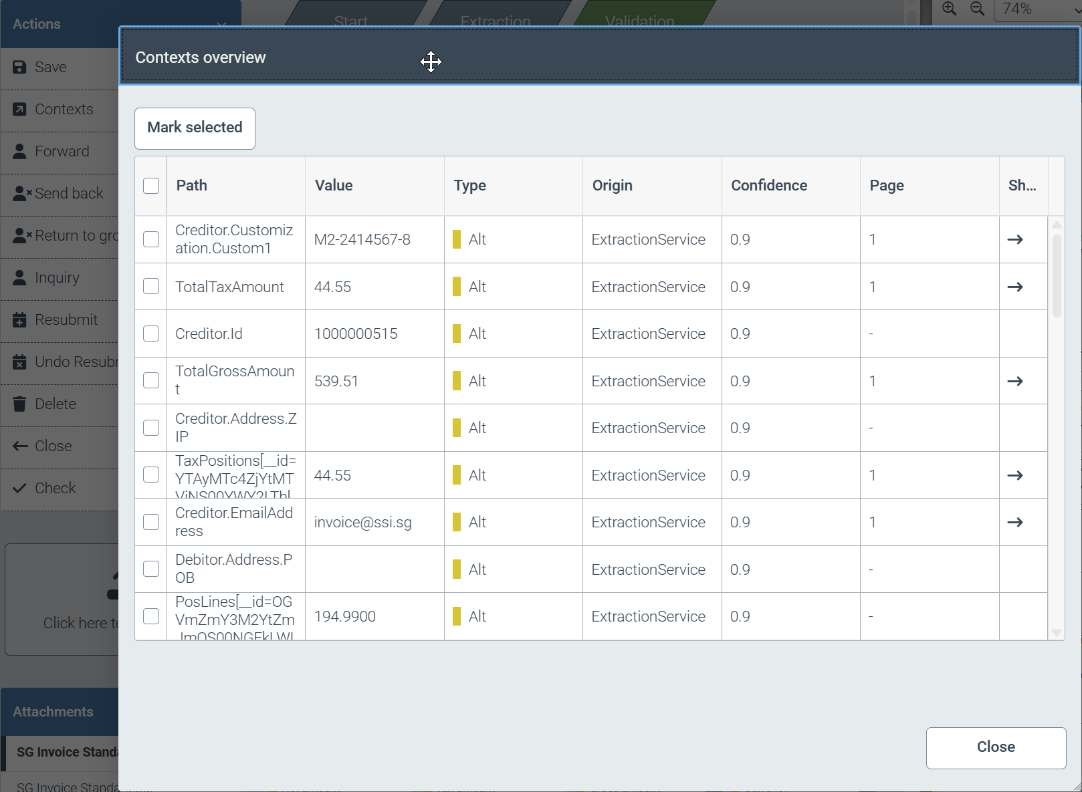
By clicking on the Contexts button in the Actions area, you can display all fields with additional context information for a document.
 |
We have made it easier for users to find specific field contents in the original document. By clicking on a specific field, you will now see a thin line between the selected data field and the source information in the original document.
 |
Changes
Project-specific anchor words for IBAN numbers
Project-specific anchor words for IBAN numbers
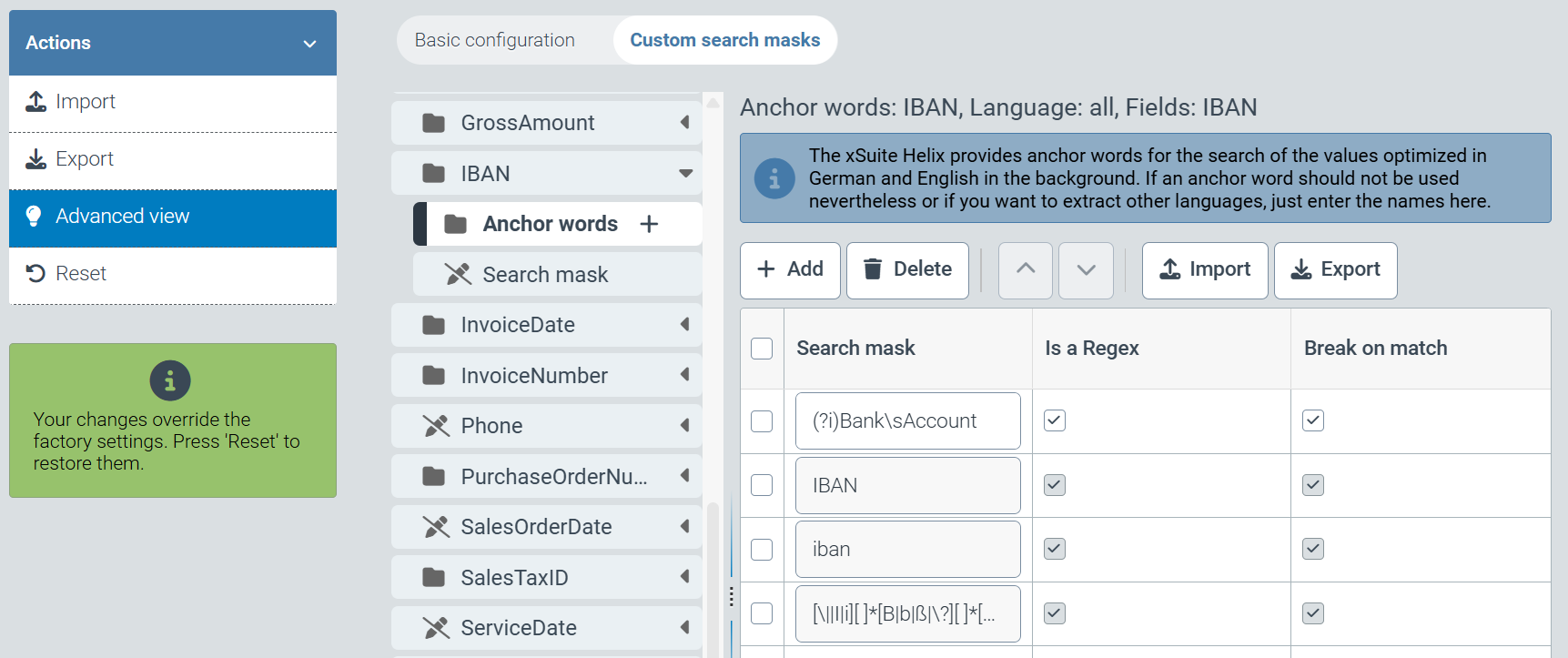
When configuring extraction projects, you can now configure anchor words of IBAN information on a project-specific basis.
To enter your own anchor words or corresponding regular expressions, open the extraction project sys_DataExtractionProject_Invoice or sys_DataExtractionProject_Invoice_US via the tile Configuration → Capture setion→ Extraction.
You can store additional expressions via the Custom search masks tab in the Header data → IBAN → Anchor Words section. Expressions already stored in the system can be displayed via the Advanced view option in the Actions section.
 |