Tables
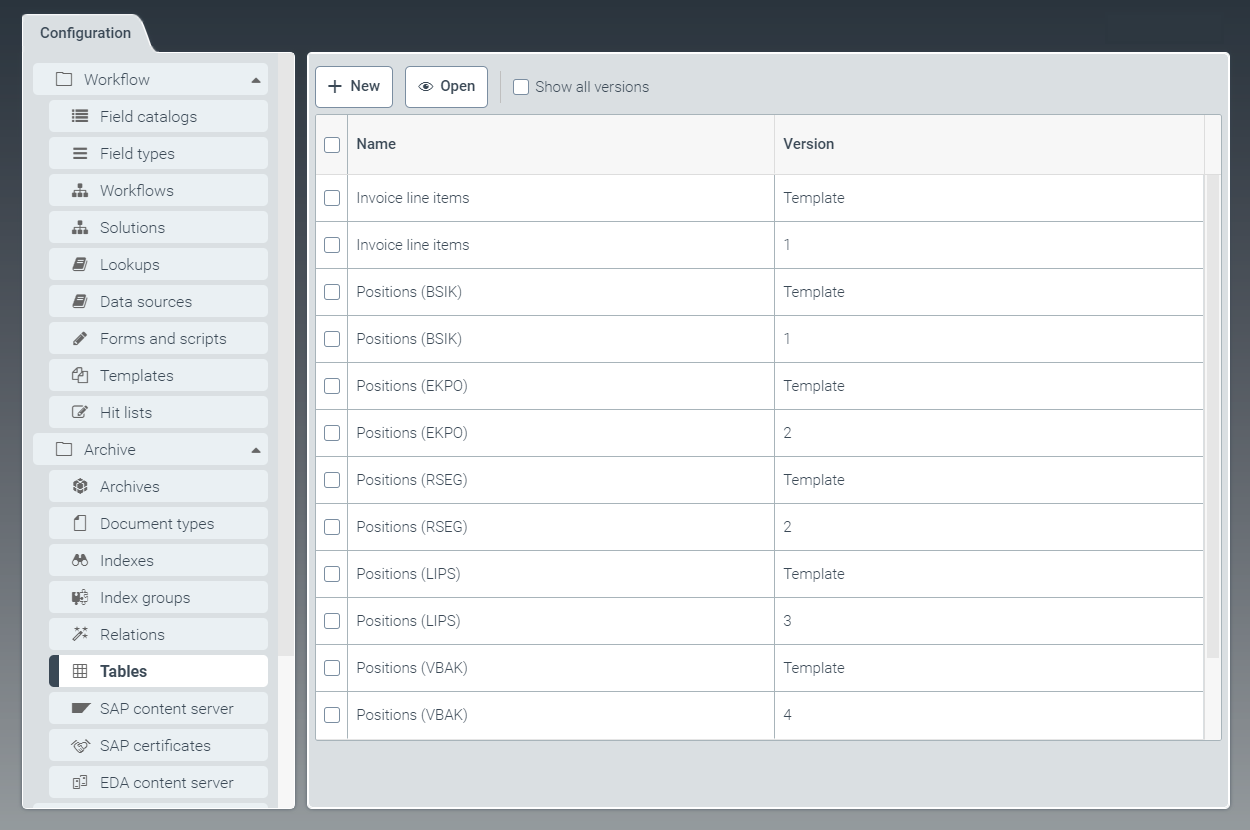 |
To create new table versions and edit existing table templates, go to the Tables tab.
Here you can define tables that can be included in a document type as a field of the Table data type. For more information, see Document type - Adding a field.
Each version of a table is based on the respective table template. Once a table version is created, it cannot be edited. To change a table, edit the table template and create a new version.
Creating a table
From the configuration menu, open the Tables window and click New.
➣ The ArchiveTable: cst_NewTable will open.
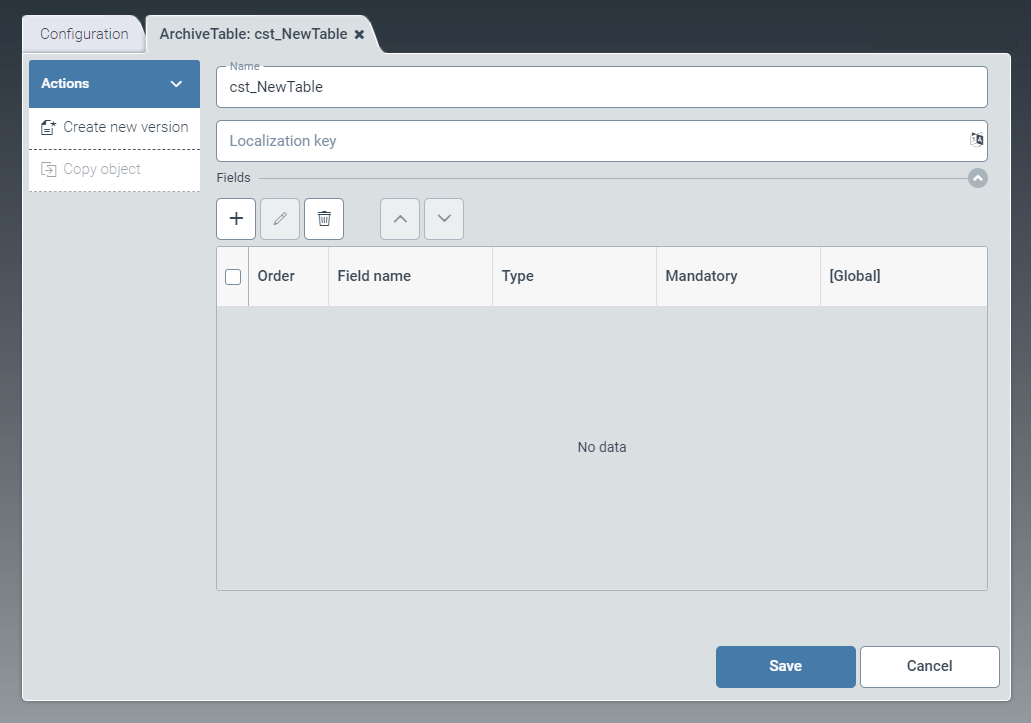
In the Name field, specify the technical name of the table.
The prefix
cst_is predefined and cannot be changed.In the field Localization key, enter the localization key for the table name to be displayed.
To open the Select localization dialog box, click the
 button.
For more information, see Selecting a localization.
Add the table to the Fields pane.
For more information, see Table - Adding a field.
Notice
Note that relations cannot be configured for the created table fields. Only relations for the document-type fields can be configured. For more information, see Creating a relation.
Click Save.
➤ The table has now been created and configured.
Notice
To create a copy of the table currently open, click Copy obejct. The copy will be identified with the suffix _Copy postpended to the table name.
Table - Adding a field
Click the
 button in the Fields pane.
➣ The Edit field dialog box will open.
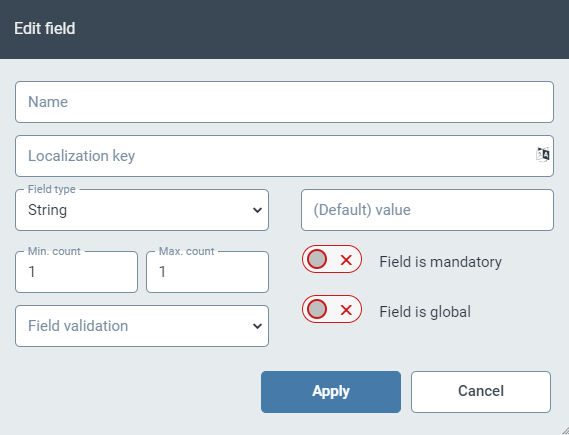
Specify the technical name of the field in the Name field.
In the field Localization key, enter the localization key for the field name to be displayed.
To open the Select localization dialog box, click the
button.For more information, see Selecting a localization.
In the dropdown list Field type, select the data type of the field.
Possible values:
StringAny text
BoolCheck box for yes/no selection
IntegerLong integer (64-bit)
DateDate
DecimalNumber with decimal places
SuggestionSuggestion field; identical to
StringDuring indexing and searching, this field is used for suggestions.
Notice
You can add a maximum of one field of the type Suggestion.
LinkLink to another document or attachment
In the (Default) value field, set an initial value to populate the field.
In the fields Min. count and Max. count, determine the minimum and maximum number of values that the field is allowed to contain.
If required, select an operator from the dropdown list Field validation, and enter one or more values to create a validation rule for the field value.
For information on validation rules, see Validation rules for fields.
If necessary, activate the following options via the toggle buttons:
Field is mandatory: Defines the field as a mandatory field.
Field is global: Defines the field as a global field. Global fields can be used in all archives and indexes.
Validation rules for fields
Operator | Description |
|---|---|
| The value of the field must be larger than the value in the rule. |
| The value of the field must be smaller than the value in the rule. |
| The value of the field must correspond to the value in the rule. |
| The value of the field must be less than or equal to the value in the rule. |
| The value of the field must be greater than or equal to the value in the rule. |
| The rule consists of a list of values separated by a semicolon. The value of the field must contain at least one of the values from the rule. Example: If the rule is |
| The minimal length of a text of a field |
| The maximal length of a text of a field |
| Regular expression The text must correspond to this expression. |
| Regular expression Upper/lower case is ignored. |