Creating index fields
The following options are available for creating index fields for an archive document:
Option | More information |
|---|---|
Creating a free index field | Specify the name and type of a free index field. Your xSuite Archive Helix administrator can add free index fields in the index field search. |
Adding a pre-defined index field | The name and type of a predefined index field cannot be changed. A predefined index field can be configured to be added more than once. "Phone number" is an example of this kind of field. |
If an archive document is based on a document type, the document type will define which of the options you have. The document type may also completely prohibit the creation of index fields.
If an archive document is not based on a document type, you will always have both of the options above.
Note
If a document type prohibits the creation of index fields, the button  Add field button will be disabled. If you do not possess editing rights for the archive, the button will not appear.
Creating a free index field for an archive document
Requirements
The archive document is based on a document type that allows the creation of free index fields.
Or
The archive document is not based on any document type.
Procedure
Open an archive document. For more information, see Open an archive document.
On the archive document toolbar, click
Add field....The dialog Add field... will open.
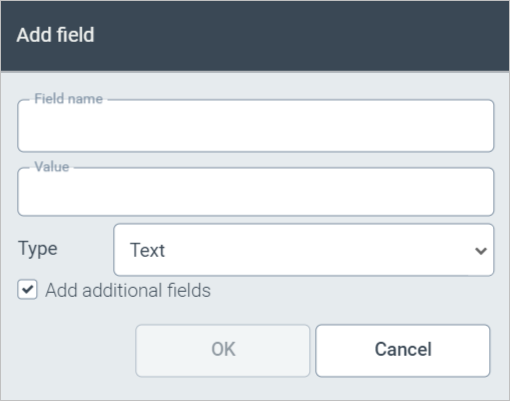
In the Type pick list, select the index-field type.
For more information on index-field types, see Index-field types.
Edit the following data:
Field Name: Enter a name for the index field.
For information on the characters permitted, see Characters allowed for free index-field names.
Note
The field Field name is not always the same in appearance. How it looks depends on whether the archive document is based on a document type that only allows free index fields, or whether the document type also allows predefined index fields.
Value: Enter a value for the index field.
Select the Add additional fields check box if you wish to create an additional index field. Clear the check box if you only wish to create this particular index field.
Click OK.
Adding a predefined index field to an archive document
Requirements
The archive document is based on a document type that allows the addition of predefined index fields.
Or
The archive document is not based on any document type.
Procedure
Open an archive document. For more information, see Open an archive document.
On the archive document toolbar, click
Add field....The dialog Add field... will open.
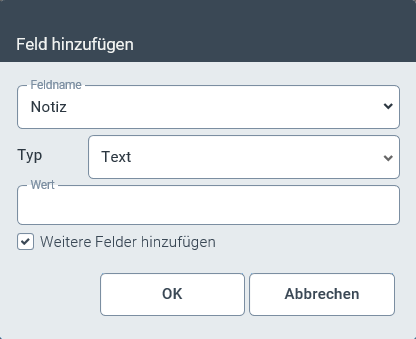
In the Field name pick list, select a pre-defined index field. The field Type will be filled automatically.
Note
The field Field name is not always the same in appearance. How it looks depends on whether the archive document is based on a document type that only allows free index fields, or whether the document type also allows predefined index fields.
Enter a value for the index field in the Value field.
Select the Add additional fields check box if you wish to create an additional index field. Clear the check box if you only wish to create this particular index field.
Click OK.
Characters allowed for free index-field names
The following types of characters are permitted in the name of a free index field:
Numbers
Alphabetical letters in upper and lower case, including umlauts
The underscore character (_)
Not allowed: "ß", blank characters, and all special characters besides the underscore. These characters cannot be entered.