Creating a new absence for a user
In the Administration tile group, click on the User Management tile.
Note
If the tile is hidden, open the default dashboard. For more information, see Opening a dashboard.
The User Management screen will open.
Click Edit user.
User editing will open in a new tab.
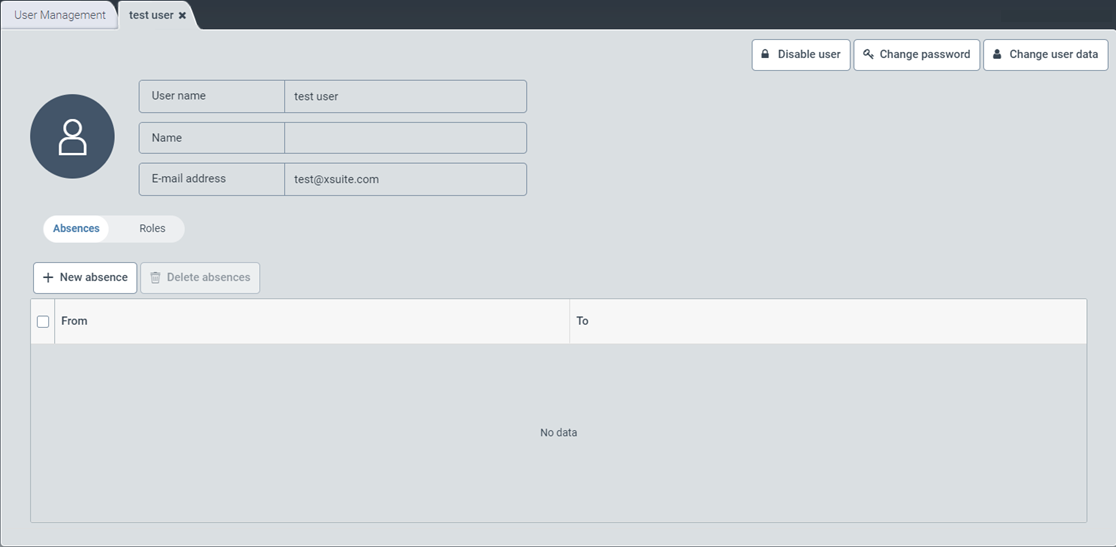
Select the Absences view.
Click New absence.
The New absence window will open.
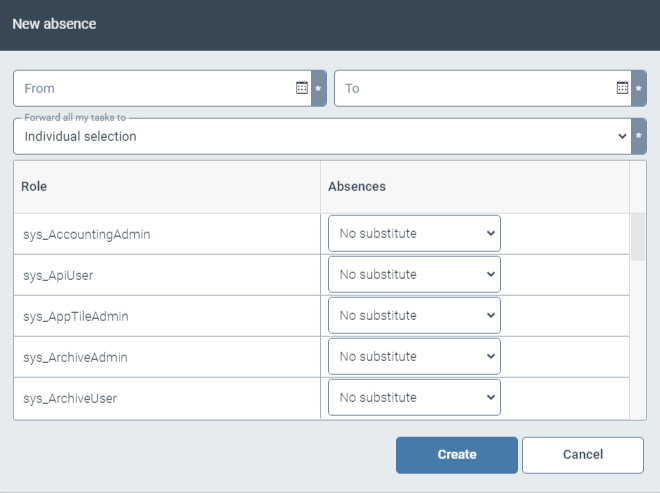
In the From field, enter the date when the absence will start.
In the To field, enter the date when the absence will end.
Perform one of the following actions:
To set a single user as a substitute for all roles, select a user in the field Forward all my tasks to.
To set different users as substitutes by role, select
Single selectionin the Forward all my tasks to field and select a user as a substitute in the Absences column by role.If you do not wish to set a substitute, select
No substitutein the Absences column.
Click Create.