UI elements in the "Classification Training" screen
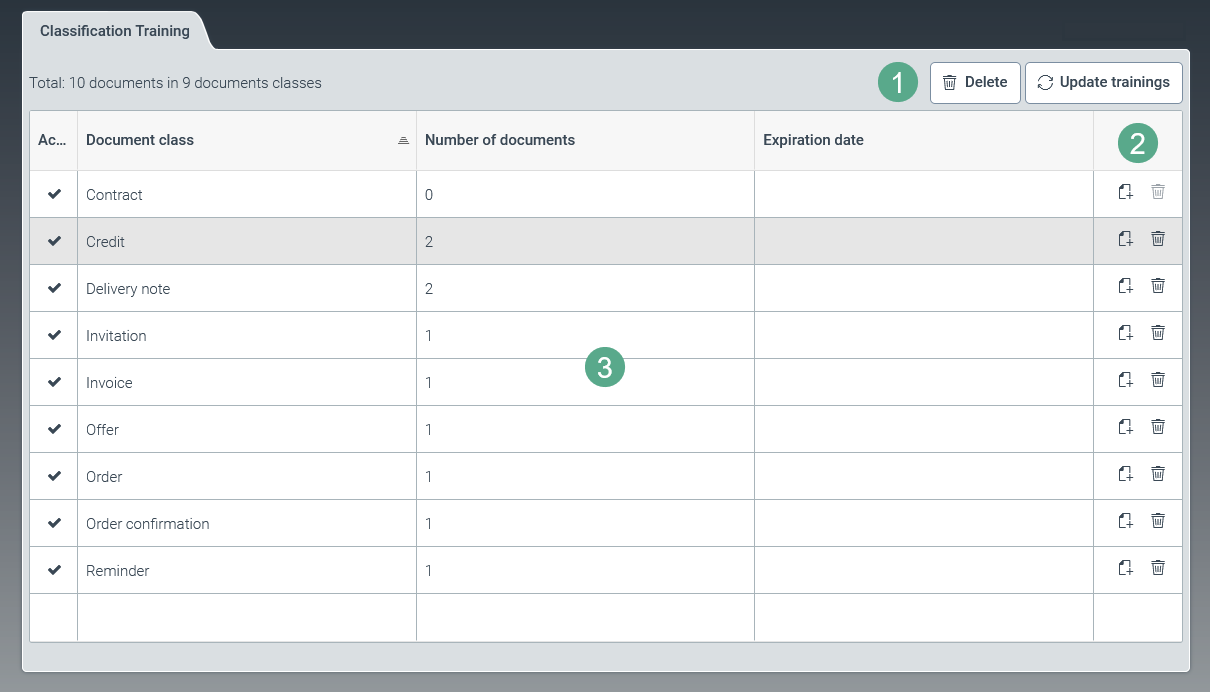
Section | Description | |
|---|---|---|
1 | Buttons on the Classification Training screen | For more information, see Overview of the buttons in the "Classification Training" screen. |
2 | Buttons by document class | For more information, see Overview of document-class buttons. |
3 | List of document classes | Shows all document classes and the number of uploaded documents. For more information, see Overview of the columns in the "Classification Training" screen. |
Overview of the buttons in the "Classification Training" screen

Name | Description |
|---|---|
Delete | For all document classes, deletes the classification trainings that were performed within a defined period of time. For more information, see Deleting multiple classification trainings for a specific period. |
Training | Performs classification training for all document classes. The document classes are trained using the uploaded documents. For more information, see Performing classification training. |
Overview of document-class buttons
Icon | Name | Description |
|---|---|---|
| Upload file(s) | Uploads a file or multiple files used for the classification training of the chosen document class. For more information, see Performing classification training. |
| Remove document class | Deletes all classification trainings that have been performed for the chosen document class. |


Overview of the columns in the "Classification Training" screen

Column | Description |
|---|---|
Active | Indicates whether a document class is activated. |
Document class | Shows the name of a document class. Right-clicking on the column header of the Document Class column will open a pop-up window with the following filter and sorting options:
|
Number of documents | Indicates the total number of documents that have been uploaded for the classification training of a document class. |
Expiration date | After the expiry date, classification trainings that have already been deleted will be permanently deleted. NoteAs a precaution, deleted training documents are set for permanent deletion after 30 days. During these 30 days, the corresponding class will be greyed out. You will not be able to upload documents for classification training of this document class during this time. Deleted classification trainings for the respective class can be reactivated before the expiration date is reached in Helix configuration. The deletion functionality is designed in such a way as to prevent classes from being deleted by mistake. |