SAP Content Server
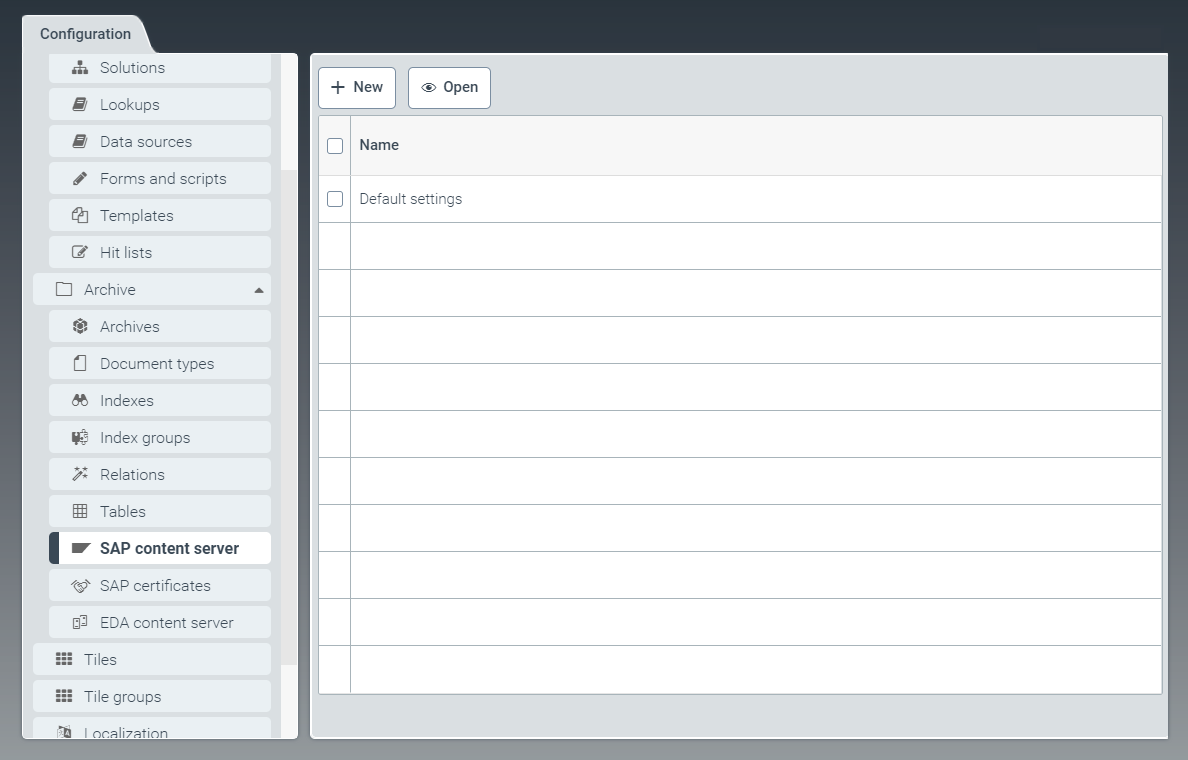 |
The tab SAP content server is where you can edit the settings for the "Archive Indexer for SAP".
You can edit the Default settings or create new SAP Content Server settings, e.g. for the purposes of operating different SAP systems in combination with an archive.
Editing default settings for the SAP Content Server
In the SAP content server tab, open the entry
Default settingsby clicking on the respective line of the table.➣ The ContentServer: sys_Config tab will open.
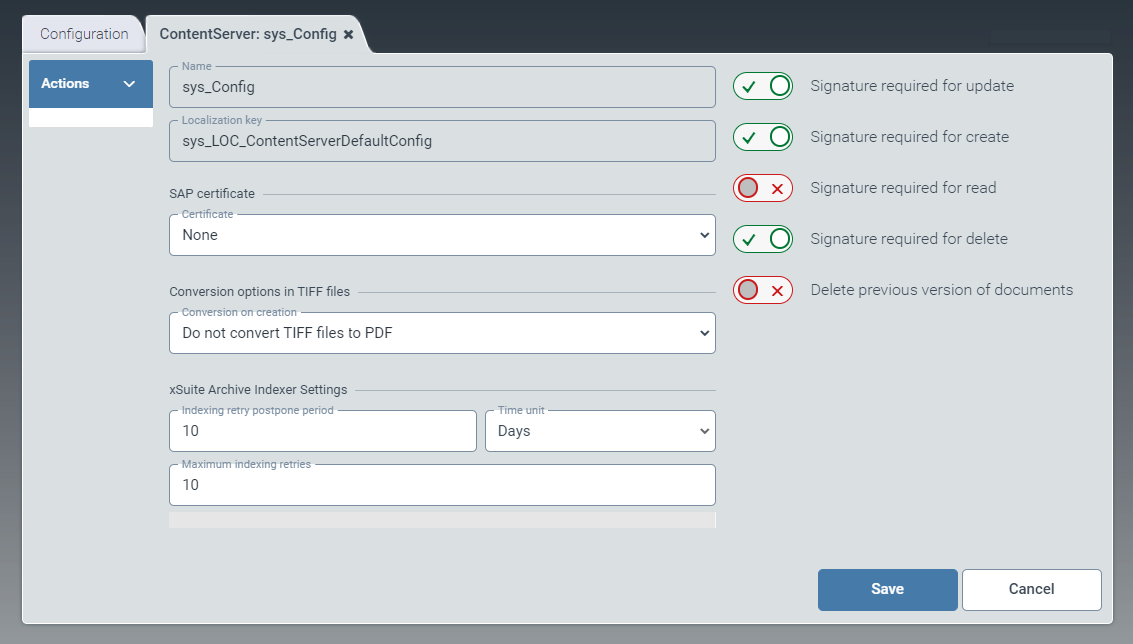
In the dropdown list SAP certificate, select an SAP certificate to be bound to the configuration.
You can select any SAP certificate that has been created and activated in the SAP certificates window.
In the dropdown list Conversion options in TIFF files, select one of the following entries:
Convert TIFF files to PDF: Specifies that TIFF files will be converted to PDF files. The TIFF image will be embedded in the PDF format.Do not convert TIFF files to PDF: Specifies that TIFF files will not be converted. If TIFF files are not converted, direct display of documents will not be possible in the xSuite viewer.Convert TIFF files to PDF and archive both: Specifies that TIFF files will be converted to PDF documents. Both the original TIFF file and the PDF document will be archived.
In the pane xSuite Archive Indexer Settings, make the settings for the Archive Indexer for SAP.
For more information on the Archive Indexer for SAP, see Configuring xSuite Archive Indexer for SAP.
If necessary, activate the following options via the toggle buttons:
Signature required for update: Specifies that a signature is required to update an archive document.
Signature required for create: Specifies that a signature is required to create an archive document.
Signature required for read: Specifies that a signature is required to read an archive document.
Signature required for delete: Specifies that a signature is required to delete an archive document.
Delete previous version of documents: Specifies that when an archive document is updated, the previous version of the archive document is deleted.
Click Save.
Configuring xSuite Archive Indexer for SAP
Configuration in xSuite Helix
In the window SAP content server, configure the standard settings for the SAP Content Server or create new SAP Content Sever settings.
For more information, see Editing default settings for the SAP Content Server.
Caution
If you create your own SAP Content Server settings, it is mandatory to specify a different archive path in SAP for each configuration.
In the Archives screen, create an archive that will serve as the superordinate archive.
Caution
If you operate different SAP systems with a single archive client, creating a superordinate archive is mandatory. Otherwise, repositories with the same name would be mapped in the SAP systems with the same archives.
Configuration in SAP
Execute the transaction OAC0.
➣ The view Display Content Repositories: Overview will open.
Create a new content repository or select an existing content repository.
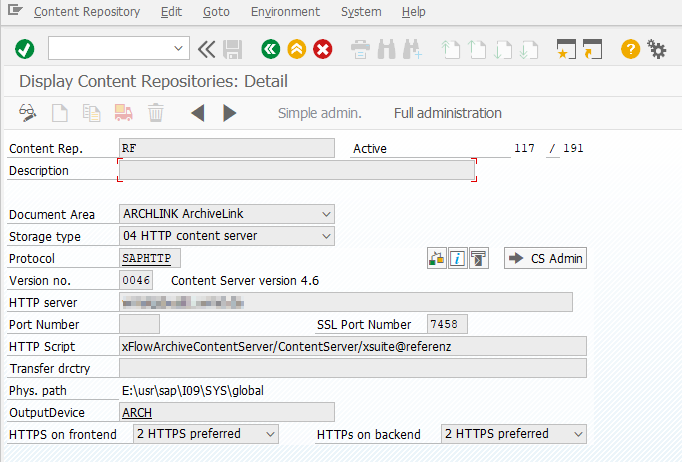
To perform a connection test, click the button
 Test connection.
Click the button
 Send certificate to send the SAP certificate to the archive.
Enter the fully qualified URL of your xSuite Helix client in the field HTTP server to configure the SSL connection.
In the field HTTP Script, enter the following value for the standard configuration:
xFlowArchiveContentServer/ContentServer/{helixclient@helixclient}.Enter the value
443in the field SSL Port Number.Click
 Save.
Save.Execute the transaction STRUST.
➣ The Trust Manager will open.
Double-click on the host name in the entry SSL client (Standard).
Click the button
 Import certificate and import the SSL certificate from the file in binary format.
Notice
The SSL server certificate must be issued by a CA (Certificate Authority) that the SAP system also trusts.
Click the button
 Add to Certificate List.
Click
Save.
Configuring the indexing of ArchiveLink documents
Configuration in SAP
Notice
Before performing the configuration, make sure that the System Requirements have been met.
Execute the transaction /WMD/XFA_SPRO.
➣ The xSuite Archive Indexer configuration will open.
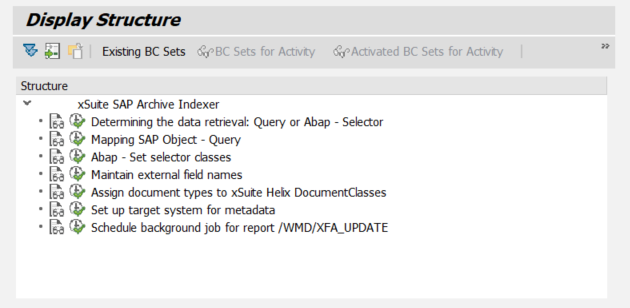
Open the entry Determining the data retrieval: Query or ABAP - Selector and determine which class is used to select the index data.
Data acquisition
Class
Selector class
/WMD/CL_GET_IDX_SELECTOR
Open the entry ABAP - Set selector classes and define the selector classes for the business objects used.
The following classes are delivered as part of the standard package:
Obj. Type
Reference to
Description
BKPF
/WMD/CL_XFA_BKPF_SELECTOR
Reads FI documents.
BUS2012
/WMD/CL_XFA_EKKO_SELECTOR
MM orders
BUS2081
/WMD/CL_XFA_RBKP_SELECTOR
MM Vendor Invoices
LIKP
/WMD/CL_XFA_LIKP_SELECTOR
SD deliveries
VBAK
/WMD/CL_XFA_VBAK_SELECTOR
SD customer orders
VBRK
/WMD/CL_XFA_VBRK_SELECTOR
SD invoices
Open the entry Maintain external field names and store the external field names. The external field names correspond to the technical names of the document-type fields in xSuite Helix.
Open the entry Assign document types to xSuite Helix and assign the document types to the document types of the xSuite Helix archive.
Open the entry Set up target system for metadata and enter the identifier of the target system and the URL of the xSuite Cloud Connector.
Execute the transaction SM36.
➣ The Define Job view will open.
Schedule a job for the /WMD/XFA_UPDATE program to run at regular intervals.
Recommended setting: Once or twice a day at times when there is no workload.
Configuration in xSuite Helix
Notice
When updating documents, the system will check whether there is a matching document type for an SAP business object. These document types always require the prefix SAP_.
If a stored SAP query is changed, e.g. by adding new fields, a new version of the document type must be generated with the corresponding changes.
Create an index for the archives whose documents are to be indexed.
Use the toggle button Archive Indexer for SAP to activate the Archive Indexer.