Activating the IRIS license
Notice
To activate IRIS licenses, go to the IRISXtract License Center. You can only open the IRISXtract License Center if the Windows Service of the IRIS License Service is active.
Open the IRISXtract License Center.
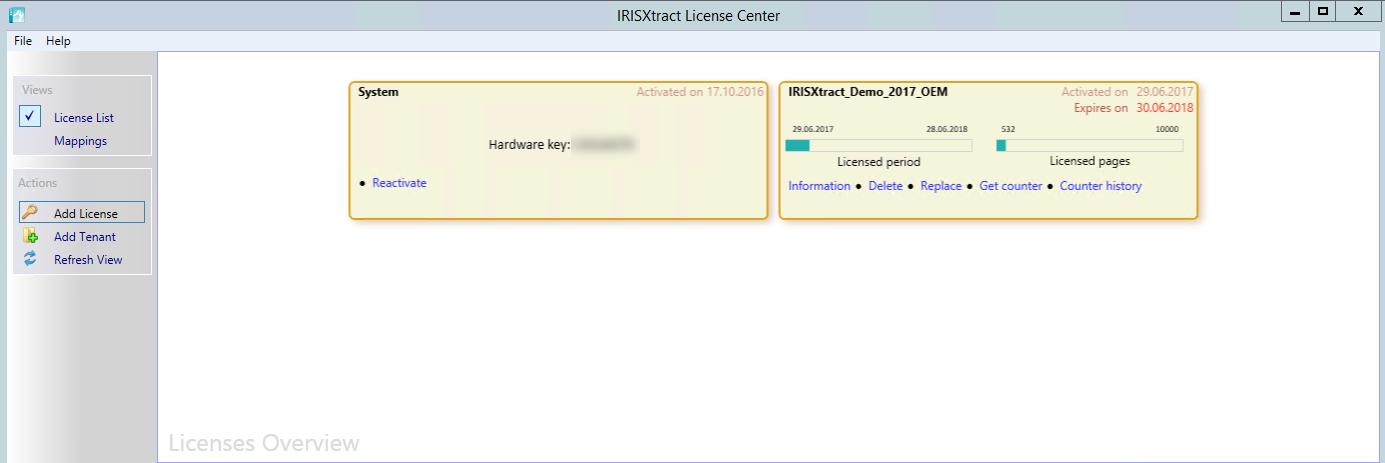
Click the Add License button.
➣ The Activate System dialog will open.
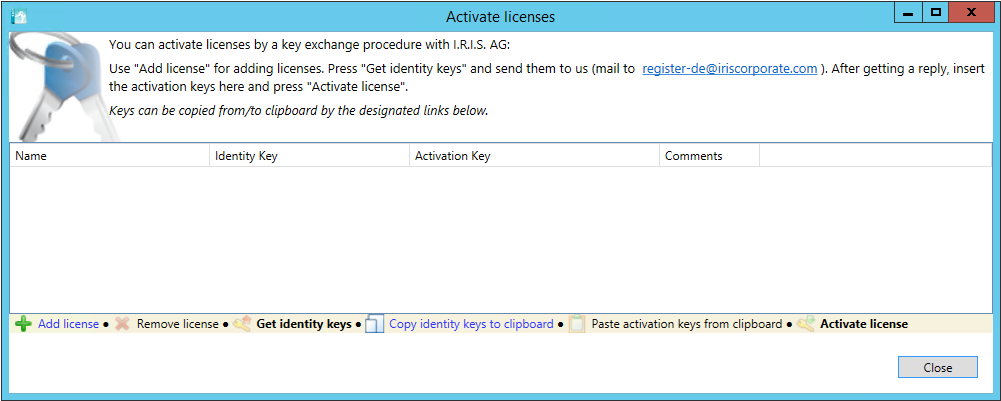
Caution
You may close the Activate System dialog once you have activated all IRIS licenses ( Activate license button). Otherwise, the activation keys will lose their validity and you will have to start again from step 1. If you try to close the dialog before activation, a warning message will appear.
Click the Add license button. In the dialog that follows, select the LIC file.
➣ For the system and software license, one line will be created at a time.
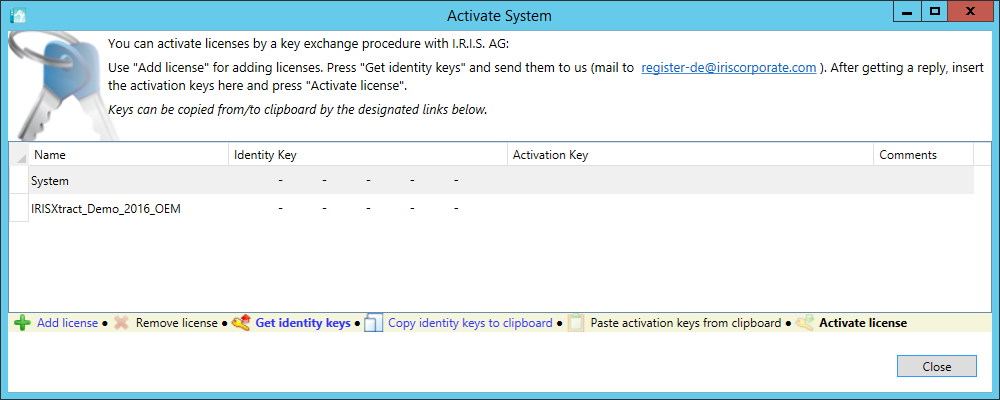
Click the Get identity keys button.
➣ For the system and software license, the identity keys will be adopted from the LIC file.
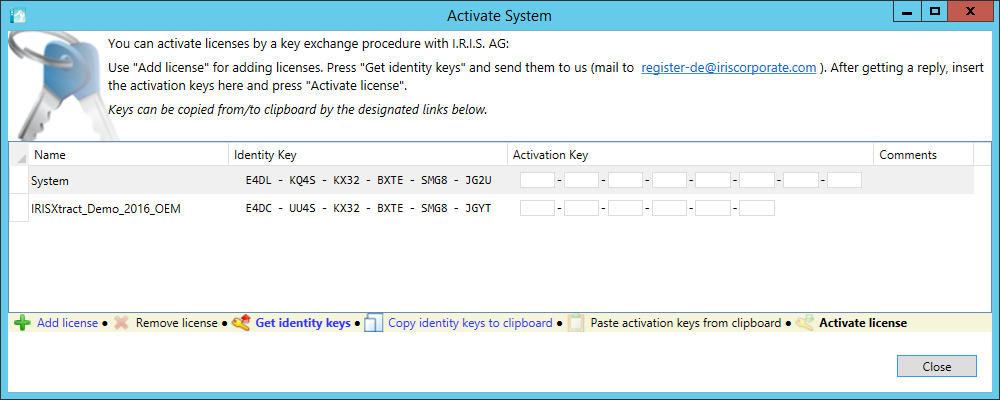
Apply for and accept the activation key for the system license. To do this, perform the following steps:
Copy the identity key using the Copy identity keys to clipboard button.
E-mail the copied Identity Key to register-de@iriscorporate.com.
➣ You will receive a reply e-mail with the activation key.
Apply the activation key with the Paste activation keys from button.
Apply for and accept the activation key for the software license. To do this, perform the following steps:
Copy the identity key using the Copy identity keys to clipboard button.
E-mail the copied Identity Key to register-de@iriscorporate.com.
➣ You will receive a reply e-mail with the activation key.
Apply the activation key with the Paste activation keys from button.
Click the Activate license button.
➤ Activation is confirmed with a message.