Table Mapping
The section Table Mapping contains actions related to connecting different tables. For instance, a table might contain field values from SAP. These field values are adapted by this action in such a way that they correspond to the tables and fields in xSuite Bus.
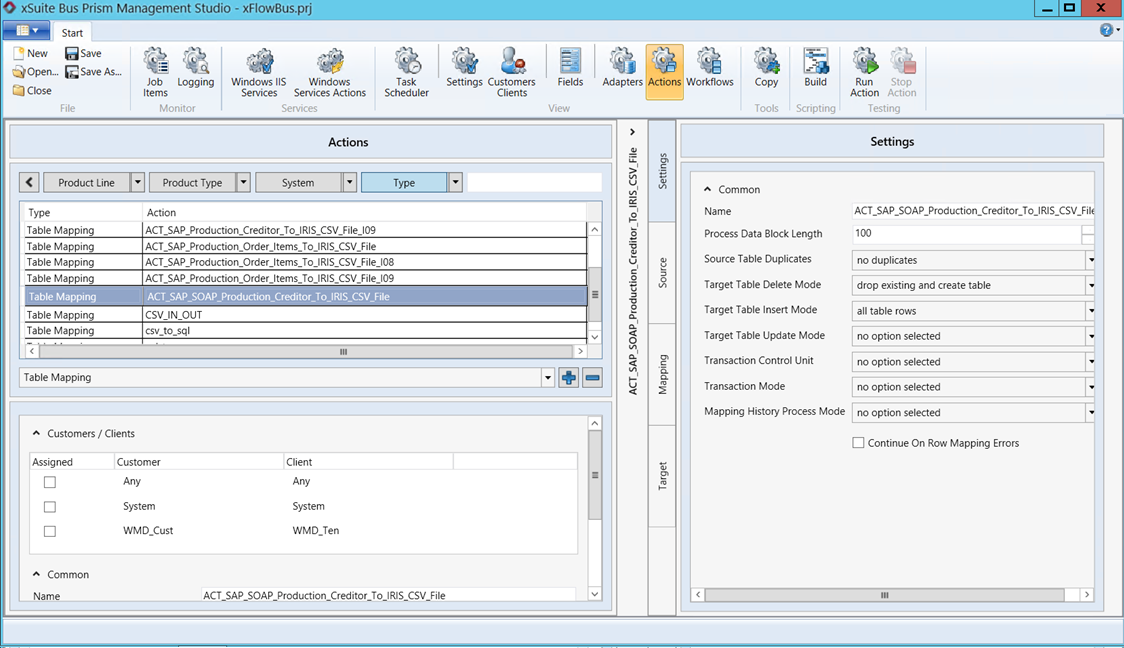 |
This can, for instance, be used in those actions involved in preparing master data. By way of an SAP report, master data is written to a directory, where it is transferred to the xSuite Web service and from there to a CSV file, which then can be used for compiling the IRIS project for preparing incoming invoices. This guarantees that the document extraction tool IRISXtract always has the current master data from the ERP system at hand.
"Settings" section
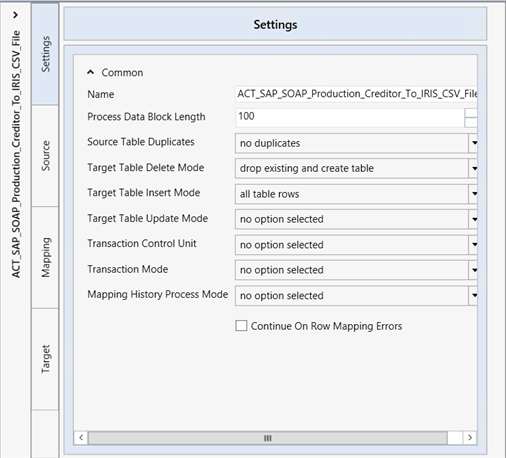
In the Settings section, the administrator can make the basic settings for an action.
 |
Parameter | Description |
|---|---|
Name | Specify the name of the action here. |
Process Data Block Length | The files from the tables are read and written in blocks. Here, you can set how large the block for processing is to be. |
Source Table Duplicates | Here, you can set whether duplicates of the table are to be allowed.
|
Target Table Delete Mode | Here, you can set whether and in which way contents are to be deleted in existing tables.
|
Target Table Insert Mode | Here you can make settings as to how additions should be handled in the table mapping.
|
Target Table Update Mode | Here you can make settings as to how updates are to be handled in the table.
|
Transaction Control Unit | Transaction control determining whether the framework for the action is a row, a block or an entire table. |
Transaction Mode | The procedure to be used when an error occurs when a table is being written.
|
Mapping History Process Mode | Here, behavior is determined for the case that data already exists in a database table.
|
Continue On Row Mapping Errors | Controls whether, in case of content errors occurring in the data to be mapped, data with errors is skipped. If this check box is activated, the mapping will continue even if incorrect data comes up. The faulty records are output in the Logging tab with the "Warning" trace level. |
"Source" section
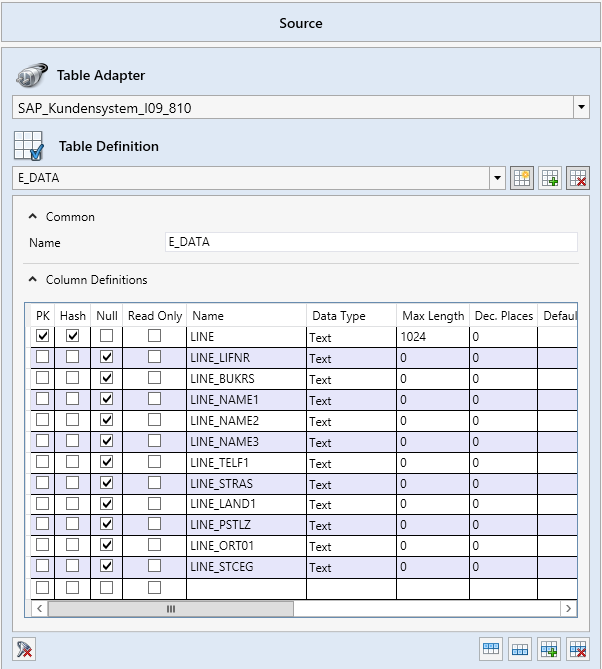
This is where you can specify which source table is to be used for mapping in xSuite Bus mapping action. You may select from any of the adapters previously configured.
Parameter | Description |
|---|---|
Table Adapter | Specify here which table adapter is to be used as the source. If an adapter was previously set up in the Adapters tab, it can be selected here. |
Table Definition | Definition of the table and its fields. |
Name | Specify the name of the table here. |
Col | In the table definition, the source table to be checked against the target table is compiled in the "Mapping" step. Each table row corresponds to a field and can be supplemented with additional formatting. |
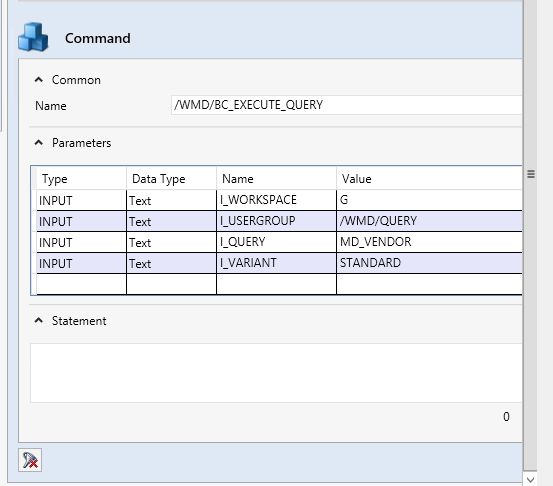
Command | Describes the origin of the source and offers an exact description of the report to be executed in connection with SAP. |
Parameters | Exact definition of the parameter of the source. Here, you can make exact specifications on the source. |
Statement | If a statement needs to be made for creating the source data, it can be specified here. This is of particular importance if a database table is to be used as the source. |
"Mapping" section
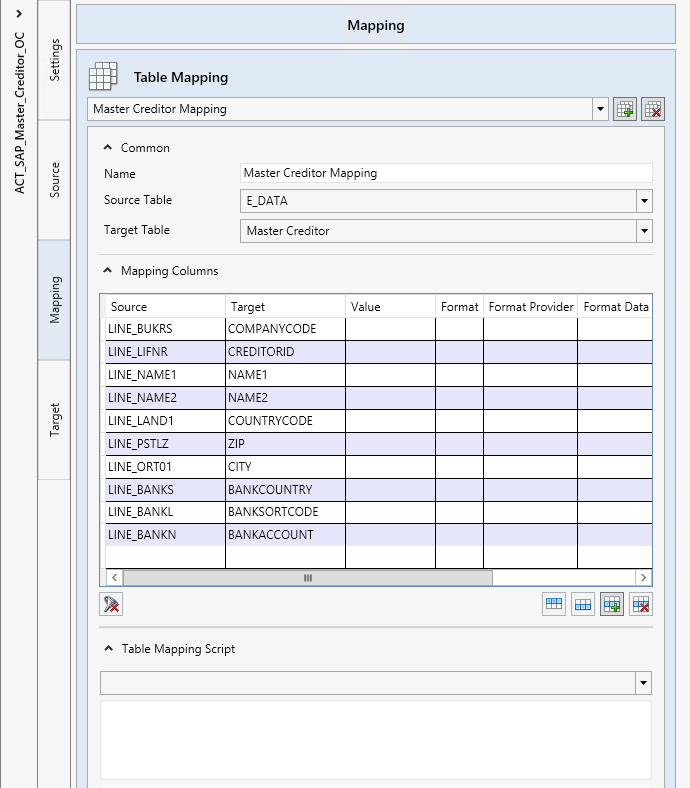
In this section, the source and target table are set in juxtaposition to one another. Also, you have the option of customizing inbound and outbound formats by means of scripts and macros.
 |
Parameter | Description |
|---|---|
Table Mapping | Here, you can set which mapping is being managed. |
Name | Enter the name of the mapping displayed above. |
Source Table | Source table to be used. |
Target Table | Target table to be used. |
Mapping Columns | Set the fields of the source and target table in juxtaposition to each other. Also, you can use formatting and macros here to set the formatting of the field contents. |
Table Mapping Script | This is where to program and select scripts required for mapping. You can also select when this script is to be executed. Choose from one of the following options:
|
Macros
To compare the fields of the source and target table with one another, sometimes just switching a single format is not sufficient. In some cases, the fields need to be customized with special macros, such that the values that will be switched from table to table at a later point in time also deliver the correct results or the correct format.
 |
The xSuite Bus Macro Editor offers the option of using functions to perform the conversions with functions that are affiliated with the programming in C#.
In the following, we offer an example of how a vendor ID can be modified using a macro editor. The vendor ID comes from the SAP Query report and must be written to the file Master_Creditor.csv. The Master_Creditor.csv is part of the master data from IRISXtract and is used to recognize the vendor in the document extraction. The incoming creditor ID possesses leading zeros, as well as multiple blank spaces at the tail end. The goal is to customize the vendor ID with the Macro Editor in such a way that a value is output without any zeros at either end.
The functions TrimStart and Trim are used in this context. The macro is used in two sequences. The incoming value in this example is: 0000010040.
Now the first sequence is executed with the function TrimStart for the value
0000010040. The function TrimStart describes how an area is to be trimmed off of the beginning of the value up to a certain point. The function checks the entries in the columns Parameter 1 and Parameter 2. These parameters tell the function what it should separate. In our case, only Parameter 1=0 is included, which signifies that from the start all zeros are removed until another value comes. After the value has passed through the first function, the result is10040.Now the second sequence with the function Trim is executed for the value
10040. The function checks the entries in the columns Parameter 1 and Parameter 2. Here it will not find any entries; therefore it removes all superfluous blank characters from the value. After this function has done its job, the result is10040.After the second sequence, the macro ends and the value
10040can be output and written to the target table.
The agent can use the button Test Macro to perform a quick test of the macro stored. In this example, the incoming value 0000010040 is entered in the field $IN, with the result displayed in the field $OUT.
The button Close ends the macro editor.
"Target" section
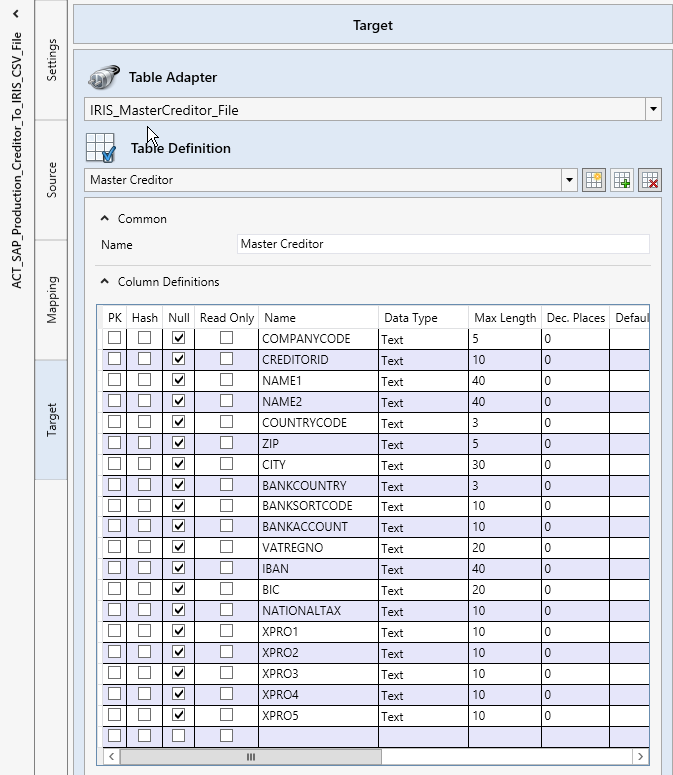
In the Target section, you can specify which table is to serve as the target for the field mapping. In many cases, these target tables are CSV files for the document extraction with IRISXtract, but database tables or XML output formats are also options.
 |
Parameter | Description |
|---|---|
Table Adapter | Specify here which table adapter is to be used as the target. If an adapter was previously set up in the Adapters tab, it can be selected here. |
Table Definition | Definition of the table and its fields. |
Name | Specify the name of the table here. |
Column Definitions | In the table definition, the target table to be checked against the source table is compiled in the "Mapping" step. Each table row corresponds to a field and can be supplemented with additional formatting. |