xSuite Bus Management Studio
Notice
A user starting the xSuite Bus Management Studio needs the server role DB_Owner on the xSuite Bus database on the SQL server.
If the user does not have this server role, the xSuite Bus Management Studio will start without an error message, but will only display rudimentary data.
Notice
To be able to use all functions of the xSuite Bus Management Studio, the user must have local administrator rights.
If the user opens the xSuite Bus Management Studio without local administrator rights, only the Job Item Monitor (see Job Items) and logging (seeLogging ) are available.
xSuite Bus Management Studio is the user interface of xSuite Bus Prism. Use it to perform control and monitoring tasks in xSuite Bus. All applications and management tools can be operated in a single interface. The xSuite Bus Management Studio is where you make all project configurations and can access detailed logging options.
Some functions use a standard known from most Windows programs. For example, the tool allows you to perform basic tasks with the familiar New, Open, Close, Save and Save As… buttons. They each refer to one project.
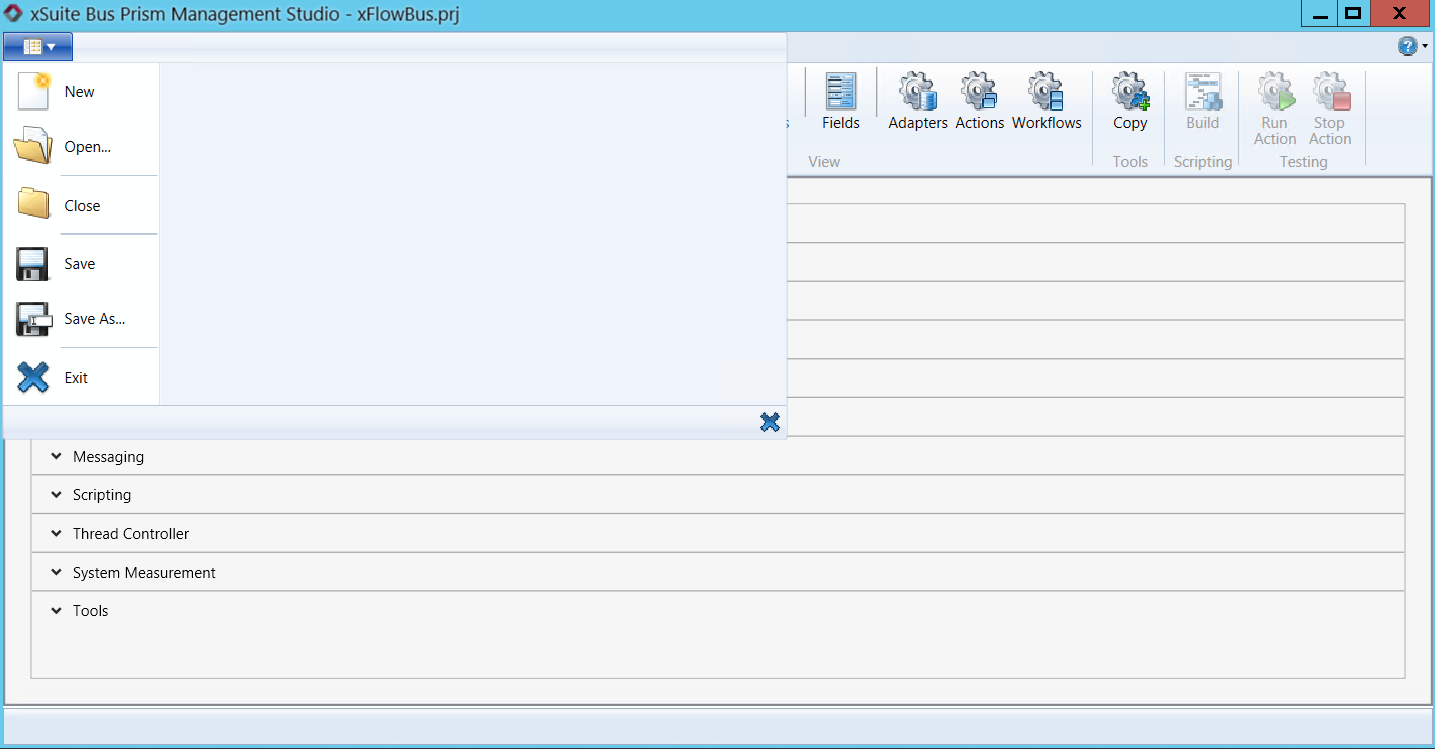 |
A project may contain any number of actions, which means it can serve as a container for an overall project. Using this approach, you do not have to create a project for each scenario; instead, you can bundle multiple scenarios into a single project. xSuite Bus has been designed in such a way that one project can bundle the various actions for an entire processing chain.
During the installation, a preconfigured xSuite Bus project file is created in the xSuite data folder. By default, the xSuite data folder is D:\xSuiteData\xSuiteBusPrism\Projects. This project should be used for configuration.
xSuite Bus does not provide an auto-save function. The program will prompt you if you want to save the data when you Close a project or before you quit the program, but you should still save the project regularly to avoid data loss and make a copy of the file to be processed.
The following workspaces are available in xSuite Bus Management Studio:
Element | Description |
|---|---|
Job Items | This tab contains the inbox with the items currently being processed. For more information, see Job Items. |
Logging | Here is the logging of xSuite Bus Prism. All actions and items can be tracked here. For more information, see Logging. |
Windows IIS Services | Here, all xSuite Bus services can be configured and actions can be assigned to the corresponding services. For more information, see Windows IIS Services. |
Windows Services Actions | All installed xSuite Bus Windows Services can be monitored and controlled here. For more information, see Windows Service Actions. |
Task Scheduler | This is where scheduled tasks are set up and configured. For more information, see Task Scheduler. |
Settings | Global settings for xSuite Bus Prism are made here. For more information, see Settings. |
Customer Clients | The different system users are managed here. For more information, see Customers Clients. |
Fields | This is where the field catalogs are compiled and managed. For more information, see Fields. |
Adapters | This is where the adapters are managed. At least one source and one target adapter must be defined to be able to process data for the Table Mapping action with xSuite Bus Prism. For more information, see Adapters. |
Actions | Source and destination details are defined here. This also includes the field mappings and settings for the action to be configured. For more information, see Actions. |
Workflows | Here, the xSuite Bus workflows (sequences of actions) can be created and configured. For more information, see Workflows. |