Document extraction
The purpose of document extraction is to read record data from documents such as invoices and sales orders. In this action, the software renders the document to make it machine-readable and the logic of IRISXtract extracts it, transferring the resulting index data to xSuite Bus.
The new PDF 2.0 standard is supported both for data extraction and for use with GdPicture (e.g. for rendering the web Viewer images)
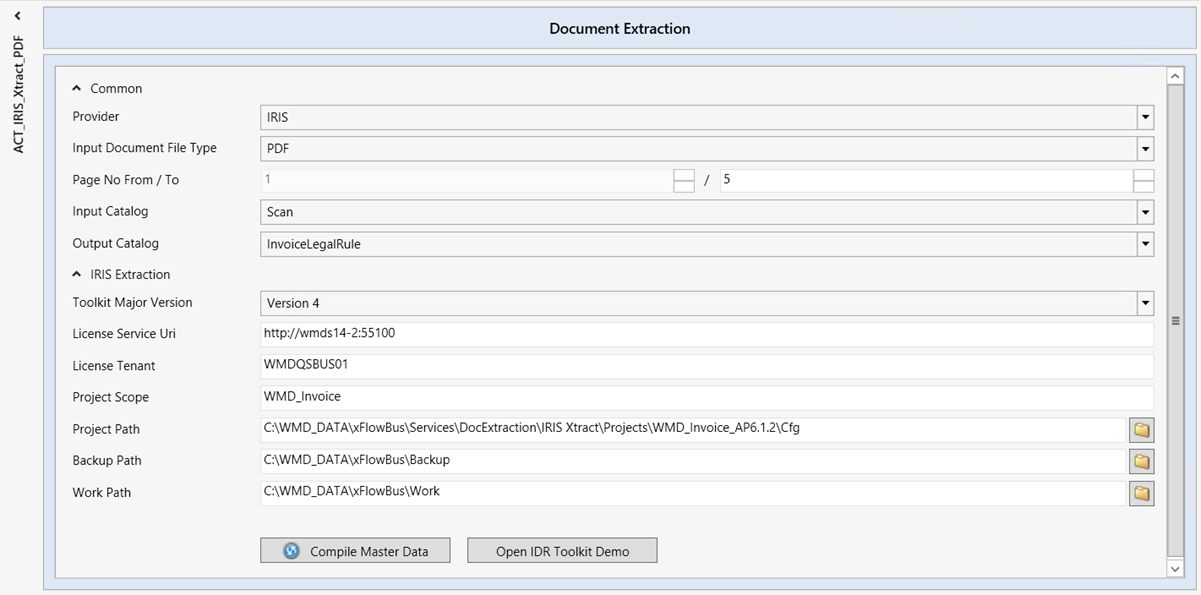
The following settings are available for configuration of the data-extraction actions:
 |
Element | Parameter | Description |
|---|---|---|
Common | Provider | Provider of the data extraction solution. At the moment, only FPS is available as a provider. |
Input Document File Type | The format to be used for incoming documents is specified here. The options are PDF or TIFF. | |
Page No From / To | Here, you can specify which page or pages (from page... / to page...) are to be used for classification. To keep the processing of the data extraction short, a maximum of five pages are read by default. | |
Input Catalog | Input field catalog for data extraction. This catalog is set up in xSuite Bus and is used for the field mapping of field values that go along with it. In the standard version, this is the Scan catalog. | |
Output Catalog | Output field catalog for data extraction. This catalog is set up in xSuite Bus and is used for the field mapping of the data-data-extraction results. In the standard version, this is the InvoiceLegalRule catalog. | |
IRIS Extraction | Toolkit Major Version | Shows the IDR toolkit version. |
License Service Uri | Connection to the IRIS License Web Service, which manages the licenses by I.R.I.S. AG. The license information can be seen in Customer Clients → Licensing. | |
License Tenant | Name of the license to be used for the data extraction. It must also be set up in on the IRIS License server. Then different licenses can be assigned to different users. | |
Project Scope | Name of the data-extraction project that is to be used for data extraction. NoticeWhen using multiple IRISXtract actions, a different value must be specified in the Project Scope field for each action. | |
Project Path | The data extraction projects are placed in the folder | |
Backup Path | The file path for the data-extraction results for inspection at a later point in time. Data is stored there until it is deleted by the xSuite Bus System Clean-Up Service. | |
Work Path | File path for the data-extraction results for the time at which results are determined. The contents are deleted after the extracted data has been transferred. | |
IDR Subprocess Termination | Resource-saving processing of data extraction If the Terminate subprocesses after document processing checkbox is activated, the subprocesses required for document processing are reloaded and terminated each time a document is processed. This helps to conserve resources and ensure system stability. NoticeThis checkbox is only relevant for IDR Toolkit version 5.1 or higher. | |
Compile Master Data | Manual compilation of the Master data with the IRIS data-extraction project. For more information, see Compiling Master Data. | |
Open IDR Toolkit Demo | Here, you can load demo software made available by I.R.I.S. AG. You can use this software to test the quality of the master data and the OCR results. The file path of this software must be specified in the xSuite Bus settings Settings → Files → IDR Toolkit Demo. |
Compiling Master Data
The OCR results of the IRIS data-extraction project greatly depend on the quality of the master data. This master data is adopted into the project structure in regularly, in intervals that can be planned.
Normally, compilation of the master data is planned as an xSuite Bus task and then takes place when the server’s load is minimal.
Compile Master Data can also be executed manually when new master data is added spontaneously.
The xSuite Group recommends the following procedure for compilation as it has proven itself as a best practice:
Update the master data with current information from the target system, e.g., vendor master data
(Master_Creditor.csv) or purchase order data(Master_Transaction.csv).Stop the data-extraction services.
Click the Compile Master Data button.
➣ The master data is now compiled.
Start the data-extraction services.