Configuration of the xSuite Viewer
To ensure correct operation in use with other systems such as SAP, the xSuite Viewer requires additional settings. The following sections explain the configuration of the xSuite Viewer in more detail.
Configuring the xSuite Viewer in the IIS
To operate the xSuite Viewer, the Microsoft Internet Information Service (IIS) must be informed of the Internet Media Type (MIME Type) for the extension .json.
Notice
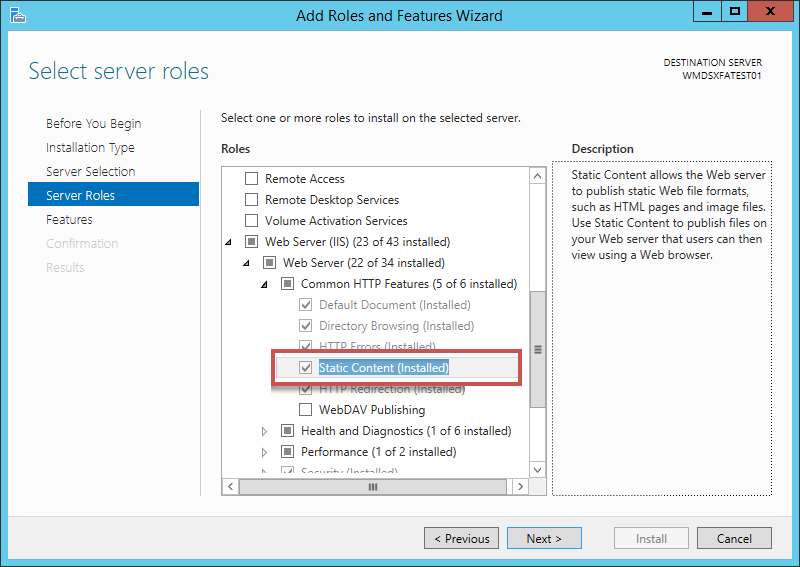
To display the MIME type, the server role Static Contents must be activated.
This server role can be enabled in Server Management using Add Roles and Features under Web Server (IIS) → Web Server → Common HTTP Features → Static Content.
 |
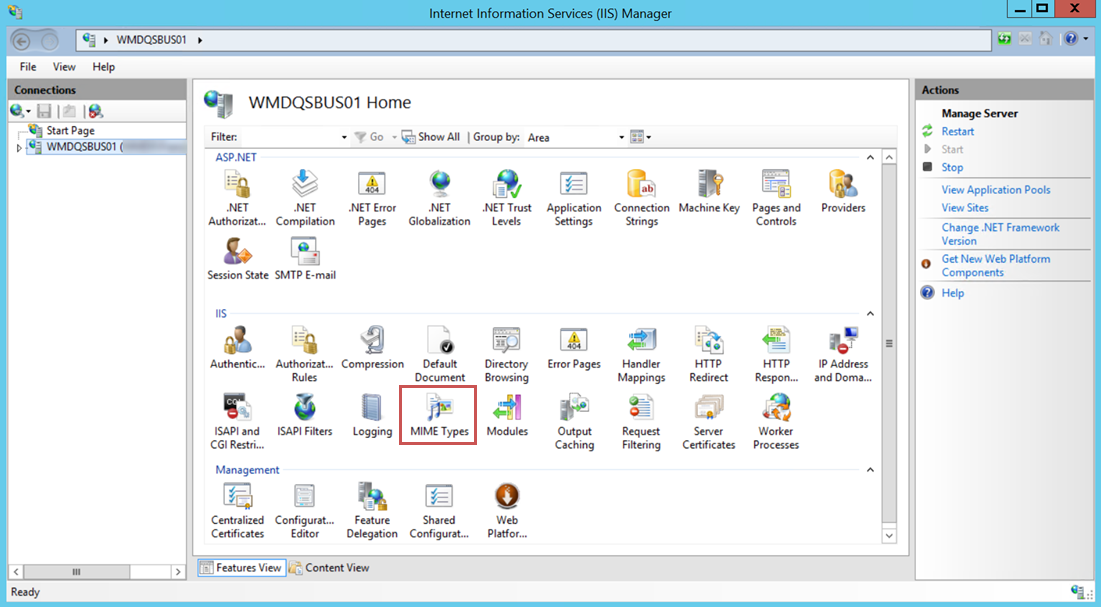
In the IIS Manager, open the MIME Types menu item.
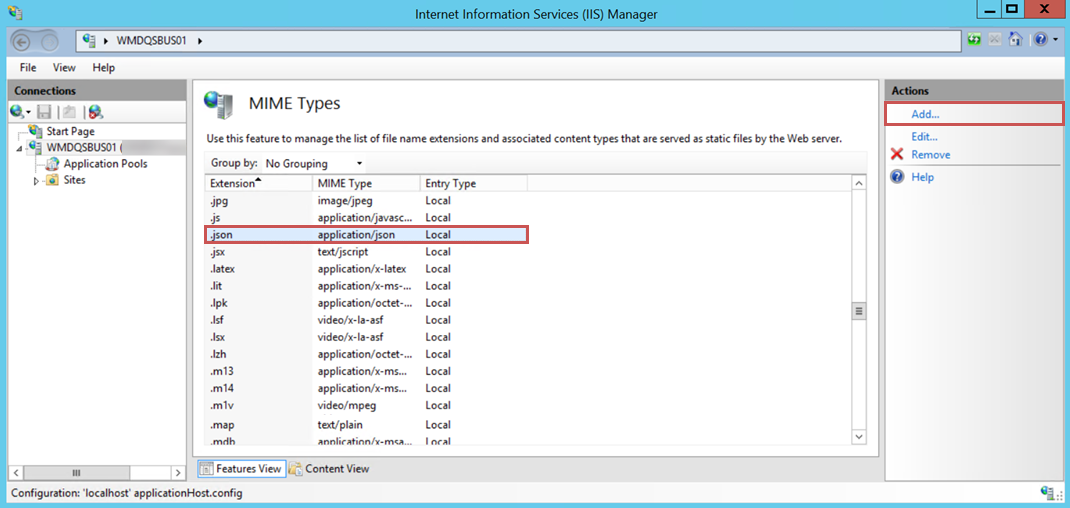
Perform one of the following actions:
If the .json entry is included in the list, double-click the entry.
If the .json entry is not listed, click Add.. . to add a new entry.
Make sure that the following settings are made for the .json entry:
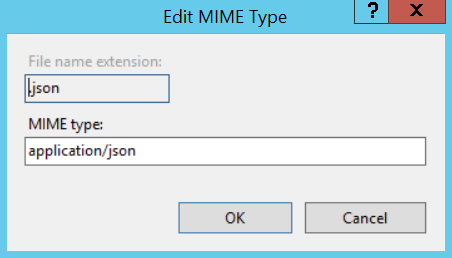
➤ When all entries have been stored correctly, the xSuite Viewer can go into operation.
Defining extended parameters
To operate the xSuite Viewer within SAP, enter the URL of the xSuite Viewer in the table of extended parameters. The xSuite Customizing in SAP can be accessed via transaction /WMD/BC_SPRO.
As administrator, you can open the customizing table either by navigating through xSuite Business Solutions → Workflow → Basis → Basic Settings → Define Extended Parameters or with the transaction /WMD/XF_PARAM_XT.
Parameter | Entry |
|---|---|
| This is where to enter the xSuite Viewer URL. This URL is used to call the Viewer in the xSuite Interface validation in SAP. Example:
|
| As an additional parameter, the xSuite Viewer URL can include an xSuite Interface application. This allows a dedicated Viewer to be transmitted for each xSuite Interface application. Example of the XF_INVOICE application: |
Calling the xSuite Viewer URL
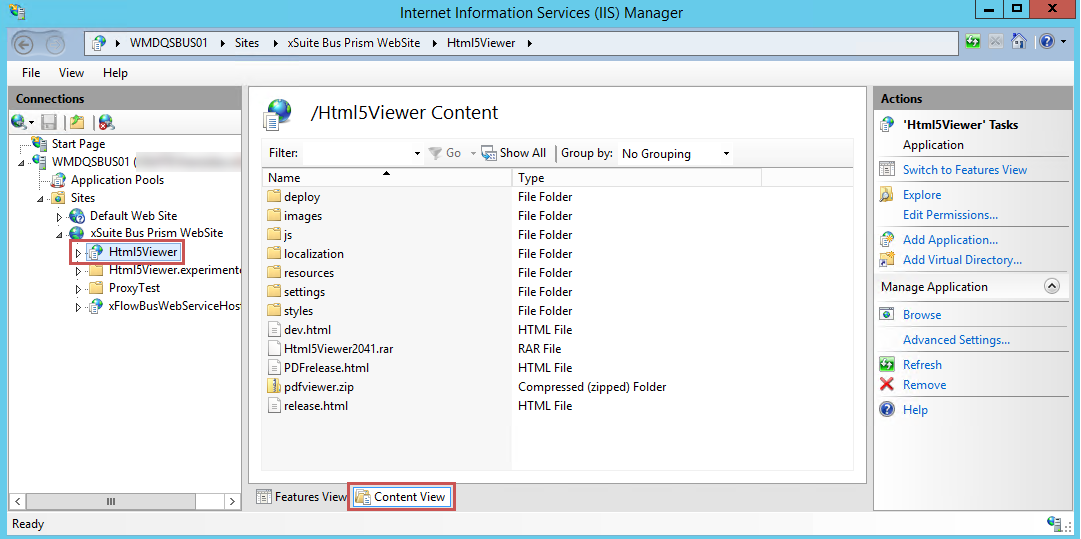
In the IIS Manager, go to Sites → xSuite Bus Prism WebSite and open the Html5Viewer application in Content View.
Right-click on the release.html file, and then click Browse.
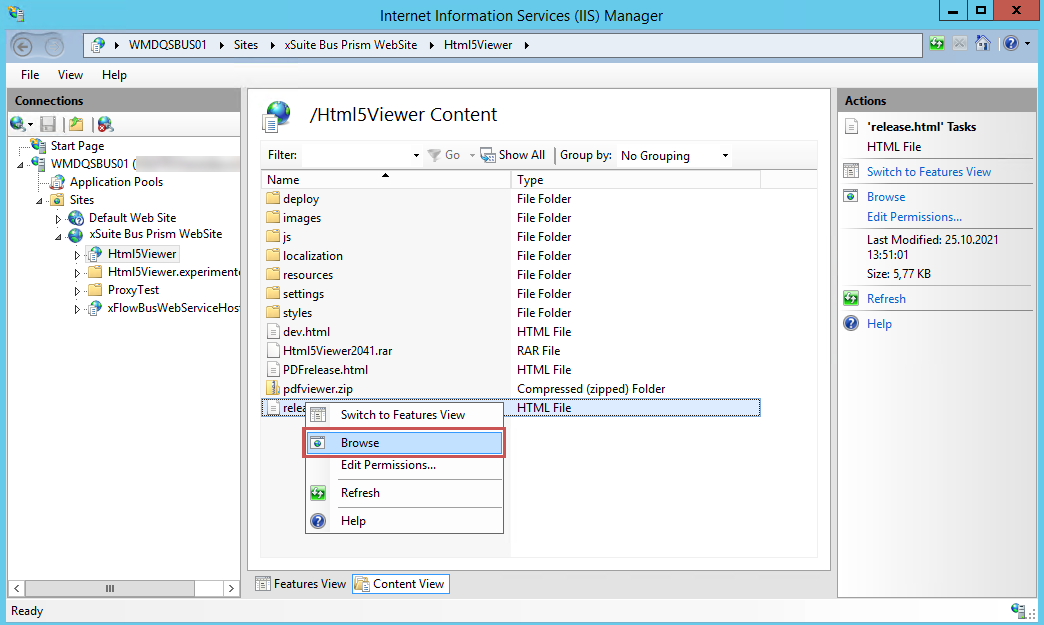
➤ The file will be displayed in the browser.
The address that is displayed in the browser is the URL of the Viewer. Replace the localhost designation with the IP of the server or by the "Full Qualified Domain Name" (FQDN) of the server in the network.
Extended parameters in SAP
The complete Viewer URL is composed of the URL and the parameters required for SAP. In standard system settings, the composition of the URL and the parameter ?docId=<docid>&docIdType=4&culture=<culture>&sapEvents=1 is sufficient for invoice processing.
The extended parameter is structured as follows:
Parameter | Description |
|---|---|
| The Document ID Type describes the system in which the xSuite Viewer is to be displayed. Example: Possible values:
|
| Here, you can transfer a fixed location parameter in the Viewer URL to xSuite Bus Prism ( Use this parameter to display a given language in the xSuite Bus fields. The condition is that the respective fields are maintained in the location parameters in the xSuite Bus field catalog. As an example: |
| SAP event for transfer of field values from the xSuite Viewer to SAP ( |
| Use this parameter to turn off the preview in the xSuite Viewer ( |
| Here you can specify the parameter for the xSuite Bus field catalog that is to be used for checking fields, e.g. |