Task Scheduler
The scheduler allows you to launch previously created actions on a specific date/time or at a desired interval.
You can configure a validity period, priority, the interval type, and error handling for the action.
The scheduler is used when the master data is made available. For instance, the table-mapping action is set to schedule the time when data is fetched and another task is stored for automatic compilation of the IRIS master data.
Notice
A task from the Task Scheduler section is only executed if it is also assigned as a task in the Assigned Scheduler Tasks section of the Windows IIS Services. A task should always be assigned to a single service.
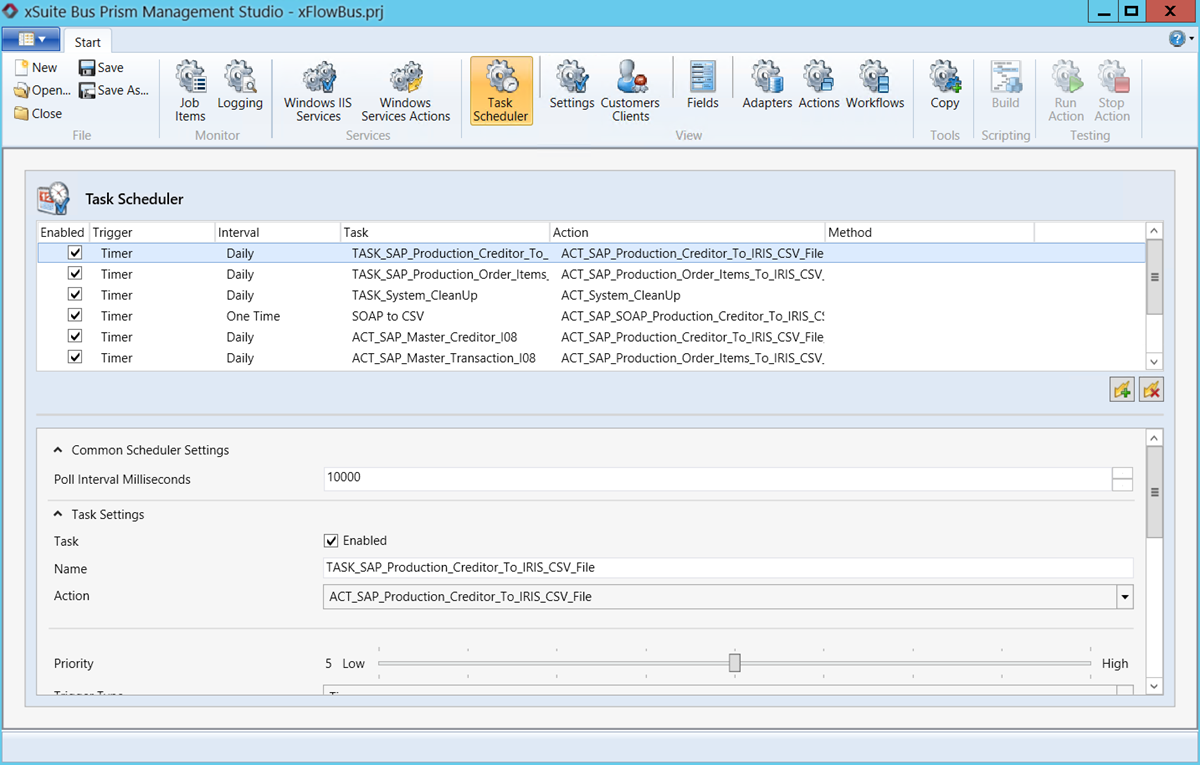 |
In the upper section of the scheduler, a list will be displayed that shows all tasks currently set up. The different columns will help you to quickly grasp the nature of the task to be completed.
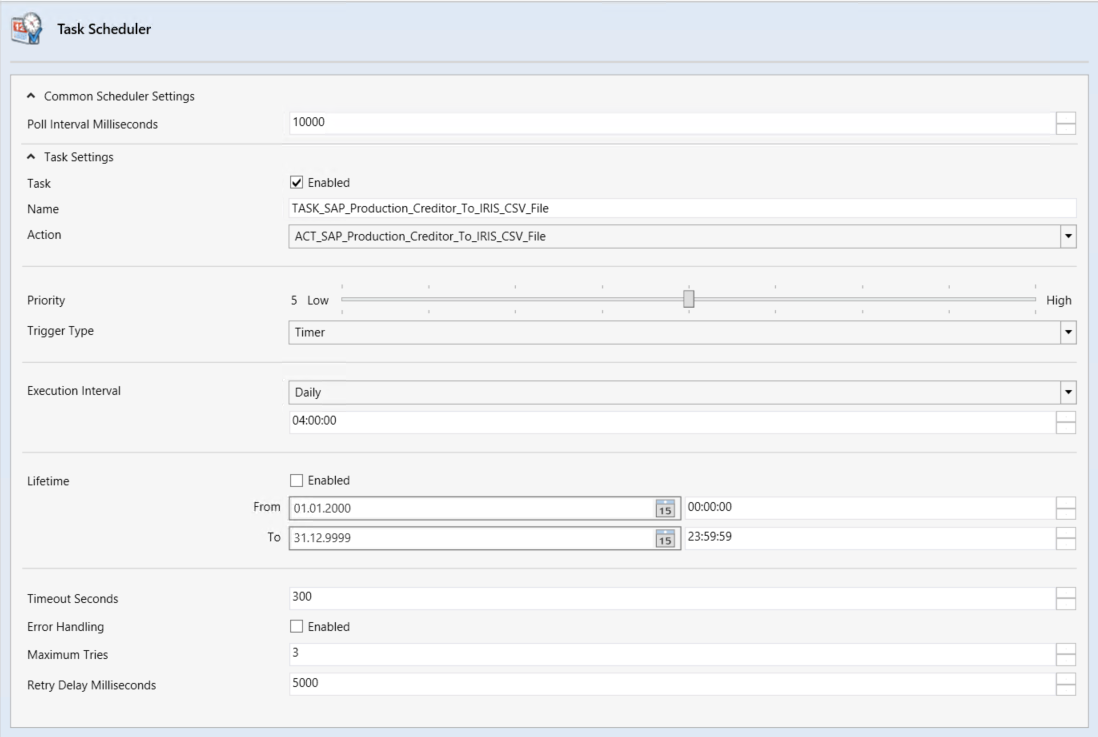 |
A new task may include the settings shown below.
Field | Description |
|---|---|
Poll Interval Milliseconds | Interval after which the system checks whether it is time to execute the task. |
Task | Name of the task. The task may also be activated by ticking the check box Enabled. |
Action | The drop-down menu offers options for defining which of the actions previously defined in the Actions tab you want the system to execute as part of the task. |
Priority | Priority level of task. This serves to organize the process flow whenever multiple tasks are launched at the same time. Priority The default value is |
Trigger Type | Defines the method used to trigger a task. Only the timed trigger Timer is available for selection. |
Execution Interval | Execution interval for executing the task. The following execution intervals are available for selection:
|
Lifetime | Limits the time granted to the task. If this option is enabled, the task will only be executed for a limited period. If disabled, it will always be executed in the defined interval. |
Timeout Seconds | Timeout for task execution. |
Error Handling | Switch for error handling. |
Maximum Tries | Maximum number of repeat attempts. |
Retry Delay Milliseconds | Number of seconds before an operation is to be attempted again. |