The "DocumentTypes" configuration node
A document type determines the structure of an archive document. For instance, depending on the document type defined, an archive document may contain various fields.
The DocumentTypes configuration node is where new document types are created and existing document types edit or deleted.
Notice
After creating a document type, create a version of the document type. Only document-type versions can be used in documents.
Creating a document type
The document type determines the structure of an archive document. The document type can be used to define the basic properties of the documents that are derived from this document type.
Open Archive Administration.
Open the configuration node Archive → DocumentTypes.
Notice
To create the new document type below an existing document type, click on the existing document type.
Click on the button
 and then go to Create new node.
➣ The Create new node dialog will open.

Enter a name for the document type.
Caution
The name must not contain the following characters:
Blank character
$(dollar sign)
Click Confirm.
Notice
To open the properties of the document type once you have created it, activate the Open node afterwards checkbox.
➤ The document type has now been created.
➤ You can now edit the properties of the document type.
Notice
After creating the document type, create a version of this document type. Only document type versions can be used in documents.
Editing the properties of a document type
Open Archive Administration.
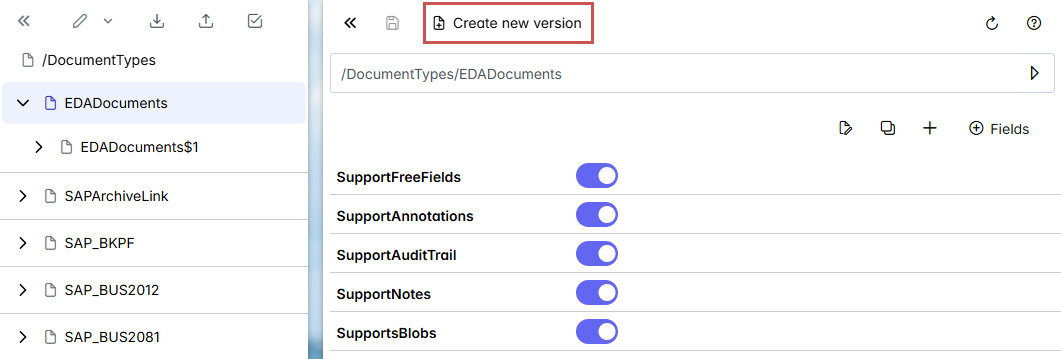
Click on a document type under Archive → DocumentTypes.
➣ The properties of the document type will open.
Define the following properties:
Property
Description
SupportFreeFields
Activation/deactivation of free fields
If this property is activated, a document may contain various fields. The fields do not necessarily have to correspond to the field definitions.
Notice
If a field matches the name of a field definition, this field must correspond to the field definition.
SupportAnnotations
Activation/deactivation of notes in file attachments
If this property is activated, the attachments of a document may contain notes.
SupportAuditTrail
Activation/deactivation of audit trails
If this property is activated, an audit trail entry will be written for every action performed on a document.
SupportNotes
Activation/deactivation of notes
If this property is activated, a document may contain notes.
SupportsBlobs
Activation/deactivation of file attachments
If this property is activated, a document may contain attachments.
Label
Display name of the document type
You can use Locale to define the name for different languages (e.g.,
defor German andenfor English).Retention
Standard expiry date of a document
A document can no longer be opened after the standard expiry date. To physically remove documents after the expiration date, the RetentionJob scheduler job is available.
Syntax:
{number}{unit}The following units are available:
d= daysm= monthsy= years
Example:
100dfor 100 daysDefault value: no expiry time
Notice
You can define a standard expiry time in the archive properties.
The standard expiry time defined for the archive will overwrite the expiry time for the document type. If no expiry time is defined for the archive, the expiry time of the document type will apply.
Click
 Save.
Save.➤ The properties are now saved.
➤ You can add fields for the document type that a document contains.
Adding a field to a document type
Multiple fields can be added to a document type. If a field is defined, the field in the document must correspond exactly to this field definition. General properties (e.g., the data type) must be defined for each field.
Notice
If you want a field to support multiple data types, do not add it to the document type. Instead, activate the document-type property SupportFreeValues.
Each field name is automatically preceded by a prefix for the field type. Then, if different field types of the same document type are used in different document versions, the field names will not collide. The fields of a document type are stored in the index according to the pattern Field name@Document type.
Open Archive Administration.
Click on a document type under Archive → DocumentTypes.
➣ The properties of the document type will open.
Click on
 Fields.
➣ The New grouping (FieldType) dialog will open.
Enter a name for the field.
Caution
The name must not contain the following characters:
Blank character
$(dollar sign)
Click Confirm.
➣ The field will be added to the list of fields.
Click on the field name in the list of fields.
➣ The properties of the field are now displayed.
Select the data type of the field from the Type drop-down list.
You can select from the following data types:
Type
Description
String
Any text
Bool
Yes/No field
The field is displayed as a checkbox by default.
Integer
Long integer (64-bit)
Date
Date with time share
Decimal
Number with a decimal part
Table
Table field
The table type is defined via the DefaultValue field property.
Suggestion
Any text
The field is used for indexing and searching for suggestions. This field is evaluated as a heading.
Notice
Define only one field as a default field.
Link
Any text
The field is used as a link to another document or to an attachment.
NumberRange
Number Range
The user cannot change this field. The number range is defined via the DefaultValue field property.
Click
Save.➤ The field is added to the document type.
Editing the properties of a field
Open Archive Administration.
Click on a document type under Archive → DocumentTypes.
➣ The properties of the document type will open.
Click on a field in the list of fields.
➣ The properties of the field will open.
Define the following properties:
Property
Description
DefaultValue
Default value
Notice
If the default value is a numerical value, enter the numerical value according to the English pattern.
Example:
1.5for the German number1,5As far as date values are concerned, the system will automatically recognize the date pattern.
Notice
If the field is of the type NumberRange, enter the value in the following pattern:
abc{number range1(format)}abcabc: any character of any kind{number range1(format)}: Macro that describes the number rangenumber range1: Name of the number range(format): Number formatting (The value0or#would be a good one. The value#will generate a number.)
IsGlobal
Global field
Mandatory
Mandatory field
If a field is flagged as a mandatory field, the field value must not be empty.
MaxCount
Maximum number of values allowed for the field
Default value:
1MinCount
Minimum number of values required for the field
Default value:
1If the value is
0, the user must add this field in order to be able to make entries. If the value is1or higher, these values are added when the new, empty document is created.SupportsProperties
Support for properties
"Properties" are fields that are assigned to a field. The property "SupportsProperties" is supported for reasons of compatibility with other archive manufacturers. Properties are not displayed in xSuite Archive Prism.
Type
Field data type
Further information on data types can be found at Adding a field to a document type
UIAttribute
Field UI attributes
UI attributes define how a field is displayed in xSuite Archive Prism. A field may have multiple UI attributes.
Macro
Field macros
The field macros are executed directly before being stored in the archive. Macros have the syntax
{makroName(par1,par2...)}.Macros can be surrounded by text or stand alone. Only for the "String" data type can macros be surrounded with text.
The number of parameters depends on the macro.
Example 3. Addition of fields{Calculate(100.50-Field1+Field2*2/4}In this example, the fields
Field1andField2*2are added together. The result is divided by 4. The result is subtracted from100.50. Dot-before-dash calculation is used.Example 4. Execution of multiple macros{Calculate(100.50-Field1+Field2*2/4}{Math.Round($v$)}{Calculate($v$-10.5)}Depending on the type of macro, the current value of the field can also be transferred before the macro is executed. The placeholder
$v$is used for this purpose. Multiple macros can be executed one after the other.In this example, the calculation from example 1 is executed first. The result is transferred to
Math.Round.10.5is subtracted from the rounded result.Validation
Validation rules
The value that the user enters in a field is validated using these rules. Each validation rule begins with an operator.
Label
UI name of the field
You can use Locale to define the name for different languages (e.g.,
defor German andenfor English).Click
Save.➤ The properties are now saved.
Creating a version of a document type
Document types are always versioned. Once a document type has been created, a version of this document type must be created. Only document type versions can be used in a document. The version is saved with the document.
The versioning of document types prevents documents that have already been filed from becoming invalid if the rules and fields are subsequently changed.
Open Archive Administration.
Click on a document type under Archive → DocumentTypes.
➣ The properties of the document type will open.
Click on Create new version.
➤ The document type version has now been created.