Creating a user hit list
You can create custom hit lists that are only visible to you. For each user list, you can define which document types, groupings, and fields are displayed in the hit list.
Open the Archive section.
In the sidebar, click on the name of an archive.
➣ The documents in the archive will appear in the hit list.
Click
 User hitlists → New user hitlist.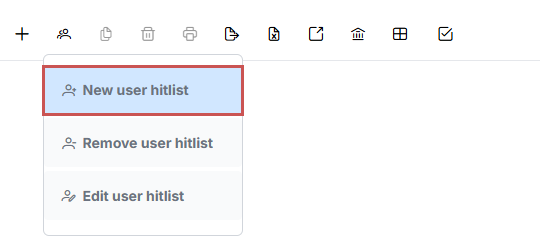
➣ The New user hit list dialog will open.
Define the following properties:
Property
Description
Name
Enter a name for the user hit list.
Document types
Select the document types that you want displayed in the hit list. All document types available in the archive are available for selection here.
Group by
Select a field to be used for grouping.
Notice
If you select a field here, always add this field to With fields.
Tree node
The data in the hit list can be displayed in a tree structure. Enter the number of tree nodes here.
The number of tree nodes will depend on the number of fields you select under With fields. For example, if you have specified three fields, the maximum number of tree nodes will be two.
With fields
Select the fields to be displayed in the hit list.
Click on the
 and
and  buttons to change the order of the fields.
Click Save.
➤ The user hit list has now been created. To display the user hit list, select the hit list.
Notice
You can edit the properties of the hit list by clicking through to
User hit lists → Edit user hit list.