The "Third party" configuration node
The "Documents" configuration node
xSuite Archive Prism otris DOCUMENTS can be addressed as an EDA archive. Define mappings for this purpose in the Documents configuration node.
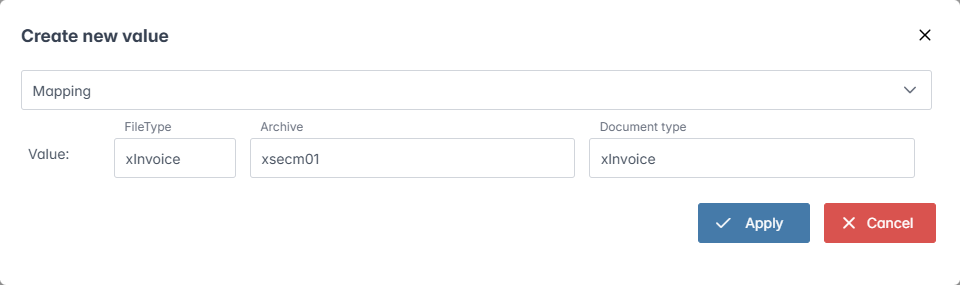
To map an otris folder type (FileType field) to an xSuite archive and a document type, add a Mapping field to the mapping. Enter the otris file type (FileType field), the archive (Archive field), and the document type (Document type field).
 |
xSuite Archive Prism as an archive for otris DOCUMENTS
An optional Windows service installed by Setup emulates the EDA archive from otris. The service behaves like the EDA archive and supports the same protocols. The EDA emulation service is an HTTP REST service. The installation contains the EDAServer directory.
The configuration takes place in the appsettings.json file. As a rule, it will not be necessary to change this file as the configuration is carried out during the installation. However, if subsequent adjustments are necessary, you can make any necessary changes to this file.
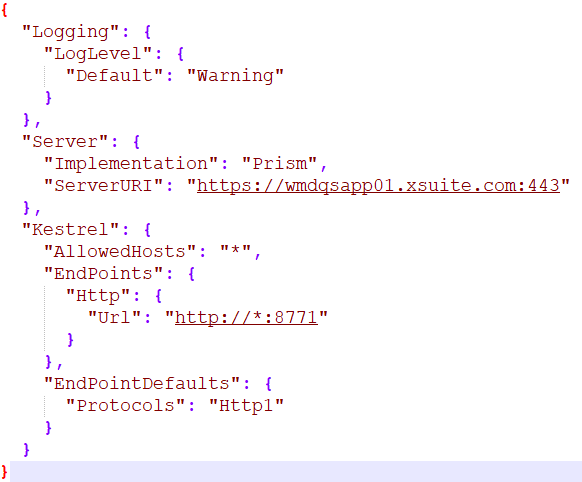 |
For communication, the following log levels can be configured in the DebugLevel/Default node:
CriticalDebugErrorWarningNoneInformationTrace
The archive server must be entered with the appropriate port in the Server/ServerURI node. In the Kestrel/http/Url node, only the port may be adjusted (e.g., if the port is changed to 8773 : http://*:8773). The port must correspond to the configuration of the DOCUMENTS archive server. For more information, see Creating an EDA archive server in otris DOCUMENTS.
The creation of one or more archives is required for EDA operation. This archive is called "Documents" in the examples. Add an index for the archive and activate the TopVersionFlag property. This allows otris DOCUMENTS to limit its search result to the latest version. The document type EDADocuments is available in the basic installation. You can use any document type that allows free fields, attachments and notes. Define this document type in the SystemSettings configuration node.
Creating an EDA archive server in otris DOCUMENTS
Open the Documents Manager and create a new archive server (e.g.,
Prism_EDA_EMU).In the example, the archive server runs on port
8770and onsrvqsonprem02.xsuite.com. The standard URI is supplemented byeasemu/archives/{archive name}(e.g.,/EAS/easemu/archives/EDA_EMU).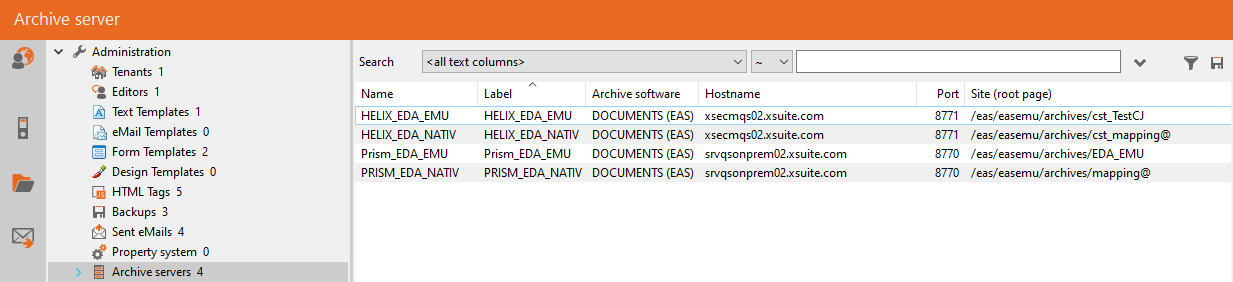
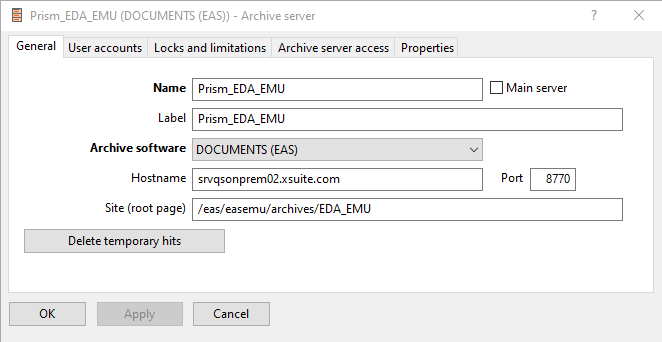
Open the User Accounts tab.
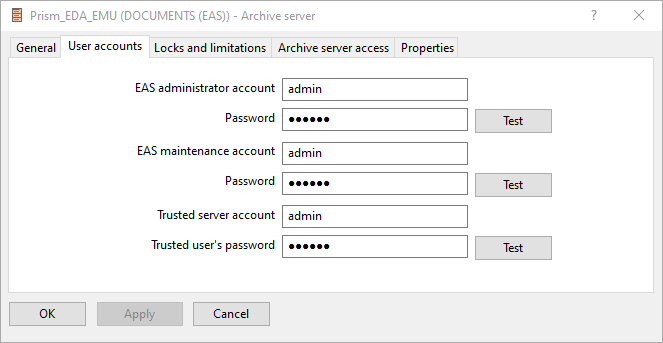
Enter an archive user role with sufficient authorizations in the EAS Administrator Account and Trusted Server fields.
Notice
The role must be able to write to, read and search the "Documents" archive and delete documents.
➤ The archive server has now been created. You can use the archive in otris DOCUMENTS like an EDA archive and assign it to a folder type, for example.
Access to native xSuite archives
The service not only offers EDA emulation, but also access to "normal" archives. Through the service, documents in archives, such as the ones you have created in xSuite Archive, can be searched, displayed, and edited. To establish access, an EDA archive must be configured differently in otris DOCUMENTS.
Caution
An archive server set up in otris DOCUMENTS can be used to run either the EDA emulation or a search in archives. If both functions are to be available, you must set up 2 archives.
The underlying principle
All archives are accessed via the same DOCUMENTS archive configuration. On the basis of the access data, the archive server must determine which archive is being addressed. This is done via the folder type of otris DOCUMENTS. The folder type is used to determine an archive and a document type for access. This is done using mappings that are set up in the archive configuration.
If no mapping can be determined for the folder type, the server will assume that the archive and the document type have the same name.
Example: Folder type = "Wikipedia". This results in access to the archive /Wikipedia and the document type "Wikipedia".
In all other cases, mappings must be defined.
In otris DOCUMENTS, only those fields must be defined that can be searched for and that do not have the data type "String." No other fields need be defined manually.
Setting up an archive server for access to xSuite Archive Prism
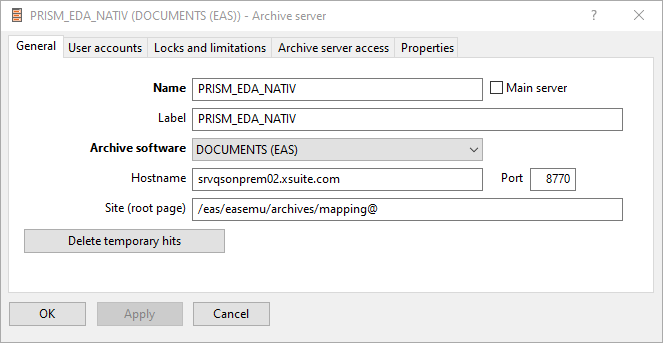 |
Setting up an archive server in otris DOCUMENTs to access xSuite Archive Prism is similar to setting up an EDA simulation.
Instead of a target archive, a mapping is set up that was previously set up in xSuite Archive Prism (see The "Documents" configuration node). To prevent the server from recognizing that the archive is not an EDA emulation archive, the mapping must be marked with an @ at the end.
The "Folders" configuration node
Folders are administered in the Folders configuration node. A folder contains links to documents. You can specify that the fields and attachments of a document in a folder are also indexed so that they are easier to find. You can also limit the number of links in a folder. Older links are deleted when a new link is inserted.
The links are stored in a full-text index. You can define a full-text index at a level above (e.g., /Folders), such that the index applies to all subfolders. You can also specify different indexes for private and public folders in /Folders/Private and /Folders/Public.
Folders are divided into 2 basic types:
Type | Description |
|---|---|
Public folders | Public folders are visible to all users. All users see the same documents in the folders. These folders can only be created by you as the administrator. The user cannot create public folders. |
Private folders | Private folders serve as a template for the users' folders. The users each have their own instance of these folders. Some private folders are pre-defined by the system and have special functions, see System folders. You can add additional private folders. You can activate and deactivate system folders, but not delete them. |
System folders
System folders are private folders that are pre-defined by the system. You can activate and deactivate system folders, but not delete them.
The following system folders are available:
Name of folder | Description |
|---|---|
CheckedOut | The system folder CheckedOut contains documents that are locked for editing by a user. The user can lock a document, preventing editing for a certain period of time. This time period is defined by you as the administrator. A document is locked when it is linked in the Checked-out documents folder. If the user removes the documents from the folder, the lock will automatically be removed. |
History | The system folder History ("Recently opened documents") contains the last documents that a user opened. The system automatically fills this folder when the user opens a document. |
QueryHistory | The system folder QueryHistory ("Last searches") contains the user's last search queries. The user can click on a link in this folder to execute the search query again. |
Trash | NoticeTo use the Trash folder, configure the Delete to trash until archive property. The system folder Trash ("Deleted documents") contains deleted documents. These documents have not been removed from the archive; they are only deleted from the index and have an expiration date. If the user does not restore the document by the expiration date, the document will be permanently deleted. If the user deletes the document from the Legal Documents folder, the document will be restored. If the user opens the document and deletes it by clicking on the Delete button in the document view, the document will be permanently deleted. NoticeIf a document already has an expiration date or is on Legal Hold, you will not be able to flag the document for deletion. |
The "ForeignServers" configuration node
You can configure foreign servers (i.e., third-party archive systems) in the ForeignServers configuration node. Foreign servers are particularly relevant for replication. For more information, see ReplicaJob.
Caution
Foreign servers must be configured by tenant.
Creating a foreign server
Open archive administration.
Open the configuration node Third Party → ForeignServers.
Click on the button
 and then go to Create new node.
➣ The Create new node dialog will open.

Enter a name for the foreign server.
Click on Confirm.
Notice
To open the properties of the foreign server directly after creating it, activate the Open node afterwards checkbox.
➤ The foreign server has now been created.
➤ You can now edit the properties of the foreign server.
Editing the properties of a foreign server
Open Archive Administration.
Under Archive → ForeignServers, click on a foreign server.
➣ The properties of the foreign server will open.
Define the following properties:
Property
Description
ReplicaArchive
The path of the external archive on the server
Password
Password
After the first time the server is accessed, the password will be encrypted.
Username
User name or
domain\usernameArchiveService
The archive server URL
The archive service can either be addressed directly or via the archive service proxy.
Notice
Replace
localhostin the URL with the server name or IP address.URL for direct contact: http://localhost/ArchiveContentServices/ArchiveService.svc
xSuite user authentication must be used for direct contact.
URL for proxy address: http://localhost/xFlowArchiveProxy/ServiceProxyService.svc/proxy/ArchiveService/
A user role must be used for the proxy address. Define the user role under Administration → User roles.
Click
 Save.
Save.➤ The properties are now saved.