Opening the Order Confirmation Overview
Opening the Order Confirmation Overview in the SAP GUI
Execute the transaction /WMD/XF_OC_ADMIN.
➣ The selection screen will open.
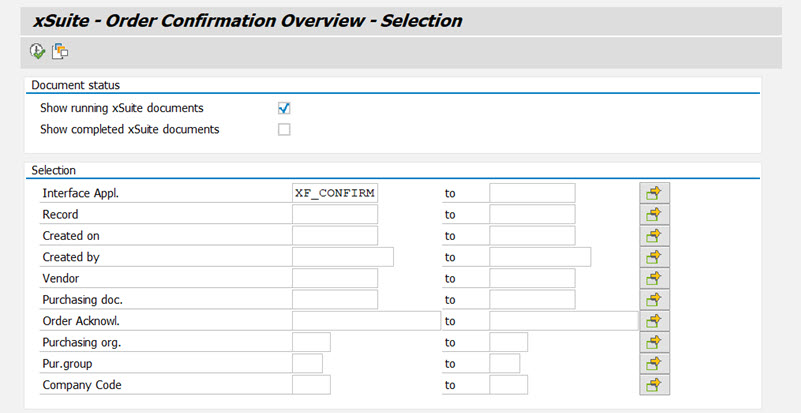
In Selection → Interface Appl., enter an application such as
XF_CONFIRM.If necessary, add more search terms in the other search fields.
For more information on the search fields, see Order Confirmation Overview: Search Fields.
Click the
 Execute button, or press F8.
➤ The Order Confirmation Overview will open.
Opening the Order Confirmation Overview in xSuite Web
Open the xSuite Web Business Workplace. For more information, see Opening Your xSuite Web Business Workplace.
Click the button Back to dashboard.
➣ Your dashboard will open.
Click the tile OC Overview.
➤ The Order Confirmation Overview will open.
Opening the Order Confirmation Overview – SAP Fiori
On the SAP Fiori home page, click the OC Overview tile.
➣ The search range of the Order Confirmation Overview will open.
Do one of the following:
Enter search criteria and click the
 Search button.
➤ The hit list will open. The documents that appear here all correspond to the search criteria.
Click the
 Search button.
➤ The hit list will open. All documents will appear.