"Post Order Confirmation" (Role OCPO)
The workflow task "Post order confirmation" involves the manual posting of a document.
In the standard workflow, manual posting follows the workflow task "Posting in background," if it was not possible to perform automatic background posting. Automatic background posting will encounter an error if document data cannot be linked to the data of the SAP purchase order.
When posting manually, the data in the document can be changed, just as it can in the workflow task "Edit order confirmation" or "Edit rejected order confirmation."
Notice
If not posting a document manually, the user must always set a deletion indicator. This ends the workflow. The buyer can cancel the SAP purchase order.
UI – SAP GUI
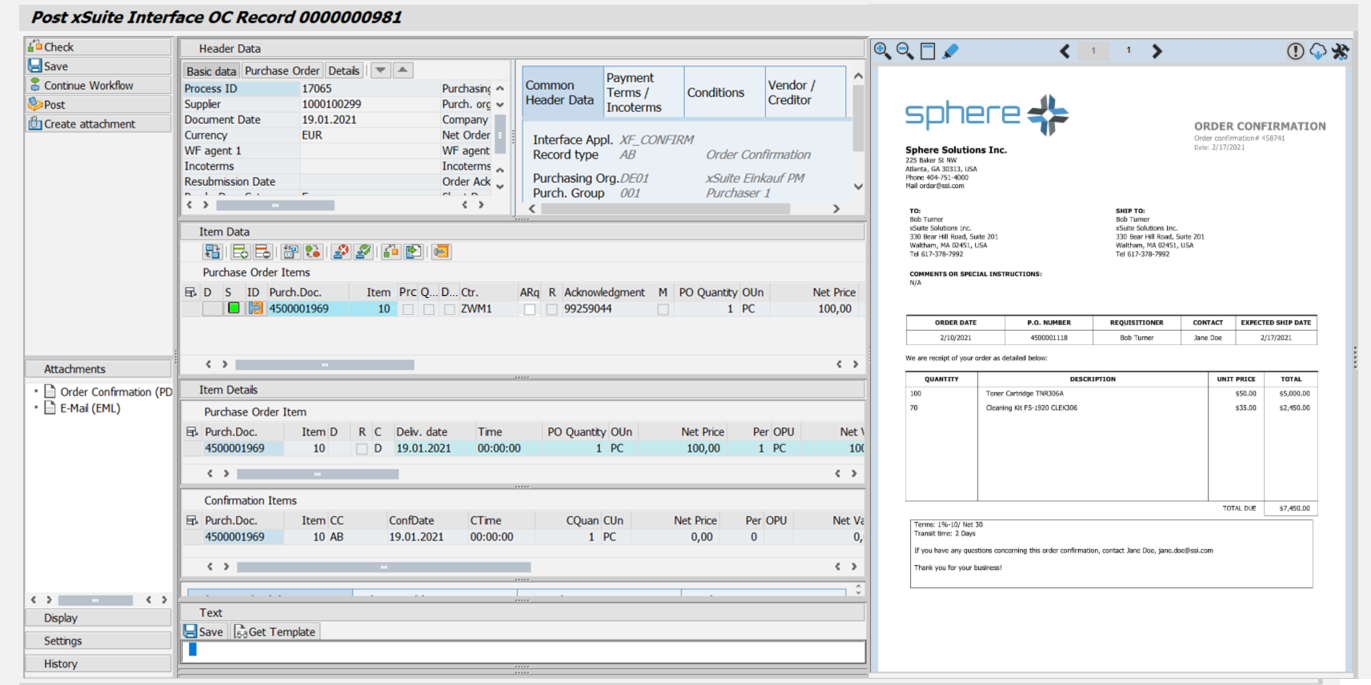 |
UI – SAP Fiori
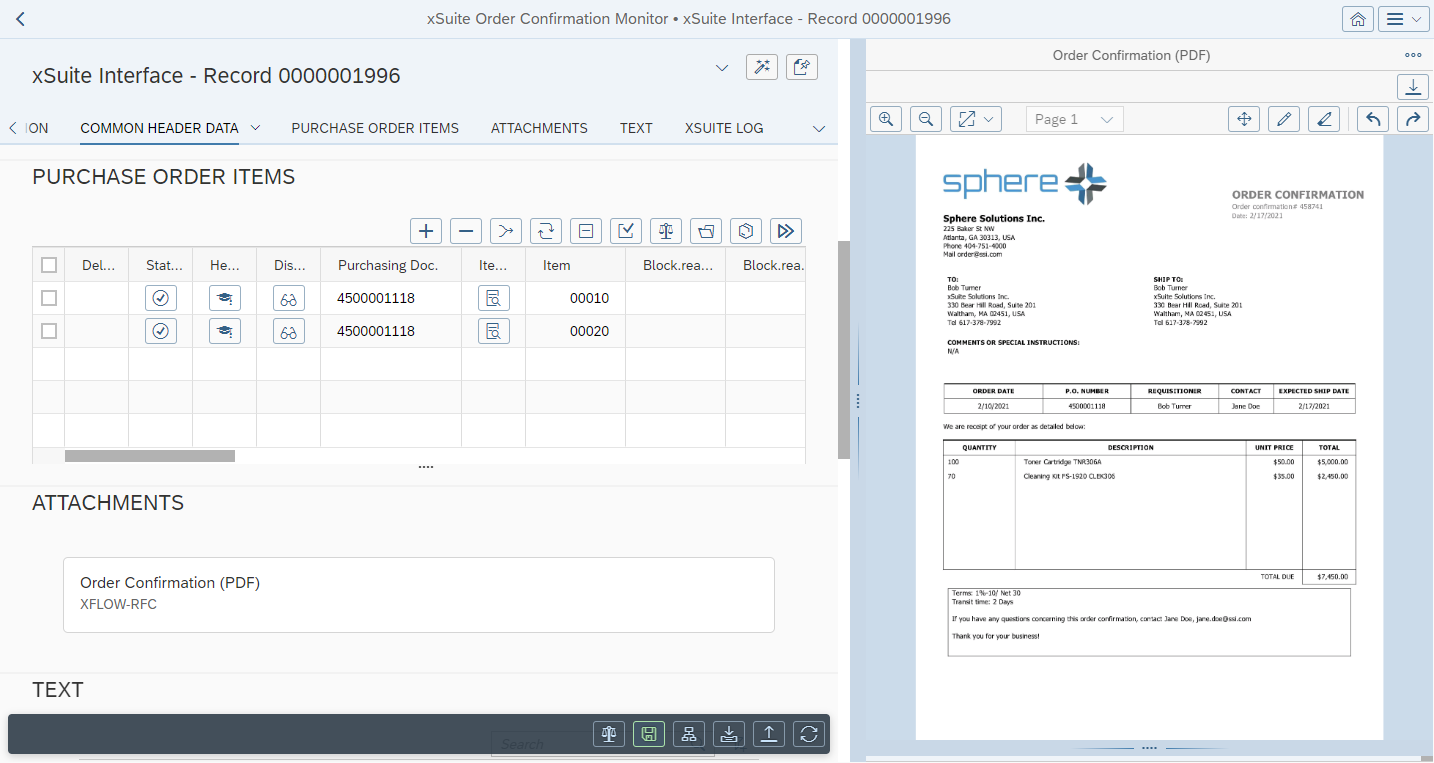 |
For information on the UI elements, see Work Items: Main Overview in the SAP GUI and Work Items: Main Overview in SAP Fiori.
"Post Order Confirmation": Buttons
SAP Fiori | SAP GUI | Description | |
|---|---|---|---|
| Check | Shortcut in the SAP GUI: F6 | |
| Save | Shortcut in the SAP GUI: F5 | |
| Continue Workflow | ||
 | Post | Shortcut in the SAP GUI: F8 | |
 | Create attachment | Shortcut in the SAP GUI: CtrlF11 | |
| Refresh | Note: This button is only available in SAP Fiori. | |
| Back | Note: This button is only available in SAP Fiori. |


"Post Order Confirmation": Buttons for Item Data
SAP GUI | SAP Fiori | Name | Description | |
|---|---|---|---|---|
 | ---- | Confirmation fields on/off | Determines whether confirmation fields are displayed. The confirmation fields are not editable here. To edit them, go to the Item Details area. | |
 |  | Add PO items | Adds a PO item to the document. | |
 |  | Delete PO items | Deletes the PO item selected. | |
 |  | Mix in PO data | Updates all PO items based on the data in the purchase order. | |
 |  | Change PO items | Switches to the editing mode of the PO items. From there, the confirmation data that has already been entered can be assigned to another purchase order. The order data will automatically be mixed in when you exit edit mode. | |
 |  | Set rejection indicator | Serves as cancellation flag for a PO item. Is set for the PO item when the document is posted. | |
 |  | Unset rejection indicator | Removes the cancellation flag from a PO item. Is only possible if the document has not been posted yet. | |
 |  | Confirmation data from PO item | Adopts the confirmation data from one or more selected PO item rows. | |
 |  | Check items | Checks all PO items and refreshes the status in the column S (Error status). The warning/error messages are displayed by PO item. For information on checking PO items, see Checking PO Items in a Document. | |
|  | Mat. Stock/Requirements List | Calls the material requirements or inventory list of the selected item. |
