"Approve Order Confirmation" (Role OCVA)
UI – SAP GUI
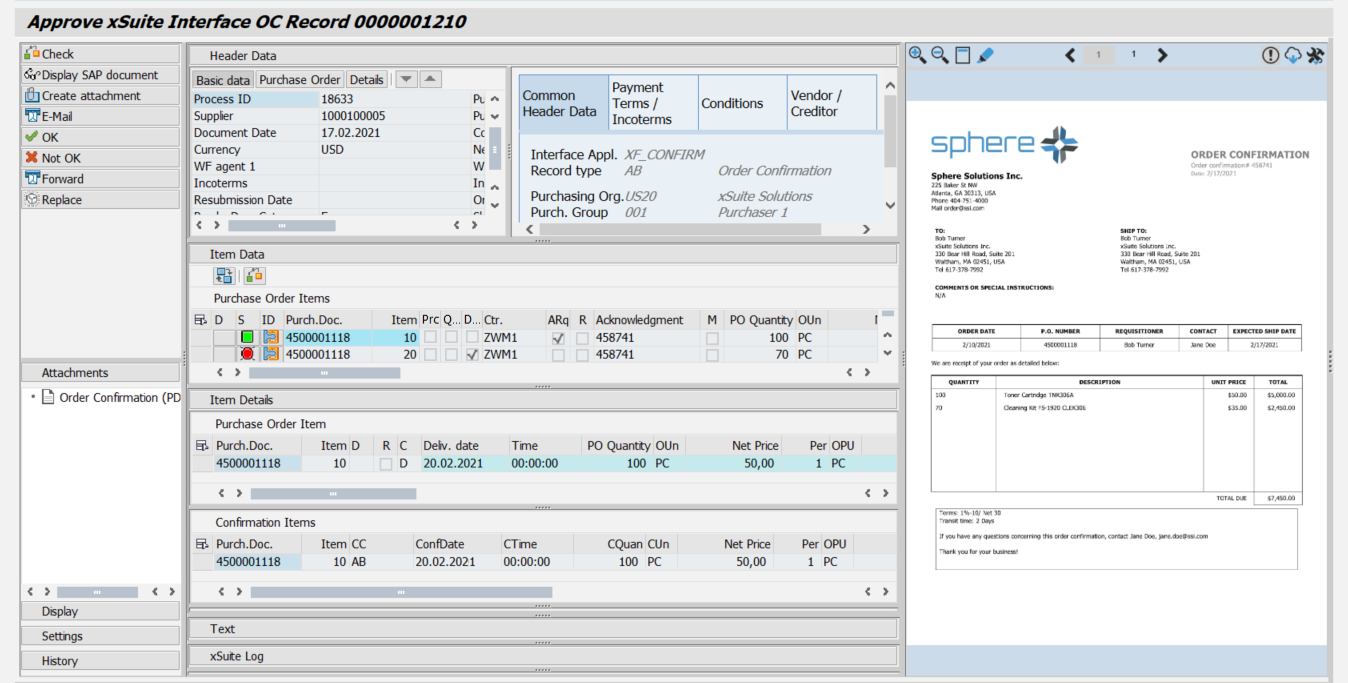 |
UI – SAP Fiori
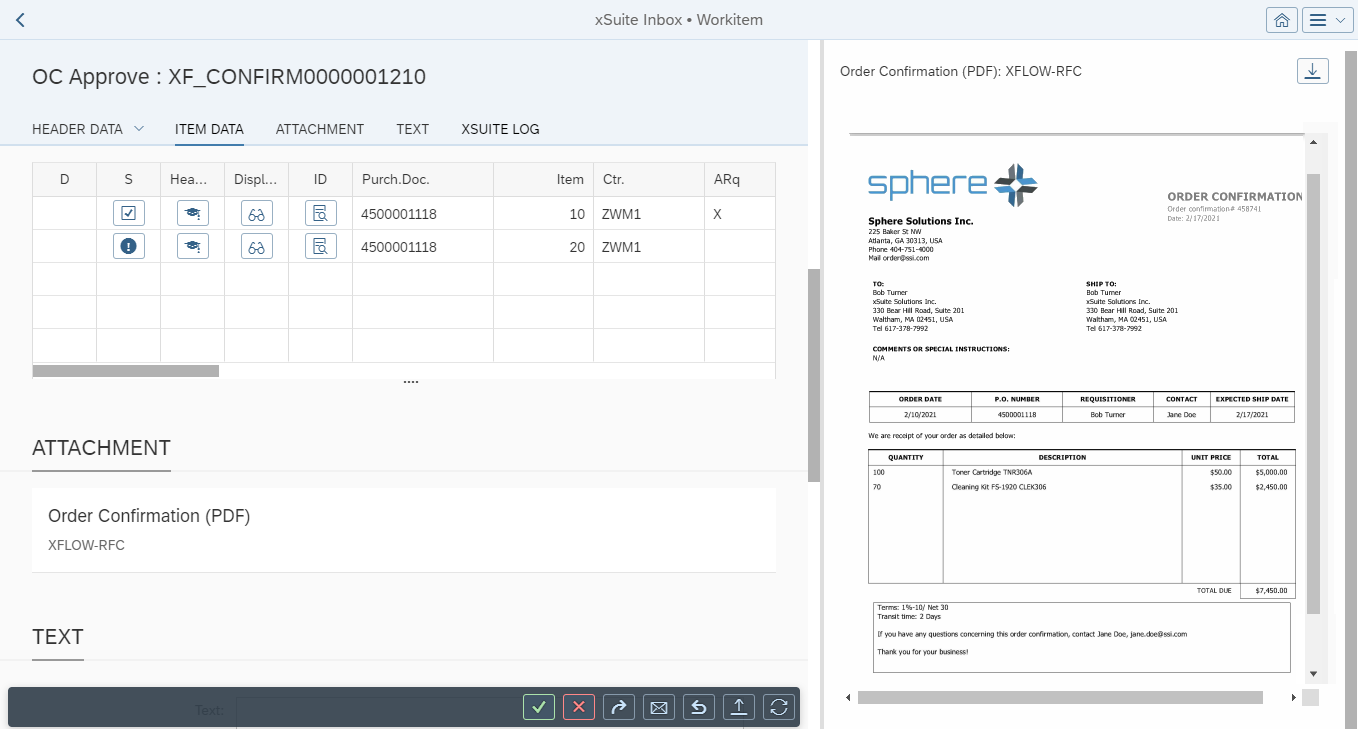 |
UI – xSuite Web
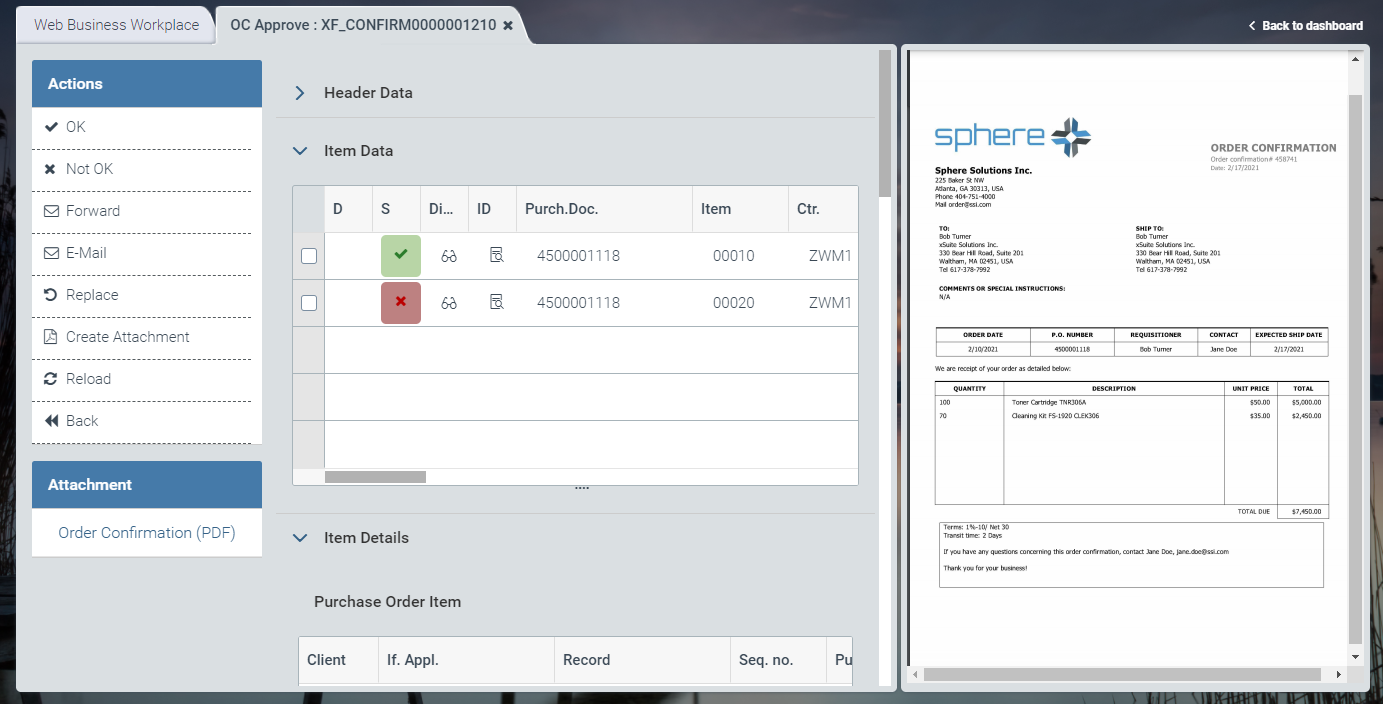 |
For information on UI elements, see Work Items: Main Overview in the SAP GUI, Work Items: Main Overview in SAP Fiori, and Work Items: Main Overview in xSuite Web.
"Approve Order Confirmation": Buttons
SAP Fiori | SAP GUI / xSuite Web | Description |
|---|---|---|
-- | Display SAP document | Note: This button is only available in the SAP GUI. |
-- | Check | Shortcut in the SAP GUI: F6 Note: This button is only available in the SAP GUI. |
| Create attachment | Shortcut in the SAP GUI: CtrlF11 |
| Shortcut in the SAP GUI: CtrlF12 | |
| OK | Shortcut in the SAP GUI: CtrlF7 |
| Not OK | Shortcut in the SAP GUI: CtrlF8 |
| Forward | |
| Replace | |
| Refresh | Note: This button is only available in xSuite Web and in SAP Fiori. |
| Back | Note: This button is only available in xSuite Web and in SAP Fiori. |


"Approve Order Confirmation": Buttons for Item Data
xSuite Web | SAP Fiori | Name/Description | ||
|---|---|---|---|---|
|
| Status / Error status:
| ||
-- |
| Header Data: Opens the header data of a purchasing document in a separate view. In the Header Data view, the you can view the following data:
You can close the view using the | ||
 |
| Display SAP document: | ||
 |
| Item Details: Opens the item details in a separate view. In the Item Details view, you can view the PO items and the related confirmation items. The system will highlight faulty data fields in red (error) or yellow (warning). The view contains additional information on schedule lines, material data and conditions. You can close the view using the For more information, see "Item Details" Screen: Main Overview in SAP Fiori. |


