Installation
The application comes with the setup program xSuiteInterface_5.x.x_Setup.exe, which offers an interactive wizard. The setup program copies files to the target directory as part of the setup process.
Notice
To set up the program, you can either use the interactive wizard or manually copy the existing program directory.
If you choose to copy the directory manually, note that references to the program file path in Windows services or file links that have already been set up might lead to dependencies.
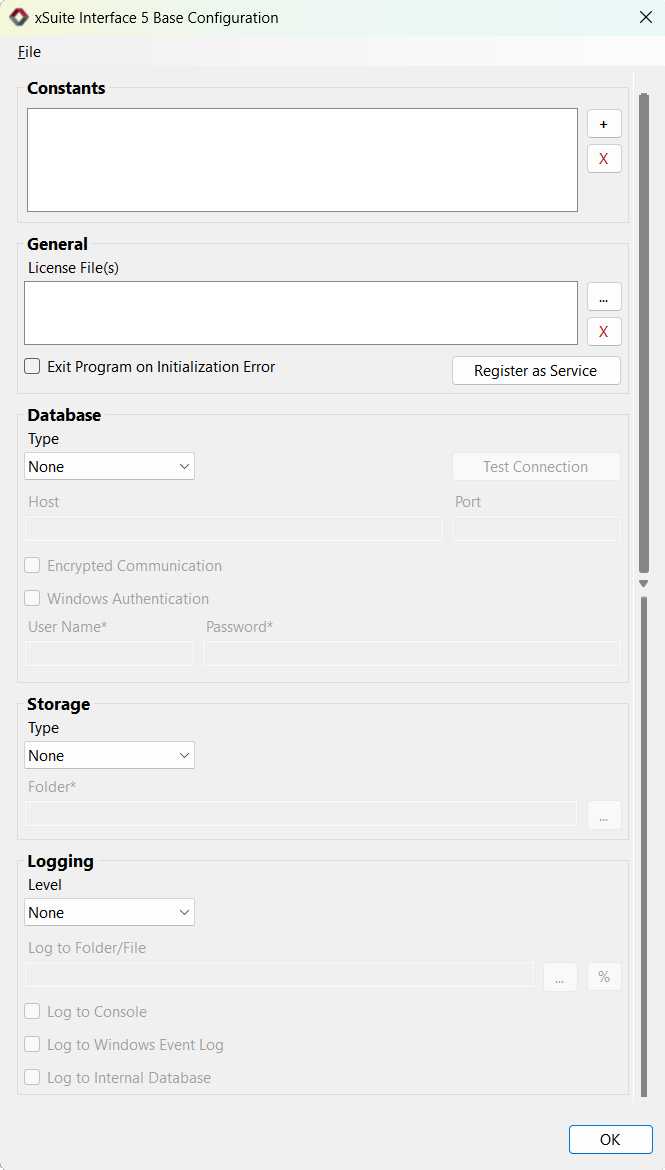
After this first setup step has been completed, a configuration dialog will start automatically. This dialog is for configuring basic settings.
 |
Notice
The configuration dialog can be called up again at any time via the file xSuiteInterface5Config.exe in the program directory.
The purpose of the basic configuration program is to create a global configuration file in JSON format. This configuration file includes the global parameters necessary to start the program. In the basic configuration program, processing scenarios cannot be created. Only the default tenant is used; multiple tenants cannot be configured. For global configuration parameters, only basic settings are offered. Therefore, for advanced configuration variants, modify the configuration file manually.
If configuration data that is fully usable is not yet available, the settings for the integrated web service must first be made. These settings are necessary to enable use of the configurator web application. Some additional basic settings are already available in the basic configuration program. Configuring these basic settings is a good idea since, for these settings to take effect, it is necessary to restart the program and therefore also the web service that hosts the configurator application.
The following sections describe the different areas for configuring those parameters that can be defined via the configuration program interface. The full description of the corresponding configuration keys can be found in the section Global Configuration.
Notice
To load a predefined configuration file template, go to File → Load Existing Configuration File.
These kinds of templates are ready-made configurations for certain standard use cases, to be supplemented by customer-specific parameters. The configuration file templates can accommodate many more predefined configuration keys than those displayed in the configuration program interface. The templates are located in the Templates subfolder.
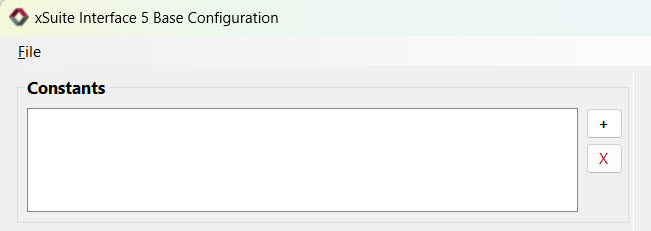 |
The area Constants is for assigning individual values to multiple constants. Values not otherwise displayed in the base configuration dialog box can be edited here.
When working with base configuration file templates, the best practice is to use constants to express customer-specific parameters.
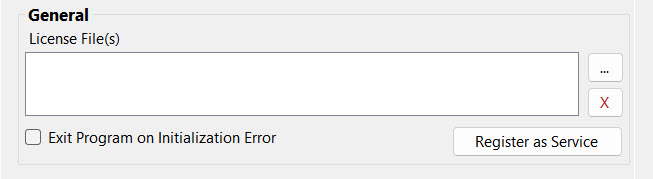 |
The area General is the place to enter specifics regarding the file path to the license file that was sent to the customer.
Field | Description |
|---|---|
License File(s) | File path to the license file If the functions used have separate licenses, you can specify multiple files here. Copying the license file to the customer system is not part of the setup process; license files must be copied manually to the customer system. |
Exit Program on Initialization Error | Exiting in the case of initialization errors Use the checkbox Exit Program on Initialization Error to specify whether the program should be started even if errors arise when initializing individual components (worker instances), or whether it should be terminated immediately. |
Register Windows Service | Registration as a Windows service Click the Register Windows Service button to register the program as a Windows service. (Alternatively, you can register it manually; for more information, see Program Execution.) The file name will default to If the file is not located in the default path with the default name, you can specify the configuration file path. Since the file usually does not exist at this point, the only option to select in the dialog will be the folder. The path specified here will also serve as the default value for saving the file after completion of basic configuration. NoticeDuring uninstallation as well, the configuration program is called via the setup program. When uninstalling, the program serves only to unregister the Windows service. If services running in parallel have been registered multiple times, the registration for all these services will be cancelled. The program cancels registration only for those services that were registered by the program itself during the installation. The information in the Windows registry is used for this purpose. |
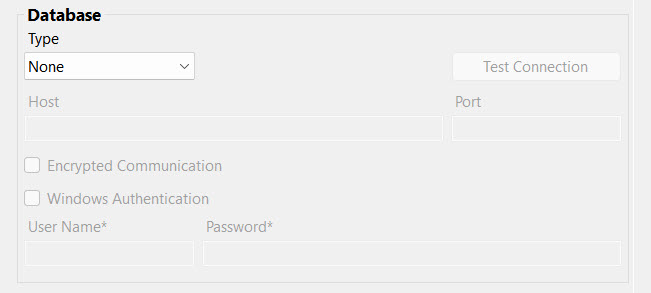 |
The area Database is for defining connection and login parameters for the administrative database.
Field | Description |
|---|---|
Type | Type of database system To test the connection to the database with the parameters currently set, click the Test Connection button. Values that are defined as constants will be populated. The connection test only checks the login and the pure connection to the database server. It does not check whether the database exists or whether the user has the rights to create a database. |
Host Port | Name/IP address and IP port of the database server |
Encrypted Communication | Activation of encrypted communication to the database |
Windows Authentication | Activation of Windows authentication |
User Name Password | User name and password for logging in to the database If you specify a certificate of the type "Crypt" under Certificates, the login password will be automatically encrypted when the configuration file is saved. Encryption will not work if the password is set only indirectly via a constant. |
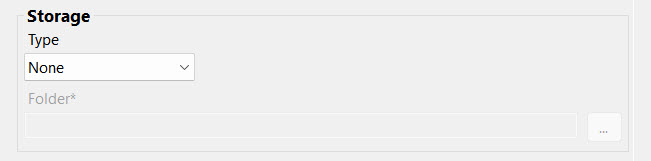 |
The area Storage is for specifying the path for temporary storage.
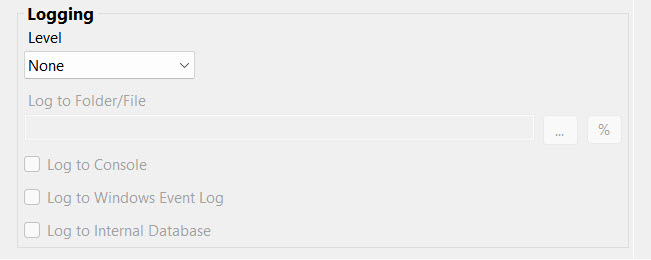 |
The area Logging is for activating logging.
Field | Description |
|---|---|
Level | Selection of the level of logging detail Setting the level of detail enables logging. The value |
Log to Folder/File | Logging to the file system To create a file-based log, select the folder path and add the name of the log file. To create a file-based log, select the folder path and add the log file name. Use the |
Log to Console | Logging to the console A log output in the console is only relevant if the program is also executed as a console application. |
Log to Windows Event Log | Logging in the Windows Event Viewer Logging in the Windows Event Viewer only covers errors and warnings. |
Log to Internal Database | Logging in the internal database Logging in the internal database can only be activated if a corresponding database connection has been configured. |

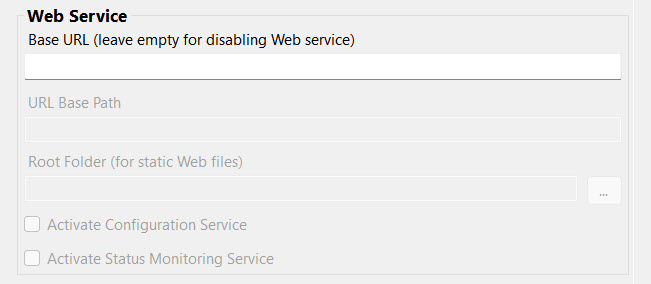 |
The area Web Service is for activating functions that are available through use of the web service.
Field | Description |
|---|---|
Base URL | Base address of the web service To enable the web-service-based functions, specify the base address of the service in the following form:
|
URL Base Path | URL prefix An additional fixed base path can be defined. The path will prepend all other path segments for web service calls. |
Root Folder | Path of the base folder with the static web files To use interactive web applications such as the Status Monitor, specify either the relative or the absolute path to the directory of the static files of these web applications. The default path for this is the |
Activate Configuration Service | Activation of the Config Web Service The Config Web Service serves as a back-end service for the Configurator application. |
Activate Status Monitoring Service | Activation of the Status Web Service The Status Web Service serves as a back-end service for the Status Monitor application. |
 |
The area Certificates is for selecting certificates. This includes certificates both for the encryption/decryption of passwords in the configuration files (type "Crypt") and for SSL/TLS secured web service connection via HTTPS protocol (type "Server").
The certificate is located either in the file system or in the Windows certificate store. For the Windows certificate store, only certificates located in the default Local Computer\Own Certificates path are supported as part of the simplified base configuration. The certificate is searched for via the "Subject Name" ("Issued for").
Click the button Test to check whether the certificate can actually be found via the default path. Click the button Create to create a certificate and store it in the certificate store.
Notice
A self-signed certificate cannot be used productively for web service connections. A certificate issued by a proper certification authority is required for productive use.
A self-signed certificate can, however, be used locally on the server during the configuration phase – for example, as a transitional measure to call web applications (e.g., the Configurator and the Status Monitor). This call must be made via localhost, and the certificate must be issued with this name.
Such a certificate can be helpful for the encryption/decryption of passwords: you can be assured that the certificate not only contains public key, but also a private key required for encryption and decryption.
 |
The area Scenarios is for selecting the scenario configurations to be included in the global configuration file. Selecting these when creating the global base configuration is usually only relevant if predefined configuration files are to be used for standard scenarios. Such predefined configuration files are delivered, for example, in the Templates subfolder.
The configuration program assumes that these files should later be located in the same folder as the base configuration file to be created. Therefore, when saving, it offers the option of copying the scenario configurations to this target folder as well.
The program supports only 1:1 assignment of scenarios to worker instances. For each scenario selected, create a separate input worker instance, process worker instance and output worker instance in the configuration.