The "Batches" Tab
The Batches tab lists the batches that are available in the administrative database. Each row represents a batch. The individual properties of the batches are displayed in the columns.
Expert Mode
Expert mode is only available to users who have the necessary authorizations. Expert mode can be activated or deactivated using the Expert mode button.
 |
With activated expert mode, you have 2 additional buttons at your disposal. The  button allows batches to be reset, and the
  button displays the raw JSON data (see Buttons).
Buttons
The following buttons are available in the menu bar of the Batches area:
Button | Description | |||
|---|---|---|---|---|
| Refreshes the batch view. The batch information is reloaded from the database.
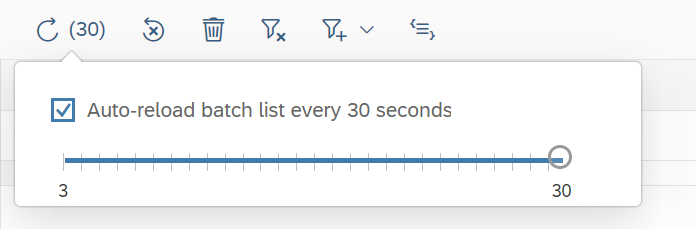
Hovering over the button with the mouse will open a window in which the checkbox Auto-reload batch list every 30 seconds can be activated. When you have activated the automatic refresh, you can use the slider to specify the refresh interval. This automatic refresh will only apply until you have executed an action in the table. | |||
| Resets batch status for batches that have the status "Error." To use the reset function, first select the batches that that have the "Error" status, by ticking the checkboxes in the first column of the table. A renewed attempt will then be made to process these batches. There are two different ways that a batch is reset:
NoticeThis button is only available in expert mode. | |||
| Deletes the selected batches from the database. Optionally, the associated file attachments can also be removed from temporary storage. NoticeWhen deleting batches, the associated file attachments should be removed from temporary storage. | |||
| Removes all filters set. After removing the filters, all existing data records will be displayed in the batch view. | |||
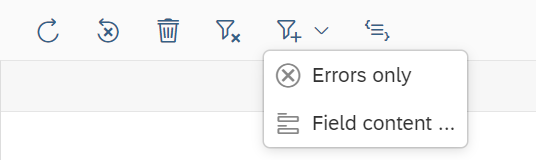
| Activates a filter. The following filters are available:
These filters can be used in combination with column filters. All active filters will be displayed in the toolbar.
To display the value of a Field content filter set, click the | |||
| Opens data in batch view in JSON format. The display of the raw JSON data enables a view of the internal structure of a document object as it is stored in MongoDB as an administrative database. NoticeThis button is only available in expert mode. |







The following buttons always refer to a single data record and are displayed in the final column of the table:
Button | Description | |
|---|---|---|
| Displays a detail view of the batch to the right of the table. You can also access the detailed view by clicking on the batch data record. | |
| Displays the log table. This implicitly sets a filter for selecting the data records connected to the respective batch. | |
| Deletes a batch. | |
| Resets a faulty batch. |

Detail View
The detailed view ( button) is a tree structure displaying documents in a batch. For each document, you can see the index fields, the file attachments, and the processing history.
For index fields, you can see the header data fields and the item data fields. For file attachments, you can see original attachments from an input interface and attachments that were extracted or generated during downstream processing.
The following buttons are available in the detailed view of a batch:
Button | Description | |
|---|---|---|
| Updates the data in the detailed view. | |
| Expands the entire tree and remembers this setting for subsequent open batch trees. | |
| Expands all elements in the detailed view. | |
| Collapses all elements in the detailed view. | |
| Closes the detailed view. |