Macro editor for internal macro functions
The macro editor helps create macro expressions and offers a test mode for executing macro expressions.
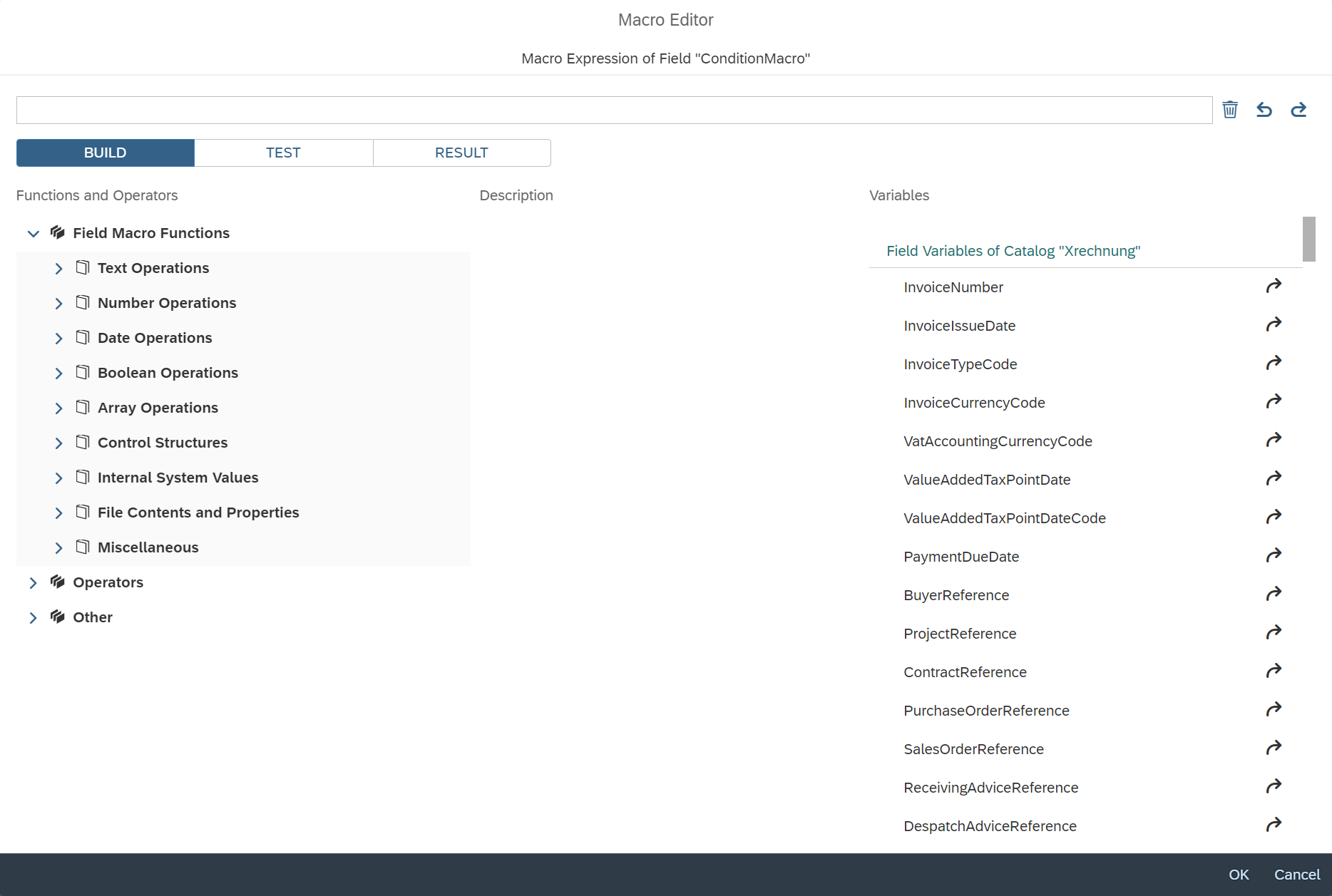 |
The macro editor offers the tabs Build, Test, and Result. Above them is an input field which displays the macro expression currently being edited across all tabs. In this general input field, the following buttons can be used:
Button | Description | |
|---|---|---|
| Undoes the last change. | |
| Restores the last change. | |
| Deletes the entire content of the input field. |


The Build tab is a work area providing aids for setting up the macro expression. It offers lists of functions and variables to use in the macro expression.
Section | Description |
|---|---|
Functions and Operators | This area provides an overview of available macro functions and operators. The macro functions and operators fall under the following categories: Context will determine which categories are listed here (e.g., if only field macros are permitted, then only the field-macro category will appear). |
Description | When you select an element listed under Functions and Operators, a short description will appear here. The description of a macro function consists of the associated parameters and the return value. |
Variables | All available variables are listed here. The list includes field variables by catalog, general document variables, file variables, and system variables. |
To transfer it to the input field for the macro expression, select the target location and click the button  next to the macro function or variable, or double-click on the macro function or variable itself. The macro function or variable will then either be inserted at the selected position in the input field or will overwrite a selected text area. In the case of a macro function, its parameter list will also be transferred, but only with placeholders in the form of the parameter names. Replace these placeholders with your own parameter values.
The Test tab is a work area where the current macro expression can be executed in test mode. As a rule, additional test data must be specified (e.g., if field variables are used in the expression).
Notice
Not all macro functions necessarily need to be tested. For example, the context of a document that is being edited can only be simulated to a limited extent with test values and test file attachments.
If at all, only limited testing is possible for functions that access metadata for a document object that is only available at runtime. Tests of these sorts of functions may yield unexpected results or error messages.
This also applies to the testing of global macro functions (for example, when they are meant to access the internal administrative database, e.g., for clean-up actions). The context required for such access is not available in the execution environment for macro tests, but only directly in the program instance using the database.
Notice
Constants are not replaced during the test execution, neither in the macro expression nor in the scenario configuration, which may be included. As constants can be defined on a tenant-specific basis, a tenant context would have to be selected beforehand. When starting testing, perform a macro test with concrete values. Once the test has been successfully executed, you can replace these values with constants.
Section | Description | ||||||
|---|---|---|---|---|---|---|---|
Test document field contents | Enter the test values for the fields of a document in the table in Test document field contents. Each row of the table represents a single field and contains the name and value of the field. You can either enter the name of the variable manually or select it from a list of all field variables. Specify the value in the syntax of a literal (constant value) (see Data Types, Variables, and Constants). To enter item data fields that access tabular data (e.g., when testing document macros), specify the name in the syntax Some macro functions not only access the fields for reading, but also for writing (e.g., document macros). In order for writing to be executed successfully, define the relevant target fields in the test document. If a specific value is not needed, an empty value will suffice. The table offers the following buttons for editing and creating variables:
| ||||||
Test File Attachments | The Test File Attachments section offers a list of uploaded file attachments. You can upload file attachments for the purposes of testing file macros, either by clicking on the To delete uploaded file attachments from the list, click the | ||||||
Execute Test | The Execute Test button starts test execution. For a scenario configuration, the Include current scenario configuration in test checkbox is also available. If the checkbox is activated, the contents of the scenario configuration will be included in the test. This data is necessary in cases such as when the macro accesses lookup lists (property Lookup[]) or external data sources (property General.Database[]) that are defined in this configuration. A field catalog can also be selected from the scenario configuration to be used for the test document. However, the selection of a field catalog is seldom necessary (as in the case of a macro for creating new table rows, which would require access to the table fields defined in the catalog). |


The purpose of the Result tab is to display the result of the last test carried out.
Section | Description |
|---|---|
Macro Result Value | A direct return value of the macro is displayed here. This kind of return value is only available for field macros. |
Result Field Contents | The current variable values that may have changed as a result of an assignment in the macro are displayed here in a table. |
Result File Attachments | If file operations were performed during the test, all file attachments will be listed here. This list includes the original test file attachments and the file attachments generated by the macro function. To download this attachment, click on the |
