xSuite Orders Summary: Main Overview in the SAP GUI
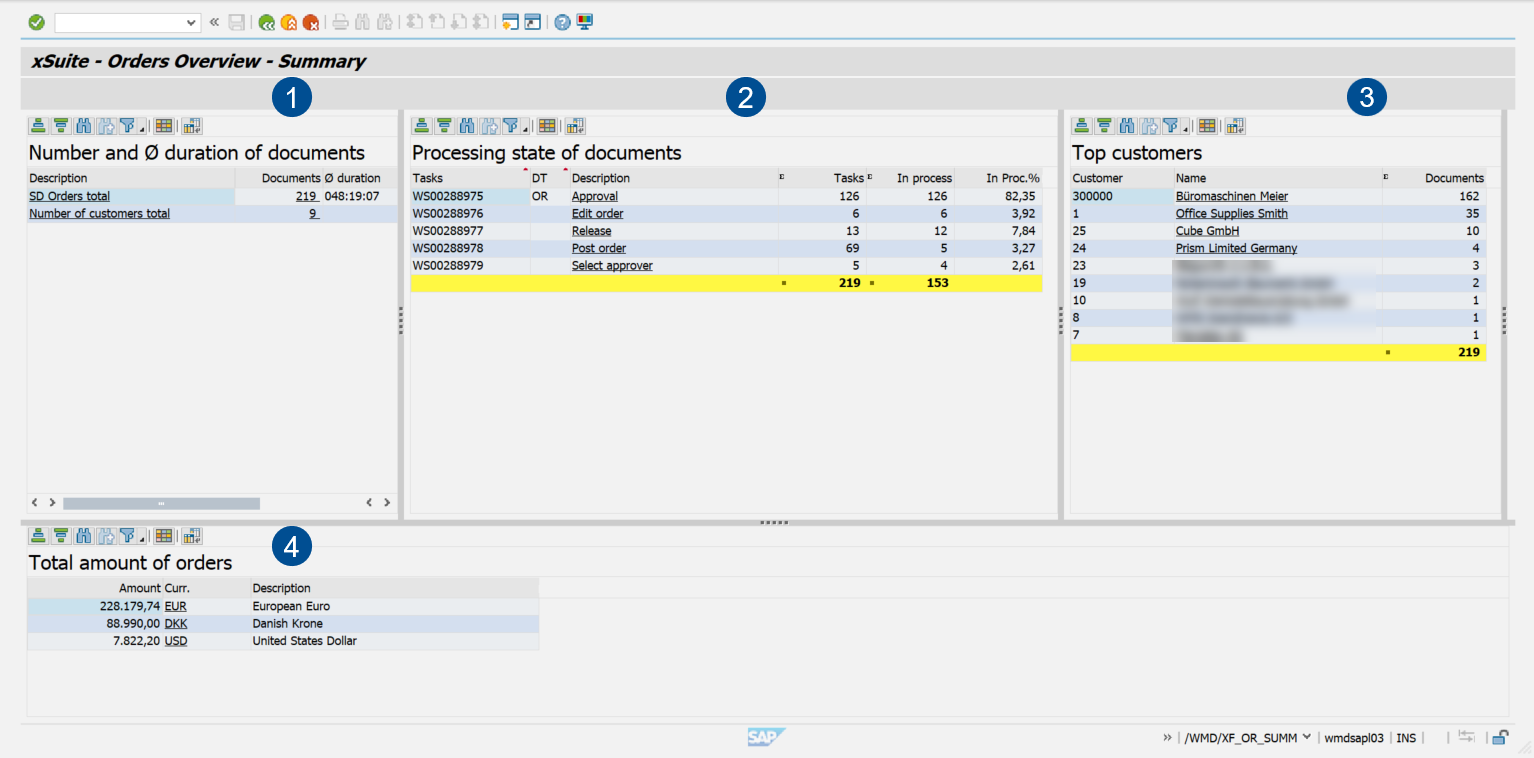
Area | Information and comments | |
|---|---|---|
1 | Number and average duration of documents | Shows the number and document cycle times of documents. Shows the number of customers according to selected criteria. |
2 | Processing state of documents | Displays the processing status of documents, broken down according to the current workflow step of the respective document. |
3 | Top customers | Shows an overview of top customers. |
4 | Total amount of orders | Shows the total amounts divided by currency key. |
Section "Number and Average Duration of Documents"
This area shows an overview of all SD orders processed in the selected period, as well as their respective processing times and the total number of customers.
Overview of columns
Column | Description |
|---|---|
Description | Indicates whether the number that appears in the Documents column refers to the SD orders or to the customers. |
Documents | Shows the total number of sales documents. To open the Sales Document Overview, click on a value in the column Documents. Shows the total number of customers. To view a list of all customers based on the information in the selection view, click on the total number of customers. |
Ø duration | Shows the average processing time of documents of a specific sales document type. The average processing time takes the total processing time of xSuite Interface up to document posting into account. Periods without the active participation of agents are also included. The value has the structure Note: To display the average processing time, select the check box Total processing time in the selection screen. |
Section "Processing State of Documents"
This area shows an overview the processing status of the order documents in the selected period, as well as the respective processing times.
If the Tasks column contains the value NO_STATS, this is the evaluation of older documents for which there are no entries in the xSuite statistics tables yet.
To go to the Sales Document Overview and see the documents in the respective processing step, click on the task description.
Overview of columns
Column | Description |
|---|---|
Tasks | Shows the technical name of the workflow task. |
DT | Shows the document type of the process. |
Description | Shows the name of the workflow task. Click on the name of the workflow task to open the Sales Document Overview. |
Tasks | Shows the number of documents that are in the respective workflow task. |
In process | Shows the number of documents that are in the respective workflow task and have the status "In process." |
In Proc.% | Shows the percentage of all processes in progress. |
Section "Top Customers"
This area shows a summary of the customers from whom most of the documents originate. You can drill further down into the summary of top customers by defining a time period in the selection view.
Overview of columns
Column | Description |
|---|---|
Customer | Shows the customer's number. |
Name | Shows the name of the customer. To open the Sales Document Overview, click on the customer's name. |
Documents | Shows the number of all sales documents for the selected customer. |
Section "Total Amount of Orders"
This area shows a summary of all order amounts in the period selected.
Overview of columns
Column | Description |
|---|---|
Amount | Shows the total amount of all orders in the period selected. |
Curr. | Shows the currency abbreviation, e.g. To open the Sales Document Overview, click on the currency abbreviation. |
Description | Shows the long name of the currency, e.g. |
xSuite Orders Summary: Buttons
Button | Name | Description |
|---|---|---|
| Sort in Ascending Order | Opens sorting options for the hit list. If you select a column in the sort options, the Sort in Ascending Order radio button will be enabled. |
| Sort in Descending Order | Opens sorting options for the hit list. If you select a column in sort options, the Sort in Descending Order radio button will be enabled. |
| Find | Opens search options for the hit list. |
| Find next | Moves to the next item in the hit list. |
| Set Filter... | Opens the filter options for the hit list. |
| Change Layout... | Opens settings for column selection, sorting, filtering and display of the hit list. |
| Show Document Overview | Opens the documents specified in the selected row in a detailed list. |


