"Change Document" (Role ORET)
Notice
Only SAP users can change an SAP document.
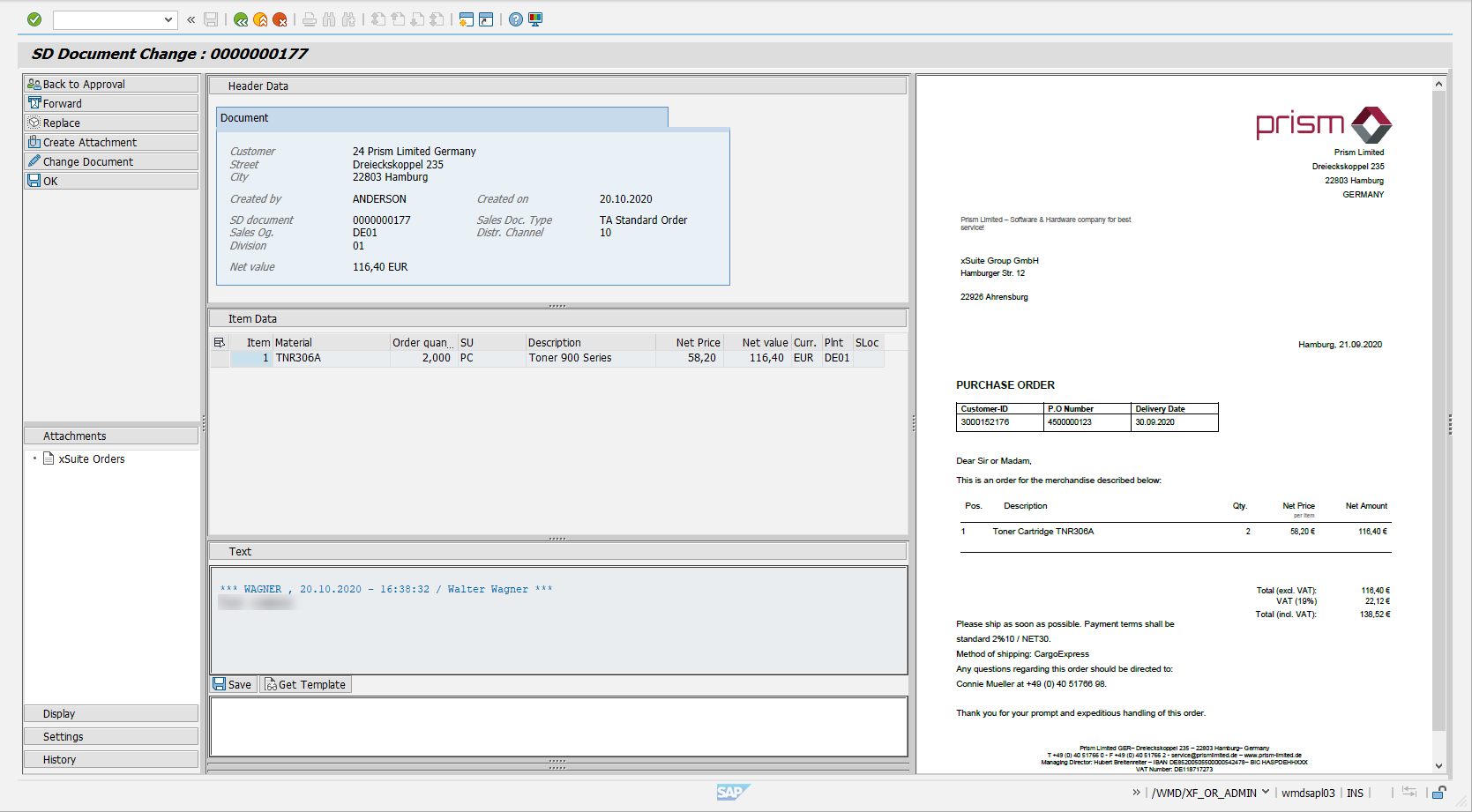
In the ORET role, the user can adjust the data of the rejected document. After editing the document, you can either click the Back to Approval button or the OK button to send it to the factual check.
UI – SAP GUI
UI – SAP Fiori
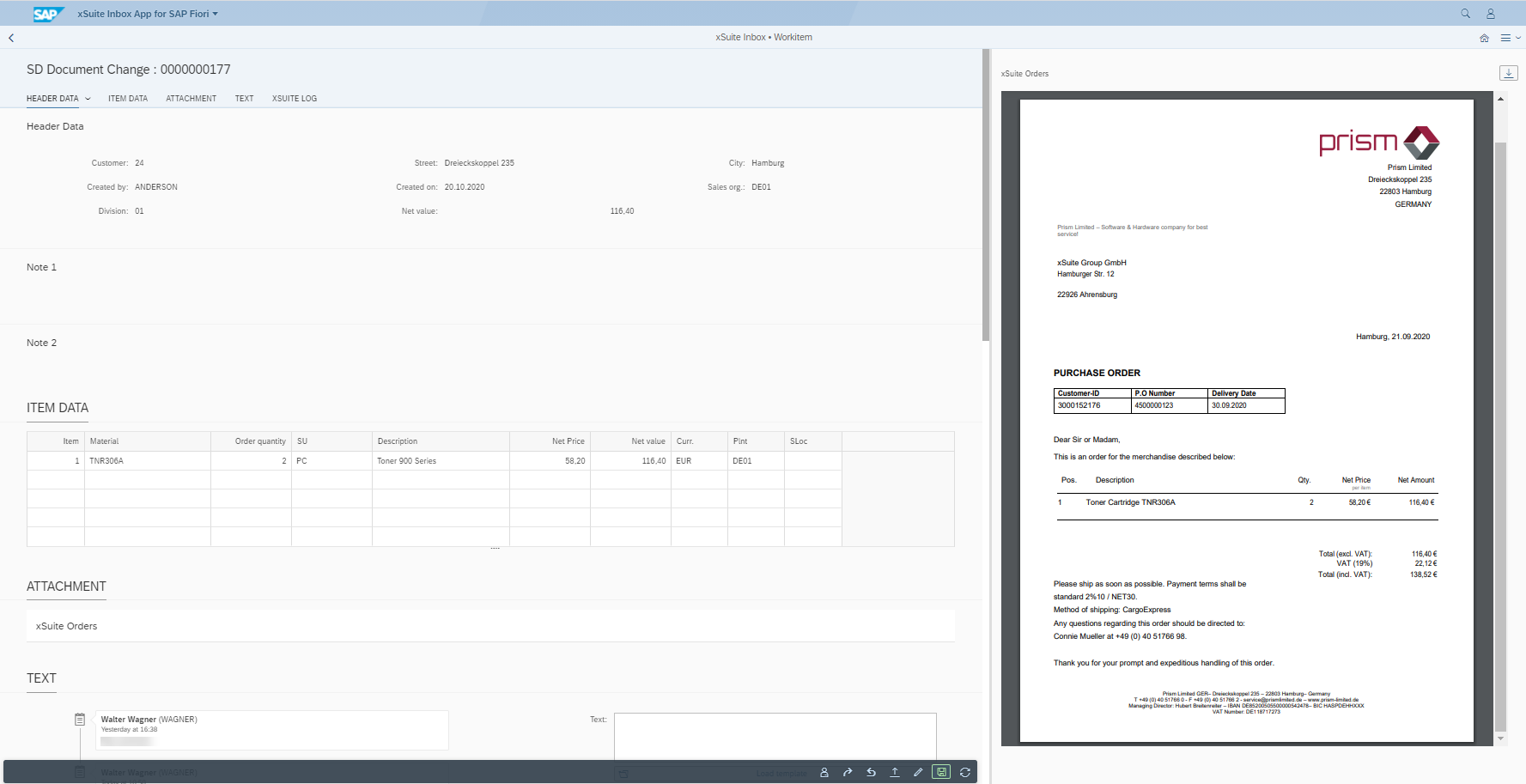
In SAP Fiori, clicking on the button  will open the SAP document in the edit mode of the Internet Transaction Server Service (ITS).
UI – xSuite Web
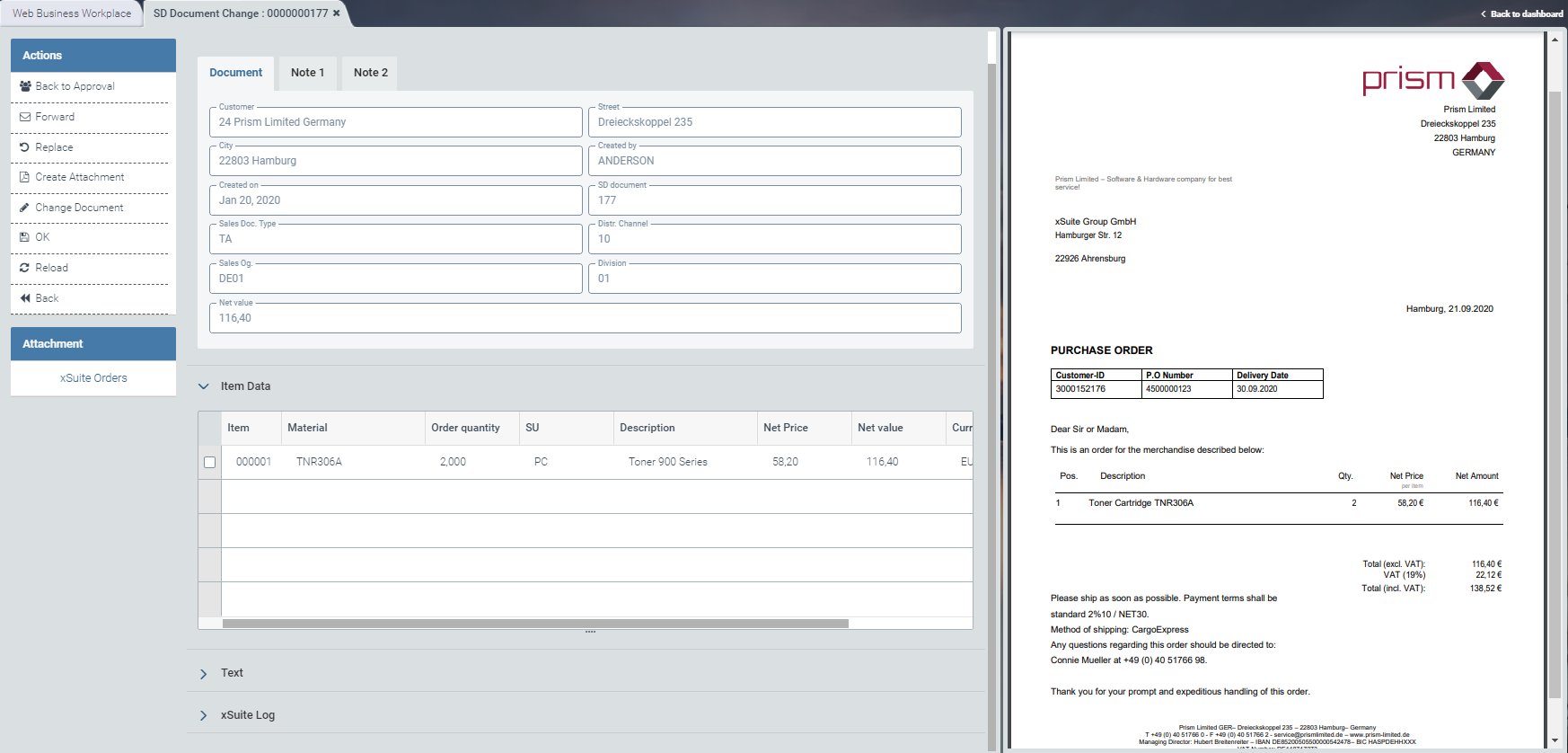
For information on the UI elements, see Work Items: Main Overview in the SAP GUI, Work Items: Main Overview in SAP Fiori and Work Items: Main Overview in xSuite Web.
In xSuite Web, the SAP document opens in the edit mode of the ITS service (Internet Transaction Server Service).
"Change Document": Buttons
SAP Fiori | SAP GUI / xSuite Web | Description |
|---|---|---|
| Back to Approval | Transfers the document to the workflow step "Approve document". To use this function, select an approver from the dialog that opens when the Back to inspection button is clicked. For information on the "Approve document" step, see "Approve Document" (Role ORVA). |
| Forward | Prerequisite: The user must have entered a text. Forwards the work item to a selected user. |
| Replace | |
| Create Attachment | |
| Change Document | Opens the SAP document in SAP Fiori and xSuite Web via the Internet Transaction Server Service (ITS) in edit mode. Note: Changing an SAP document is only possible for SAP users. |
| OK | Saves the processed work item and transfers it to the next workflow step. |
| Refresh | Note: This button is only available in xSuite Web. |
| Back | Note: This button is only available in xSuite Web. |


