Invoice Overview: Main Overview
Invoice Overview: Main Overview in the SAP GUI
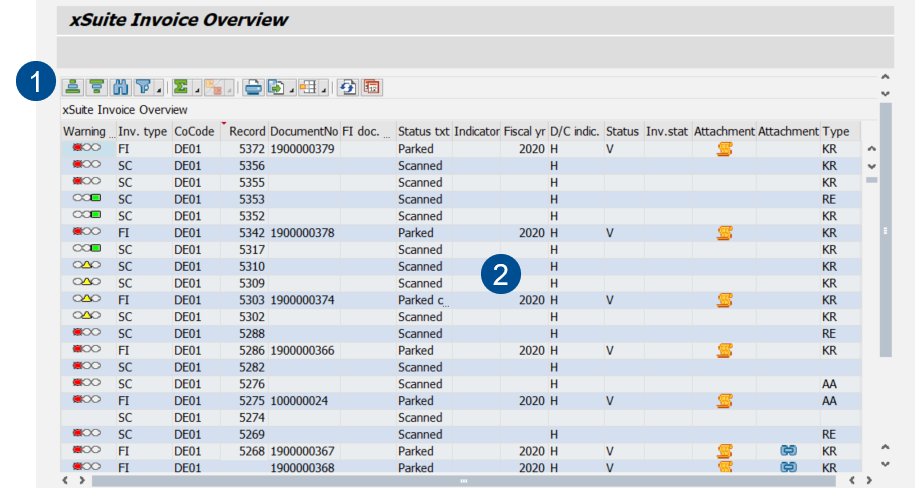 |
Element | Description | |
|---|---|---|
1 | Buttons in the Invoice Overview | For information on the buttons in the Invoice Overview, see Invoice Overview: Buttons. |
2 | Hit list | All documents that match the search criteria are displayed here. For more information, see Appendix C, Invoice Overview: Columns. |
- | Column Status | This is where the status of a work item is indicated. For more information, see Invoice Overview: Processing Status of Work Items. |
Invoice Overview: Main Overview in SAP Fiori
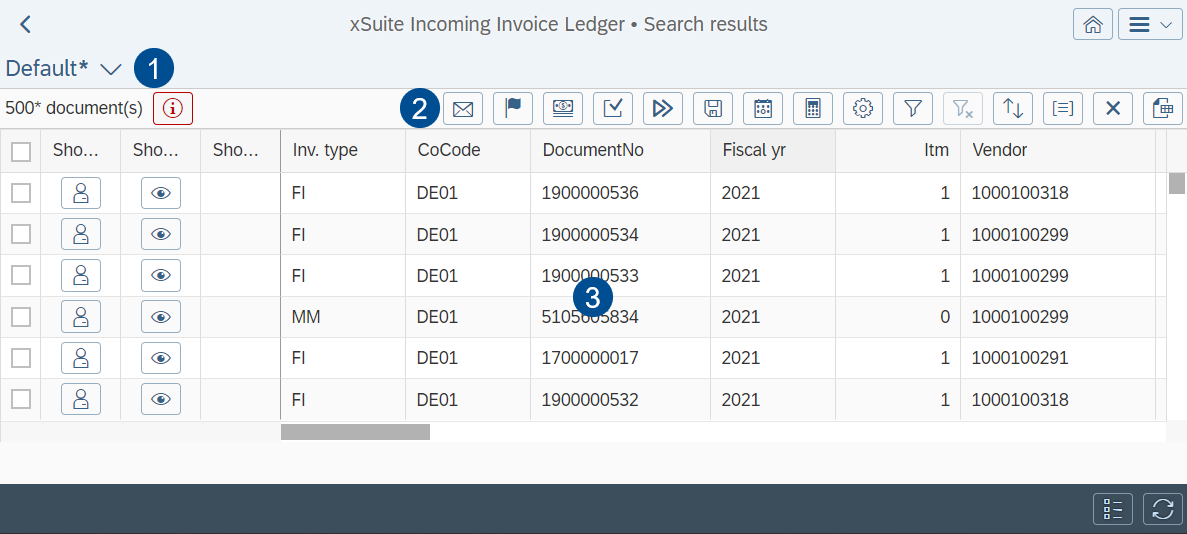 |
Element | More information | |
|---|---|---|
1 | Views | For information on views, see Views in SAP Fiori. |
2 | Buttons in the Invoice Overview | For information on the buttons in the Invoice Overview, see Invoice Overview: Buttons. |
3 | Hit list | All documents that correspond to your search criteria will appear here. You can change column selection with the button For more information, see Appendix C, Invoice Overview: Columns. |

Views in SAP Fiori
Clicking on the name of the current view will open the My Views dialog.
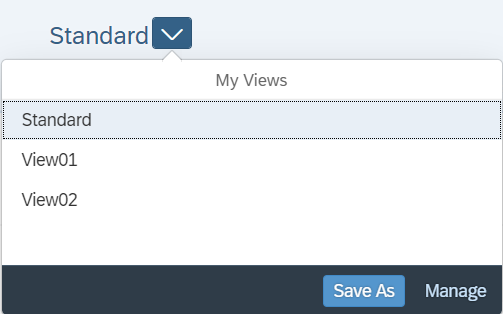 |
"My Views" Dialog: Buttons in SAP Fiori
Button | Description | |
|---|---|---|
Save | Saves the changes made to the current view. This button is only displayed if the current view has been changed and it is a custom view. | |
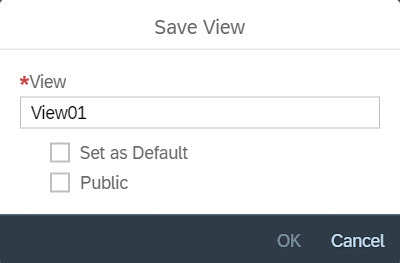
Save as | Saves the changes made to the current view as a new view. Click on the button to open the dialog Save View.
You can make the following settings:
| |
Manage | Opens the dialog Manage Views. All available views can be managed in this dialog. For more information, see "Manage Views" Dialog: Columns in SAP Fiori. |
"Manage Views" Dialog: Columns in SAP Fiori
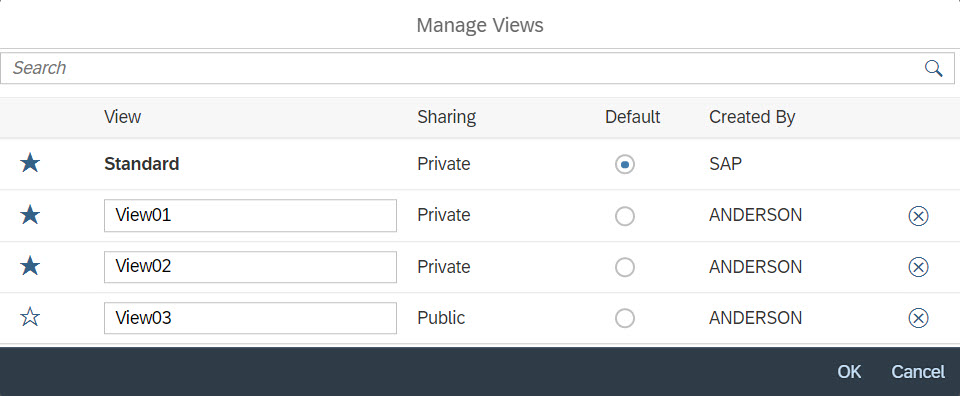 |
Column | Description |
|---|---|
Favorites | Shows one of the following icons:
To change the favorite status, click on the icon. Only views marked as favorites are displayed in the selection dialog My Views. |
View | Shows the name of a view. You can rename your views. The name of the view Standard and the names of views created by other users cannot be edited. |
Sharing | Indicates whether a view is public or private. This column is only displayed if there are public views as well as private ones. The following view types are available:
|
Default | Indicates whether a view is marked as default. By changing the selected radio button, the default view can be changed. The default view is called automatically when the application is launched. For each user, one single view is always marked as the default view. |
Created by | Shows the name of the user who created the view. |
Delete | Shows the icon This icon can be used to delete your own view. |


Invoice Overview: Main Overview in xSuite Web
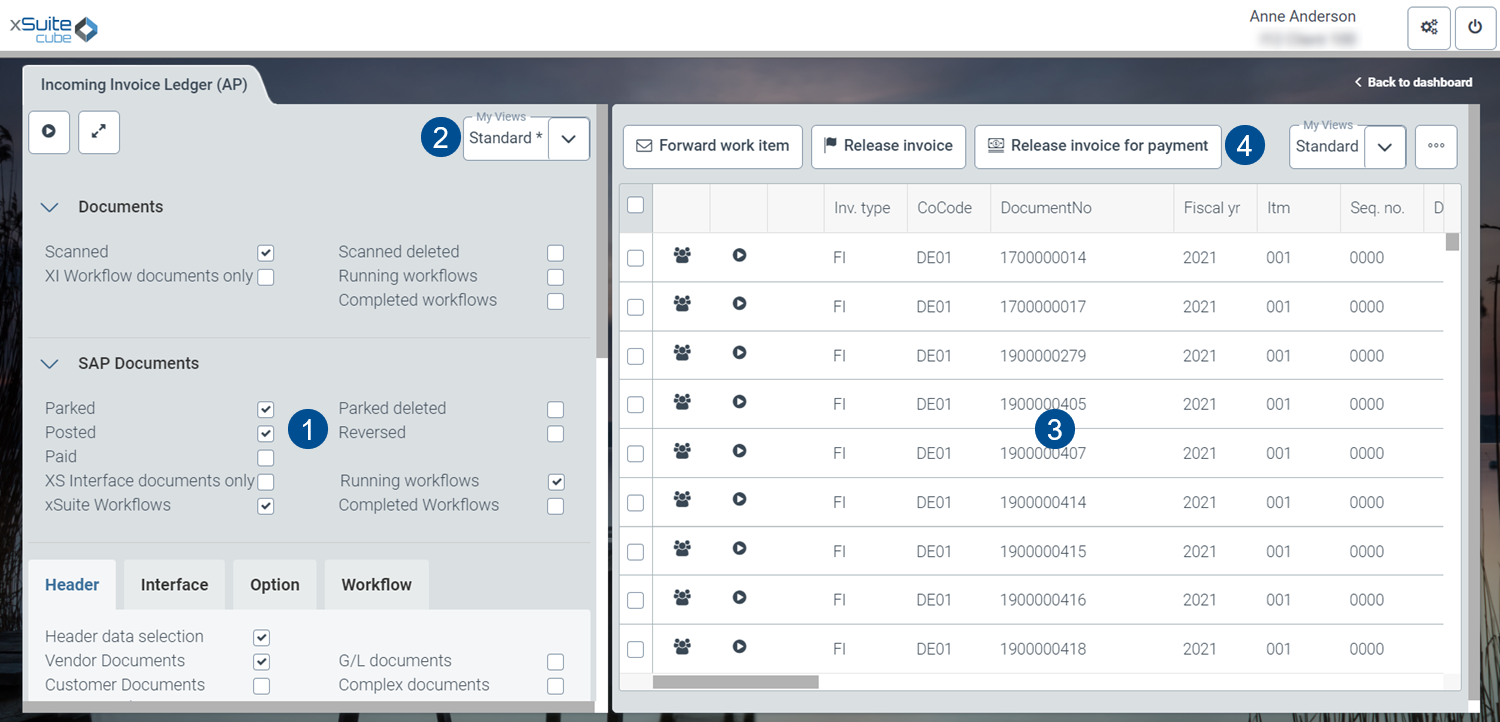 |
Element | Description | |
|---|---|---|
1 | Selection screen | Here, you can set parameters for document searches. For information on search fields, see Invoice Overview: Search Fields. The button The button |
2 | Views | For information on views, see Views in xSuite Web. |
3 | Hit list | All documents that match the search criteria are displayed here. You can change column selection with the button For more information, see Appendix C, Invoice Overview: Columns. |
4 | Buttons in the Invoice Overview | For information on the buttons in the Invoice Overview, see Invoice Overview: Buttons. |


Views in xSuite Web
Clicking on the name of the current view will open the My Views dialog.
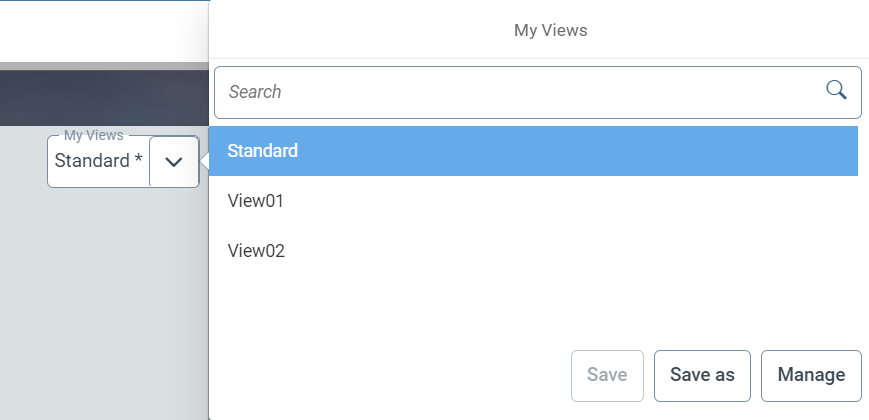 |
"My Views" Dialog: Buttons in xSuite Web
Button | Description | |
|---|---|---|
Save | Saves the changes made to the current view. This button is only displayed if the current view has been changed and it is a custom view. | |
Save as | Saves the changes made to the current view as a new view. Click on the button to open the dialog Save View.
You can make the following settings:
| |
Manage | Opens the dialog Manage Views. All available views can be managed in this dialog. For more information, see "Manage Views" Dialog: Columns in xSuite Web. |
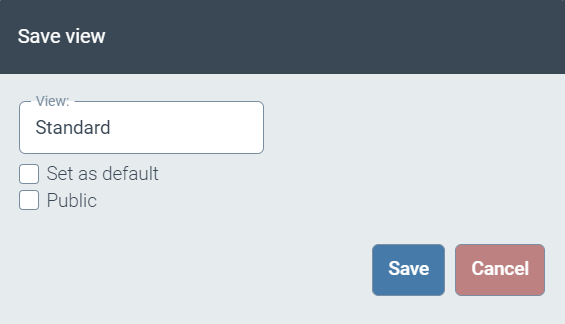
"Manage Views" Dialog: Columns in xSuite Web
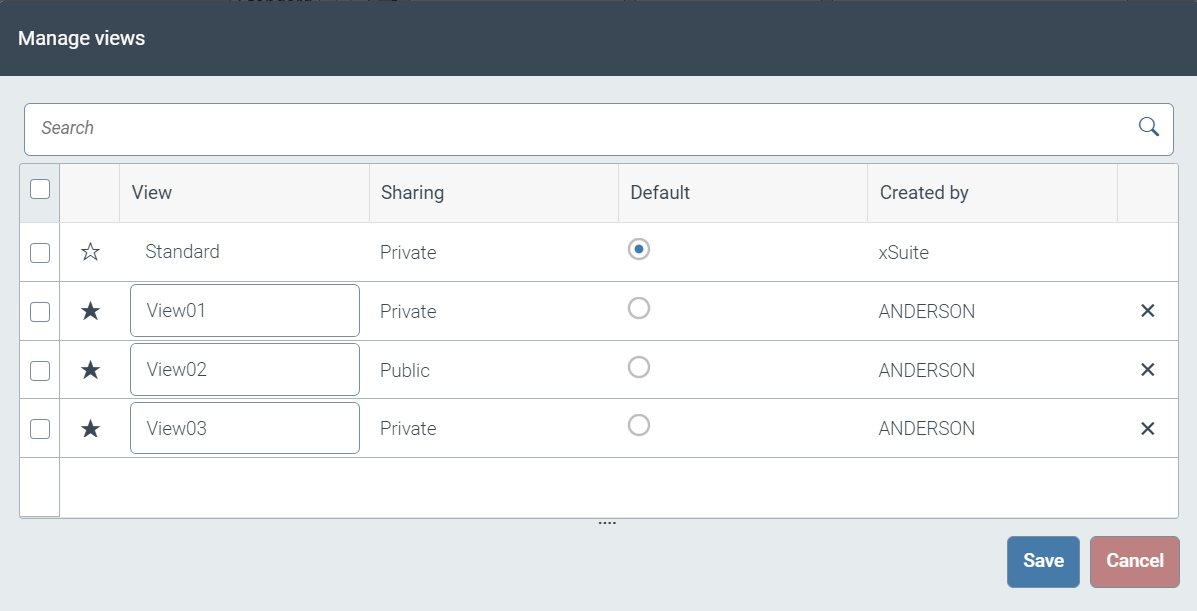 |
Column | Description |
|---|---|
Favorites | Shows one of the following icons:
To change the favorite status, click on the icon. Only views marked as favorites are displayed in the selection dialog My Views. |
View | Shows the name of a view. You can rename your views. The name of the view Standard and the names of views created by other users cannot be edited. |
Sharing | Indicates whether a view is public or private. This column is only displayed if there are public views as well as private ones. The following view types are available:
|
Default | Indicates whether a view is marked as default. By changing the selected radio button, the default view can be changed. The default view is called automatically when the application is launched. For each user, one single view is always marked as the default view. |
Created by | Shows the name of the user who created the view. |
Delete | Shows the icon This icon can be used to delete your own view. |


