Creating a new record
The Invoice Monitor offers functions for creating new records manually. To create a new record, specify the application, the record type, and the company code. Once you have provided this information, you can edit the record and fill it with additional data.
Notice
You can create a new record based on an existing record by copying a record.
Open the Invoice Monitor.
In the hit list, click the button
 Create document.
➣ The Create document dialog will open.
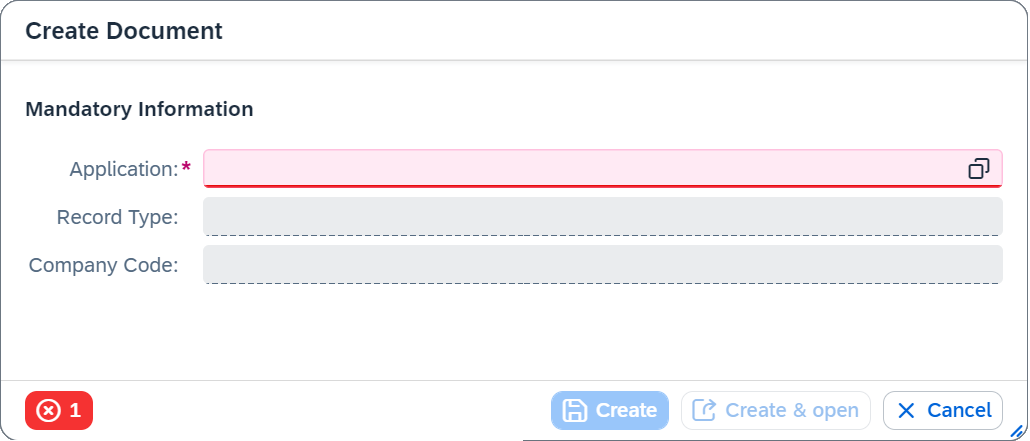
In the fields Application, Record Type, and Company Code, enter values for the record.
Notice
You can either enter the values directly in the fields or use input help. Click on the
 icon in the field to open input help.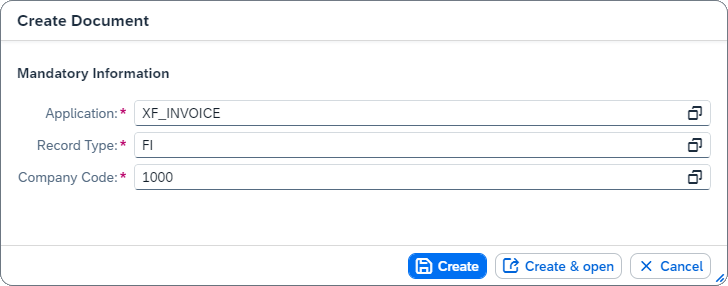
Click Create.
Notice
To open the record directly after it has been created, click Create & open.
➤ The record has now been created with the status
newand the record number0. You can edit the record.Notice
The record will not be assigned a record number until you open and save it.