Saving a custom view
You can save your settings as a custom view. Once you have done so, you can call up the view when you open the Invoice Monitor. If you set a view as the default, it will appear when you open the Invoice Monitor. Your views are only visible to you.
The following settings are saved in the view:
Search fields displayed
Search values entered
Displayed columns
Arrangement of columns
Sorting of columns
Open the Invoice Monitor.
Enter values in the search fields and/or adjust search filters.
Notice
When you make changes to the view (e.g., by entering a value or adjusting the search filters), an asterisk (*) will appear after the name of the view, indicating that changes have been made.

Click the arrow next to the name of the view. Then click Save as.
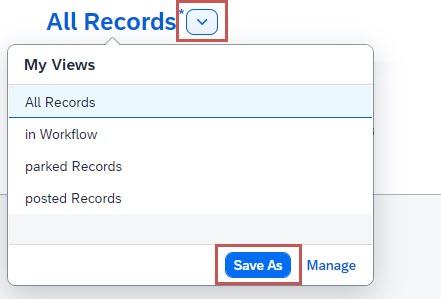
➣ The dialog Save View will open.
Assign a name to your view by entering it in the field View.
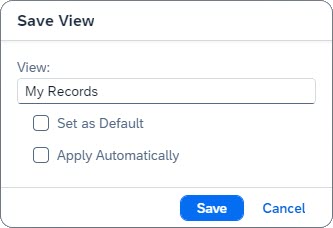
Activate either of the following checkboxes:
Set as Default: Defines the view as default. The next time you open the Invoice Monitor, it will open to this view.
Apply Automatically: When the view is selected, the search will start directly and the results will appear. You will not need to click Go.
Click Save.
➤ The view has now been saved and will appear in the list of all available views. You can manage existing views.