Copying a tile catalog
To create a tile catalog for productive use, you can copy the delivered sample tile catalog.
If a productive tile catalog already exists, you can copy this catalog, for example, to address another target system. In this case, specify the parameter rfc=<rfcname> in the individual tiles to refer to a specific RFC connection.
Assign the changes to a specific transport request, see Defining a transport request for the tile catalogs.
Execute the transaction /UI2/FLPD_CUST.
➣ Fiori Customizing will open in the web browser.
Select the Catalogs tab.
In the list of catalogs, click the catalog you want to copy.
While holding down the left mouse button, drag the catalog in the direction of the
 icon.
icon.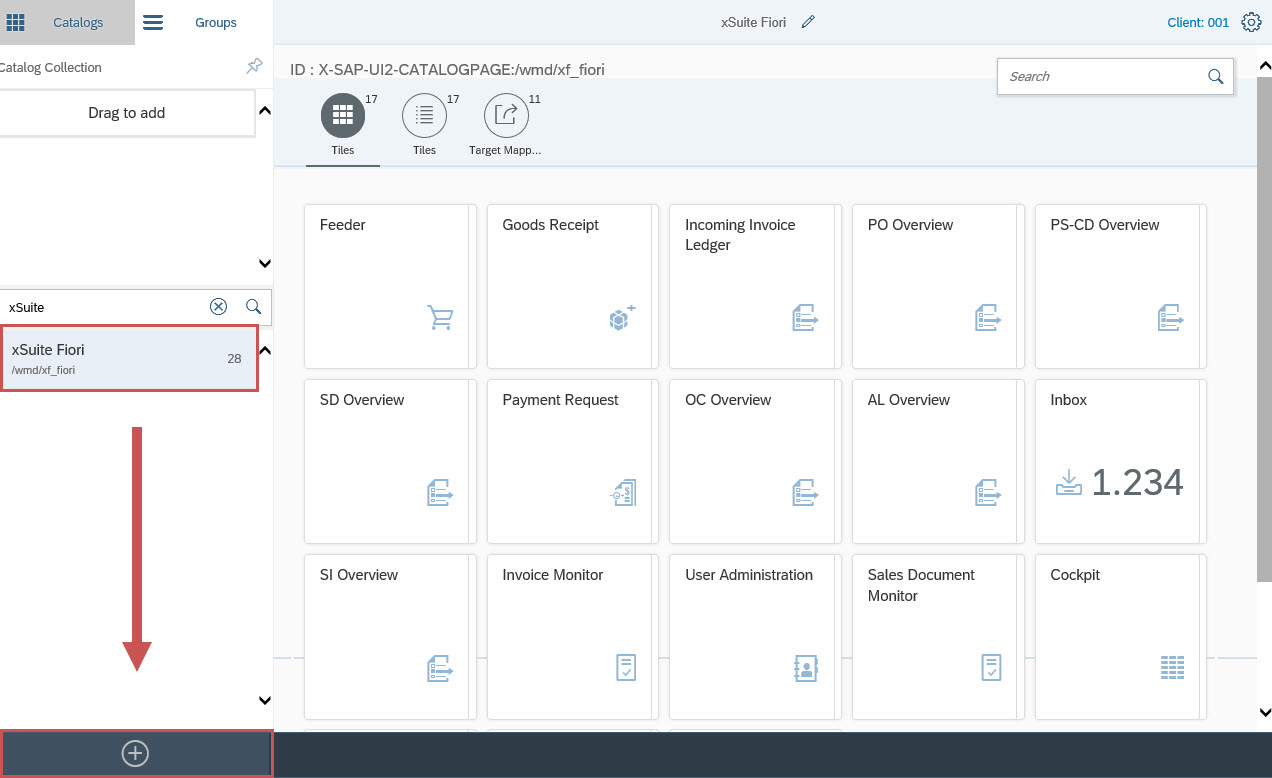
➣ The New Catalog with References option will be displayed.
Drag the catalog to the New Catalog with References option and release the mouse button.
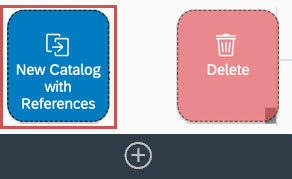
➣ The dialog Copy Catalog will open.
For the catalog, enter a catalog title in the Title field and a catalog ID in the ID field.
Click Copy.
➤ The tile catalog will be copied.