Editing and translating tile labels
Tile headings are connected to the SAP text system. Therefore, the transaction SE63 should be used to edit and translate them.
If a user changes default tile headers in the SAP Fiori Launchpad, user-specific entries will be created for the tile ID in the translation table. User-specific entries have priority over standard entries.
Execute the transaction SE63.
Click the Short Texts button.
In the dialog that appears, select 00 Meta Objects → TABL Tables (Meta).
➣ The dialog ABAP Short Texts: Tables (Meta) will open.
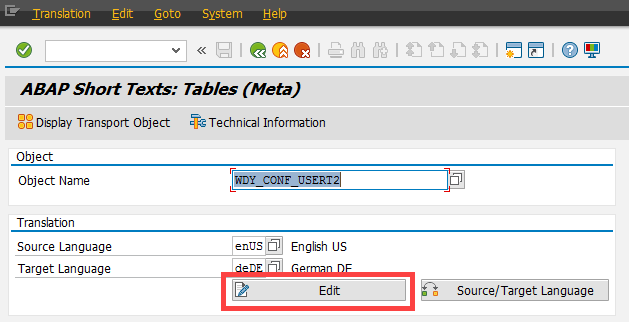
In the field Object Name, enter the value
WDY_CONF_USERT2.Click the Edit button.
➣ The table WDY_CONF_USERT2 will open.
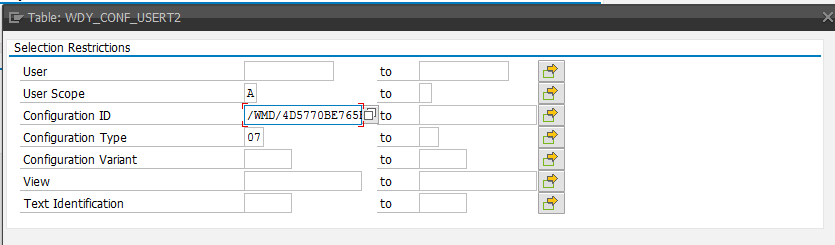
Edit the following data.
User Scope: Enter the value
A.Configuration ID: Enter the tile-catalog ID:
/WMD/4D5770BE765E9490904606C95F8Note: The complete tile catalog ID can only be entered using multiple selection.
Configuration Type: Enter the value
07.
Click the
 Execute button.
➣ The translation table will open.
Enter the preferred text and save.
Empty the caches for both SAP Gateway and SAP Fiori.
To do so, enter the transaction SE38 and execute the report /UI2/INVALIDATE_GLOBAL_CACHES.
Executing the report may take a few minutes.