Creating a tile group
You can group multiple tiles together to form a tile group. A tile may be contained in multiple tile groups.
Tile groups allow you to manage tile access. For more information, see Configuring authorizations for tiles.
Execute the transaction /UI2/FLPD_CUST.
➣ Fiori Customizing will open in the web browser.
Select the Groups tab.
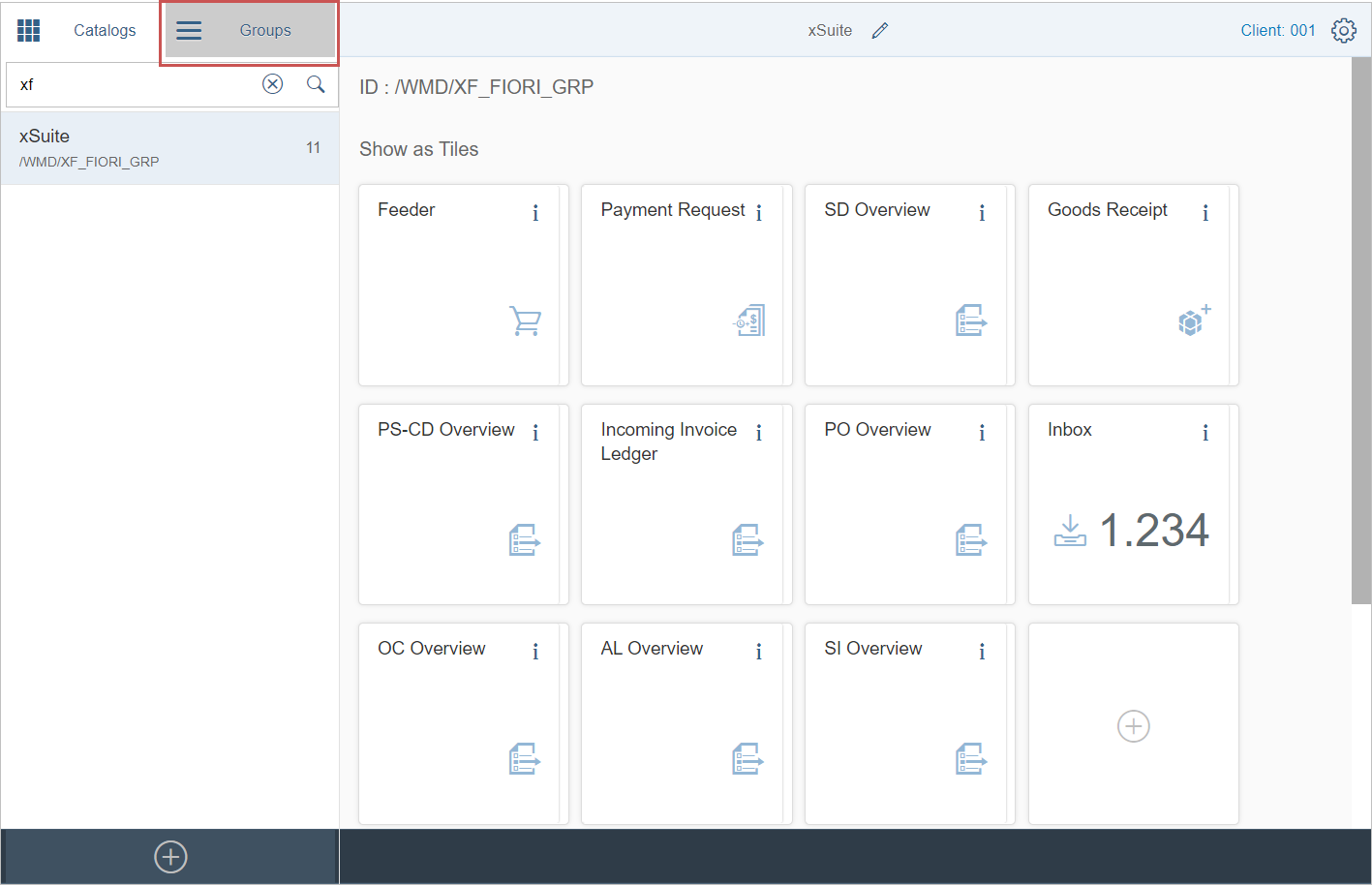
Notice
Ensure that a transport request has been set for tile groups (
 Settings button). For more information, see Defining a transport request for the tile catalogs.
Click the
 Create Group button.
➣ The dialog screen Create Group will open.
Enter the label and the ID for the tile group and save.
➣ The new tile group will appear in the pane on the right side of the screen.
Click the tile with the "plus" icon in the Show as Tiles section.
➣ The page Add Tile to Group will open.
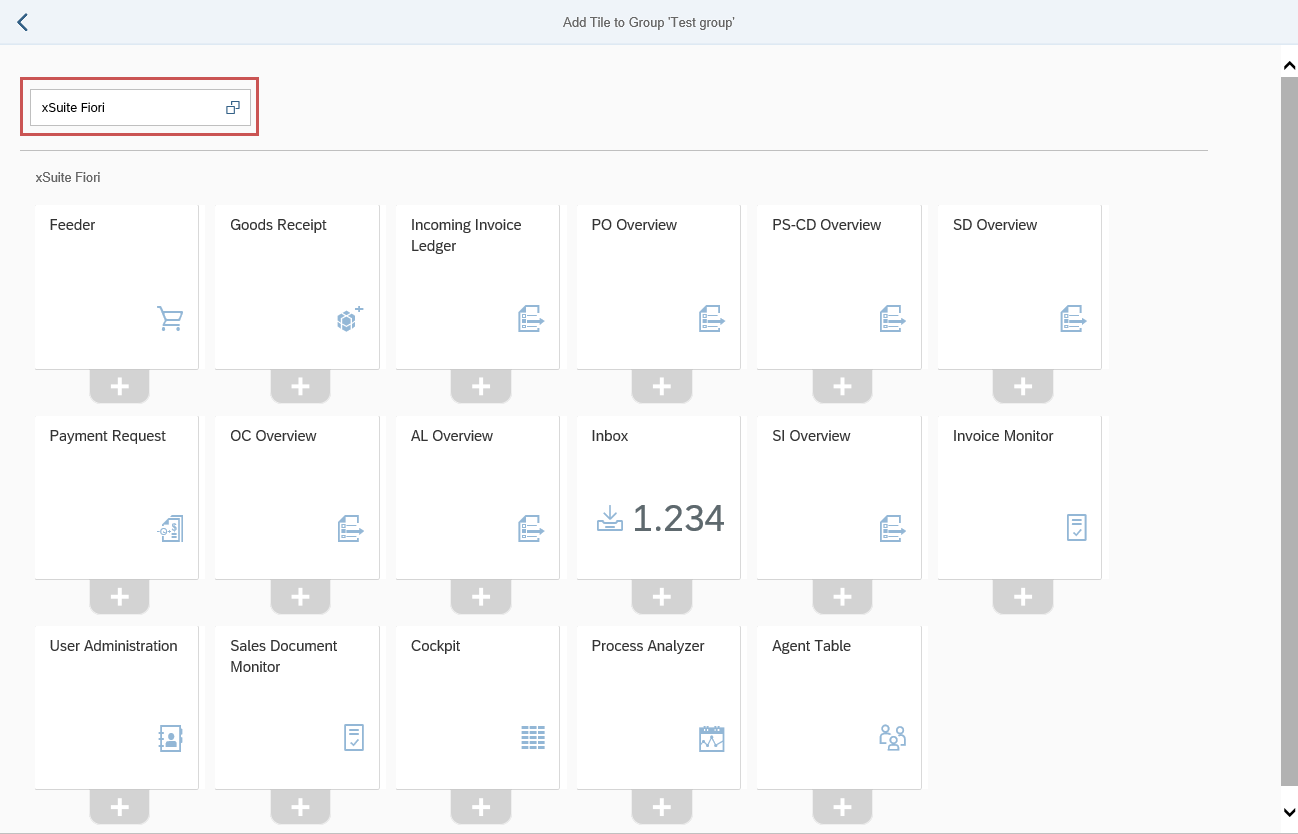
In the field in the upper left corner, select the tile catalog that contains the desired tiles, for example "xSuite Fiori".
➣ The tiles that are included in the tile catalog will be displayed.
Click the "plus" icon of the tile you wish to add it.
Click the
 Navigate Back button.
➤ The tile will be added to the tile catalog.