Configuring the Gateway back end
The SAP Gateway must be informed of imported services. The imported services must be assigned to a target system. This section addresses the subject of standard configuration. The settings included in the standard Fiori back-end configuration cover the needs of most scenarios.
For more information on configuration in general, see the SAP Help Portal.
Execute the transaction /IWFND/MAINT_SERVICE.
➣ The screen Activate and Maintain Services will open.
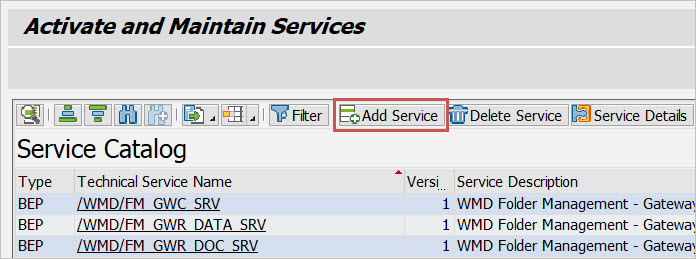
Add the following services in sequence.
/WMD/XF_ARCHIVE_SRV
/WMD/XF_GW_WEB_SERVICE_SRV
/WMD/XF_GW_INBOX_SRV
For each service, click the button
 Add Service.
➣ The screen Add Selected Services will open.
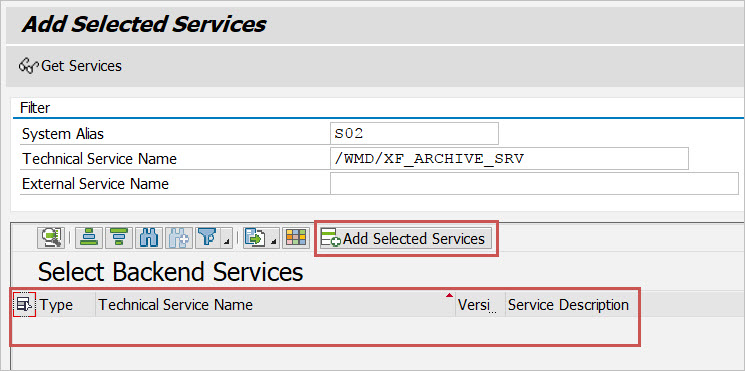
Edit the following data.
System Alias: Enter the value
LOCALfor each of the services.Technical Service Name: Enter the name of one of the three services.
Press Enter.
➣ All services that have not been added will be displayed.
Click one of the three services.
Click the
Add Selected Services button and then the  Back button.
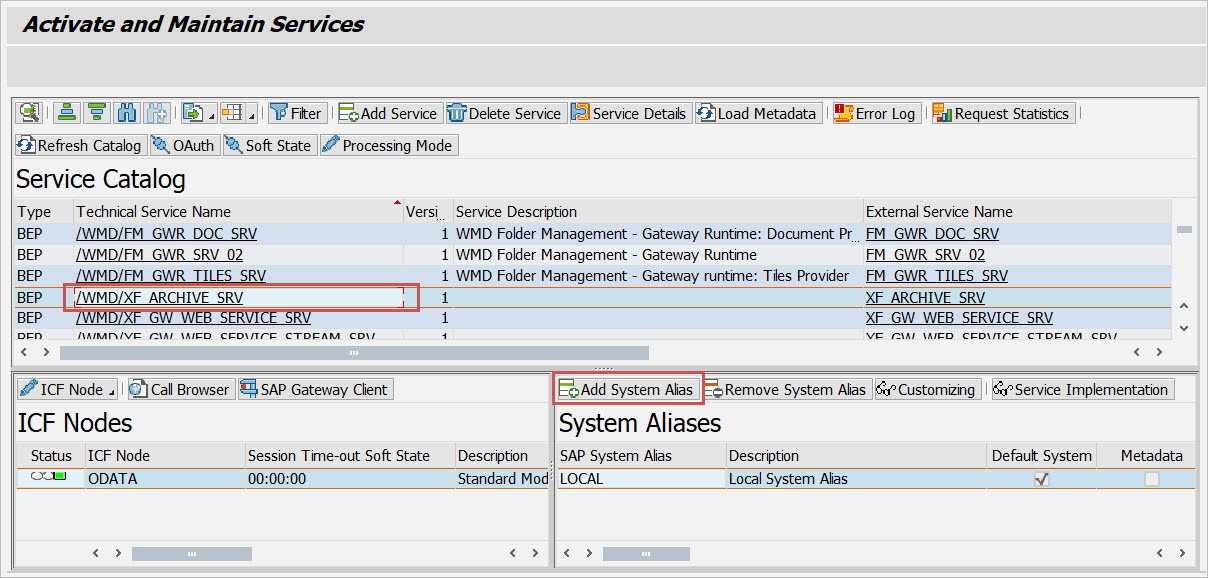
➣ The service will be added.
Notice
If you wish to see details on the service, click on the name of the service.
One after another, set the SAP system aliases for each of the three services by clicking on one of them and then the
Add System Alias button.➣ The screen Change View "Assign SAP System Aliases to OData Service" will open.
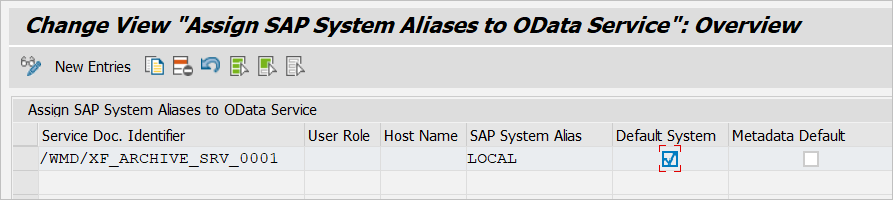
Specify the following for each SAP system alias.
Field
Value
Service Doc. Identifier
Automatically identified based on the service, e.g.,
/WMD/XF_ARCHIVE_SRV_0001.SAP System Alias
Enter the value
LOCAL.Default System
Activate the checkbox.