Creating a role
The visibility of tiles in the Fiori Launchpad is controlled by roles.
A role created in the portal manager must be assigned to a user as a role collection (see Assigning the role collection "Portal_Admin").
In this example, all xSuite Apps are assigned to the xSuiteCubeUser role.
Notice
Importing the tile catalog automatically creates the xSuiteCubeUser role (see Importing the tile catalog).
You only need to perform the following steps if you want to create an additional role.
Open the portal manager. For more information, see Opening the portal manager.
Click on
 Content Manager and select the My Content tab.
Click the New button and then click Role.
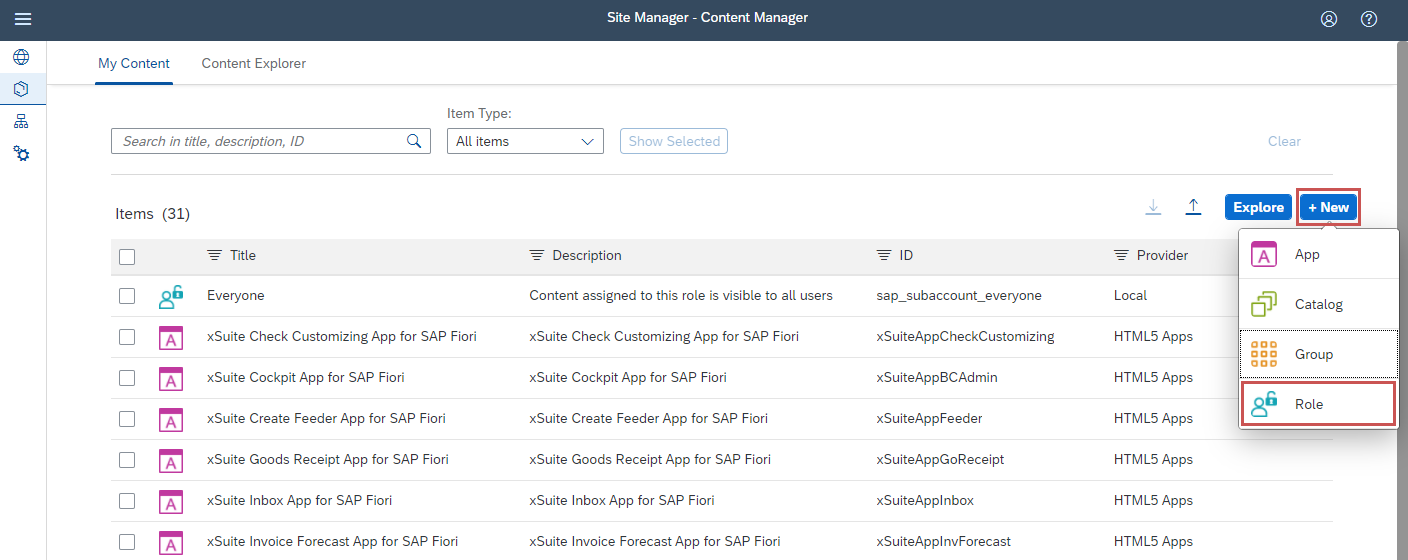
➣ The screen for a new role will open.
Enter a name for the role in the Title field and a description in the Description field.
Notice
The ID field will automatically be filled as soon as a title is entered.
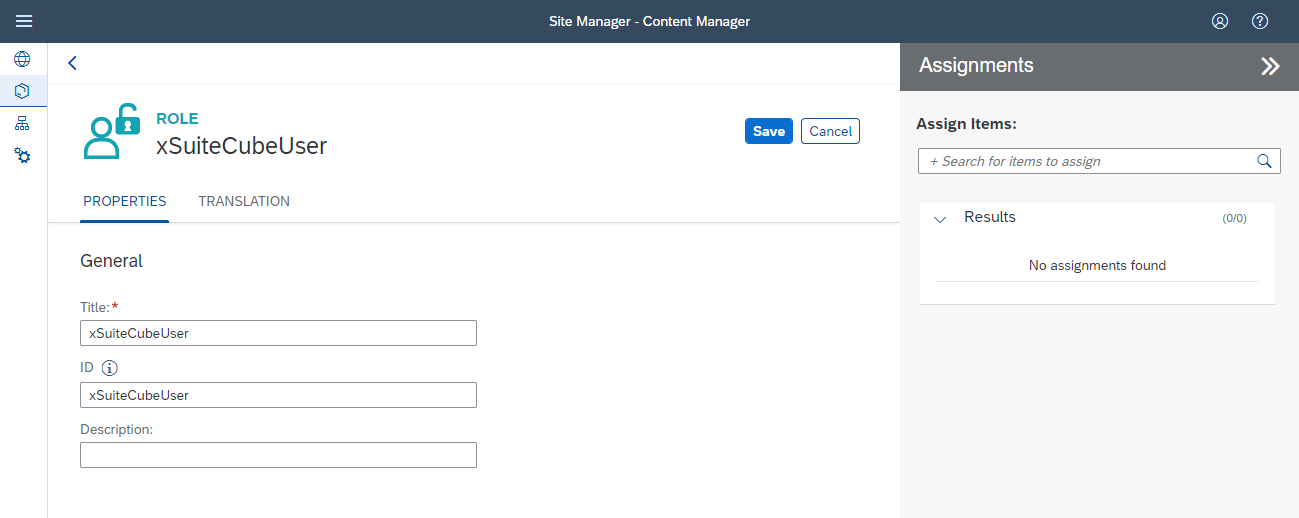
If necessary, open the Translation tab and enter the translations for the title and the description.
In the Assignments area, click in the search field to search for xSuite Apps to display to users with this role.
Click on the button
 next to the name of an xSuite App to add this app to the role.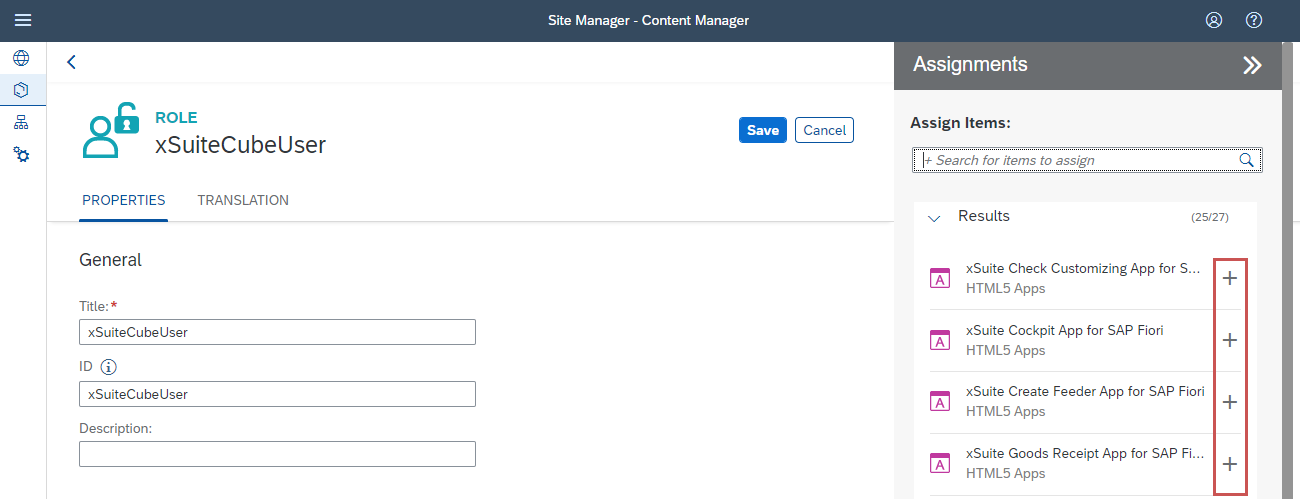
Click Save.
➤ The role has now been created and configured.