Deploying via the SAP Business Application Studio
Open the SAP Business Application Studio.
Open or create an SAP Fiori Dev Space.
In the File Explorer of the Dev Space created, right-click and then click New Folder.
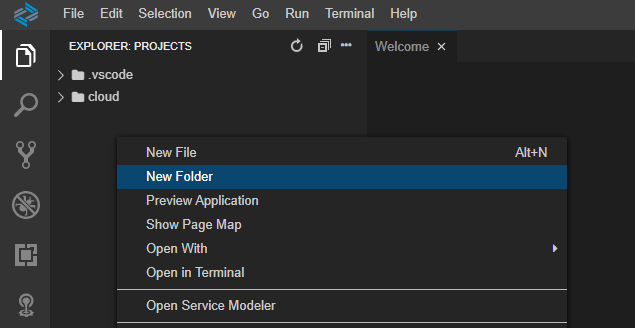
➣ A new folder is now created.
Open the newly created folder with a right click and then click Upload Files....
Select the MTA archive file.
➣ The MTA archive is now in the File Explorer.
Right-click the MTA archive and then click Deploy MTA Archive.
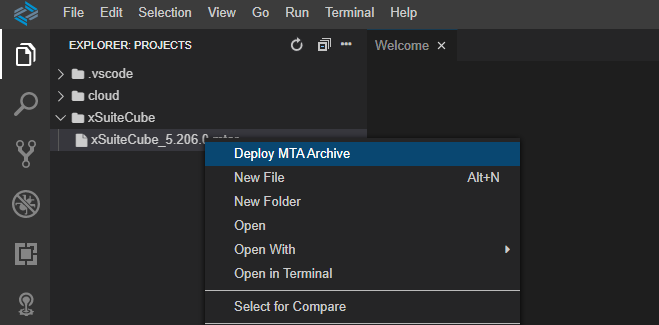
Enter the Cloud Foundry endpoint, and then press Enter.

Enter your e-mail address and password to log in to the selected Cloud Foundry endpoint, and then press Enter.

Enter the Organization and then press Enter.

Enter the Space and then press Enter.

Notice
The deployment process may take a few minutes.
➤ The completion of the deployment process will be indicated by the expression
Process finishedin the terminal.