Accounting Tasks in xFlow Web
[de] +++Dieser Abschnitt wurde in den Public Sector Release Notes 5.2.3 reused und überarbeitet.
As of Release 5.2.1, it is possible to process the tasks with the functions Edit Document, Complete Document, Post Manually, Reverse Document in xFlow Web and xFlow Fiori. More concretely, the roles AAC1, AAC2, AAC3, AACC, AREV, LAC1, LAC2, LAC3, LACC, LREV, PFET, PRET, POET and ORET are affected.
In addition, it is now possible to display an SAP document using the function code DISP_INV or DISP_DOC in AP, PU and OR, providing that the button appears in customizing and is designated as available in the web (Table /WMD/XF_BC_TBARM).
In xFlow Mobile and the mobile view of xFlow Fiori, these functions are not available.
Requirements
For these new functions, the SAP GUI for HTML based on the SAP ITS (Internet Transaction Server) is used. As such, successful processing is primarily dependent on the functionality of the SAP ITS. In the case of older SAP releases and newer browsers, it may be that the ITS framework does not allow processing. Therefore, we advise that you clarify whether it can be generally used and whether it will enable error-free processing. WMD recommends the SAP Basis Version 7.31, SP Level 11 or higher for the use of the ITS. Details are as follows:
[de] Es wird empfohlen, mindestens die SAP-Basis-Version 7.31, SP-Level 11 für den Einsatz des ITS zu verwenden. In niedrigeren SAP-Basis-Versionen kann es zu Browser-Inkompatibilitäten kommen und dazu, dass SAP-Belege nach der Bearbeitung im ITS für eine gewisse Zeit gesperrt werden.
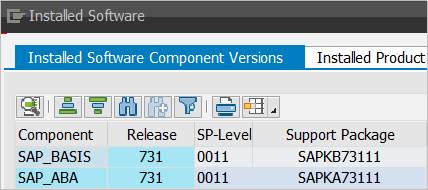
In the case of xFlow Fiori, it is important to consider the fact that the SAP ITS is invoked straight from the SAP back-end system, even when access otherwise is always meant to proceed via a separate Fiori-front-end server based on the SAP NetWeaver Gateway. In some cases, the use of an SAP Web dispatcher or a comparable reverse proxy may be of practical value, even if it is not absolutely necessary.
In addition, it is important to note that the ITS functions can only be executed by SAP users. Users exclusively active on the web will therefore not be able to view the tasks and function codes involved.
Invocation
To call the web application, the SSO link must be used in xFlow Web when using the ITS, even when an SSO scenario has not been implemented. Otherwise, later you will be asked by the ITS to log on.
An example:
[de] https://host.domain.de:80/sap/bc/bsp/wmd/sso/sso.htm?sap-client=800&host=I08800
The parameter sap-client=<TargetClient> is important if a standard client has not been stored in the SAP system or another client is to be addressed. When in doubt, specify the parameter again. If it is absolutely necessary to connect multiple back-end systems (not clients) via a front-end server, the host must also be specified. In the example here, it would be "I08800".
[de] Wenn es zwingend erforderlich ist, mehrere Back-End-Systeme (nicht Mandanten) über einen Front-End-Server anzubinden, muss zusätzlich der Host angegeben werden, wie hier im Beispiel
I08800.
xFlow Settings
To forego double login, make the following settings in the SSO service.
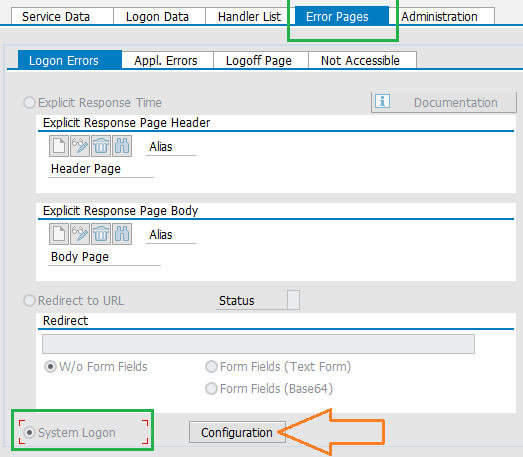
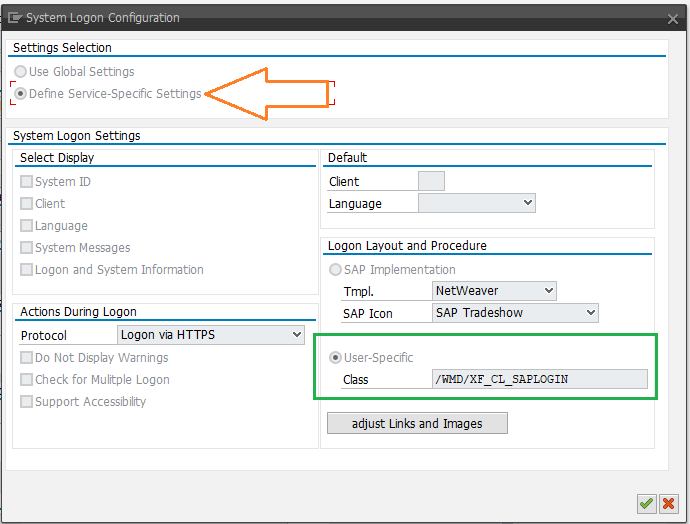
settings.js
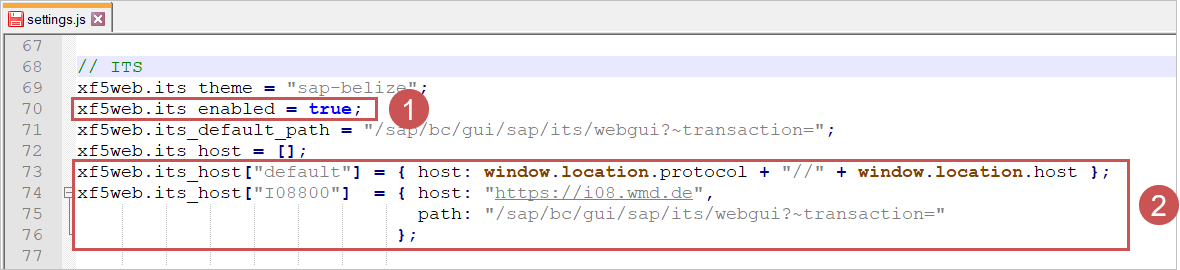
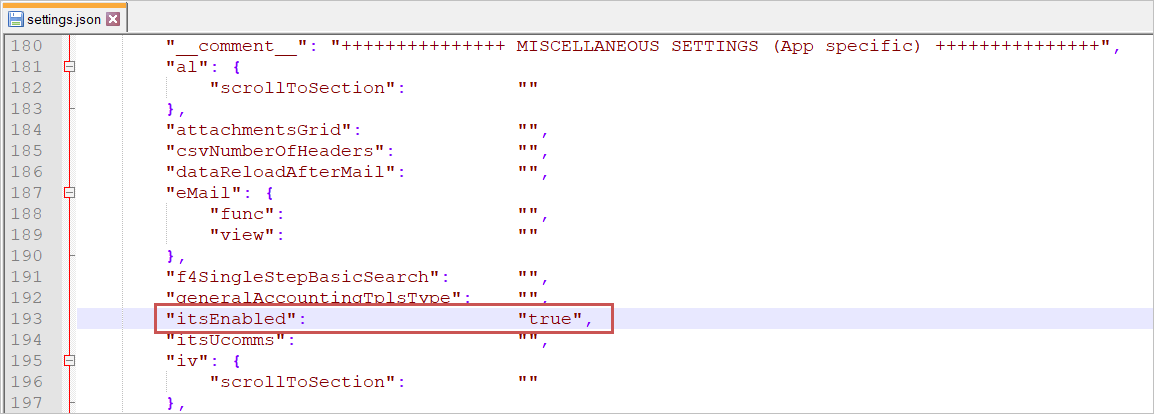
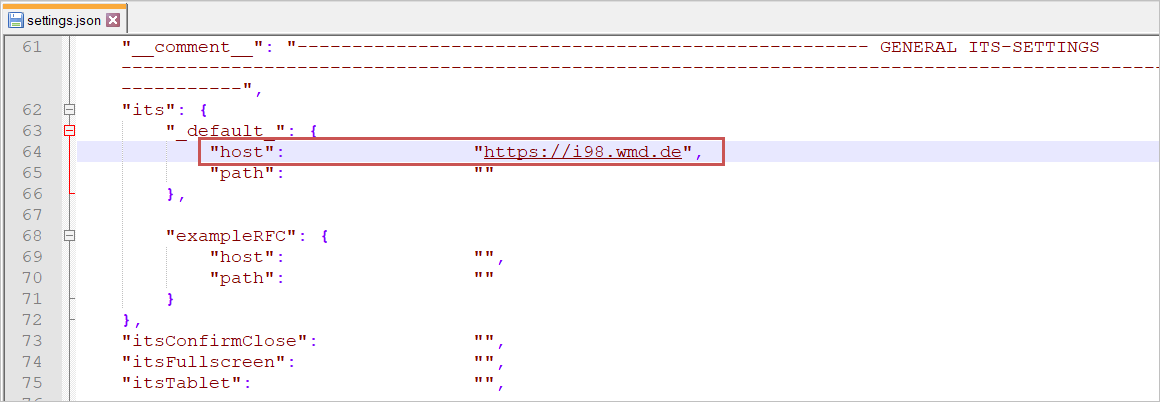
In the standard package, only its ITS must be activated (outlined in green below). If the ITS path differs from the default path, this can be adjusted here.
[de] Wenn der ITS-Pfad vom Standard abweicht, muss auch der Pfad angepasst werden (2).
If it is absolutely necessary to connect multiple back-end systems (not clients) via an SAP Web AS, the back-end system that was removed must also be specified here (entry: I08800). The path is optional, but the host must be specified. If the path variable is not specified, then remove the comma [,] if it is located after the host name. If the domain does not fit to the default system, the ITS dialog cannot be automatically closed. This must be performed manually.
manifest.json
[de] Für SAP Fiori muss der ITS aktiviert und zusätzlich auch die URL eingetragen werden.
Description
If all prerequisites have been fulfilled, the tasks will also appear in xFlow Web and xFlow Fiori. If there are work items that are still being processed, the last step in the workflow must first be restarted.
After opening a work item such as this, the same buttons will appear as in the SAP GUI. If you wish to change an SAP document, simply click on the change button in the sidebar on the left. A dialog screen will open, covering the entire left side of the work item. (In the screenshot below, the dialog has been shifted to the side for the purposes of clarity.) This makes it possible to process the SAP document on the left side and to simultaneously view the attachment currently displayed.
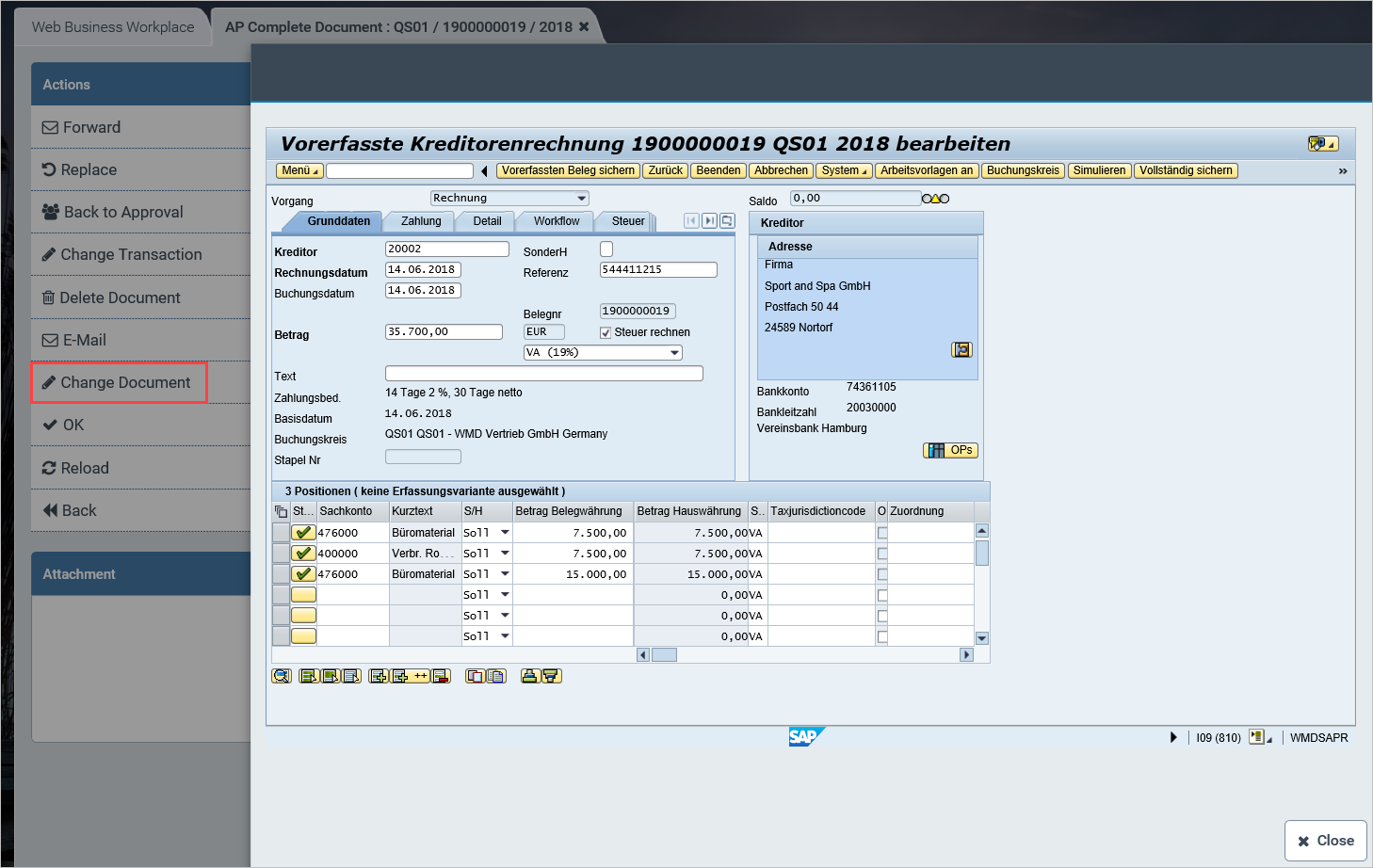
The SAP ITS appears in the dialog and displays the SAP document. The SAP ITS is responsible for all functions within this dialog; as such, they cannot be influenced. How the SAP IST transaction appears depends on the version of the SAP release of the back end. If the version is high enough, the SAP Belize theme will be used, and it will be practically impossible to detect a difference from SAP Fiori applications.
After the SAP transaction has been actively ended, the dialog will close automatically. You can also end the dialog manually by clicking the Close button in the bottom right corner. Depending on the results of the work in the SAP ITS transaction, the work item is ended and closed or its data reloaded. In xFlow Fiori, it is not possible to end it automatically. The dialog screen always needs to be closed manually.
Note
As mentioned, in the SAP Basis versions lower than 7.31, SAP documents may remain locked if the transaction is not correctly ended in the SAP ITS. Therefore, in cases such as this, it is of practical value to end the SAP ITS transaction manually if it is not automatically ended by backing up or saving as complete.
Configuring the ITS and Single Sign-On (SSO)
As discussed in previous sections, the xFlow SSO link must be used to suppress a new SAP transaction when invoking an ITS transaction. This is possible because an SAP login ticket is issued by SAP Web AS when logging in to the xFlow SSO Controller. This ticket can, in turn, be used by the SAP ITS for login by SSO. A number of preparations must be made on the SAP side for this to function.
[de] Der Ablauf ist wie folgt: Bei der Anmeldung am xSuite-SSO-Controller wird vom SAP Web AS ein SAP-Logon-Ticket ausgestellt. Dieses SAP-Logon-Ticket wird dann vom SAP ITS zur Anmeldung per SSO verwendet. Damit dieser Ablauf funktioniert, müssen in SAP die folgenden Schritte ausgeführt werden.
Activating the SAP ITS
To activate the SAP GUI for HTML, activate the following services in the SICF transaction:
/default_host/sap/bc/gui/sap/its/webgui/default_host/sap/public/bc/ur/default_host/sap/public/bc/its/mimes
[de] Zur Aktivierung von benötigten Zusatzdiensten kann die Transaktion SIAC_PUBLISH_ALL_INTERNAL ausgeführt werden.
[de] Mit der folgenden URL kann der ITS getestet werden:
[de] http://<hostname>:<port>/sap/bc/gui/sap/its/webgui
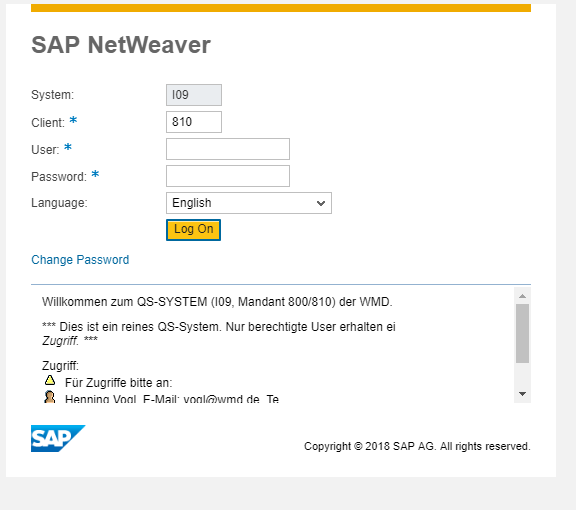
A dialog screen will open as shown below:
Configuring SAP Web AS to Issue Login Tickets
The system on which the xFlow web pages are hosted must issue SAP login tickets. When using xFlow Fiori, this system would be the Fiori front-end server. When using the xFlow Web components, this is generally the back-end system itself. To activated ticket generation, set the following parameter in the instance profile of the SAP server in Transaction RZ10:
[de] Zur Aktivierung der Ticketerstellung ist im Instanzprofil des SAP-Servers in der Transaktion RZ10 der folgende Parameter zu setzen:
Parameter:
login/create_sso2_ticketValue: 2
Configuring the Back-End System to Accept Login Tickets
The SAP back-end system on which the ITS runs must have the following parameters set in the instance profile:
Parameter:
login/accept_sso2_ticketValue: 1
Configuring the Back-End System to Accept Login Tickets from the SAP Web AS
The systems from which the SAP back-end system accepts login tickets must be configured in the SSO2 transaction. The system will not accept login tickets from the respective partner until all traffic lights in the transaction are green. A system for which this does not apply can generally be authorized and activated with the  icon.
icon.
[de] Ein System, bei dem dies nicht der Fall ist, kann im Allgemeinen über das Icon zugelassen und aktiviert werden.
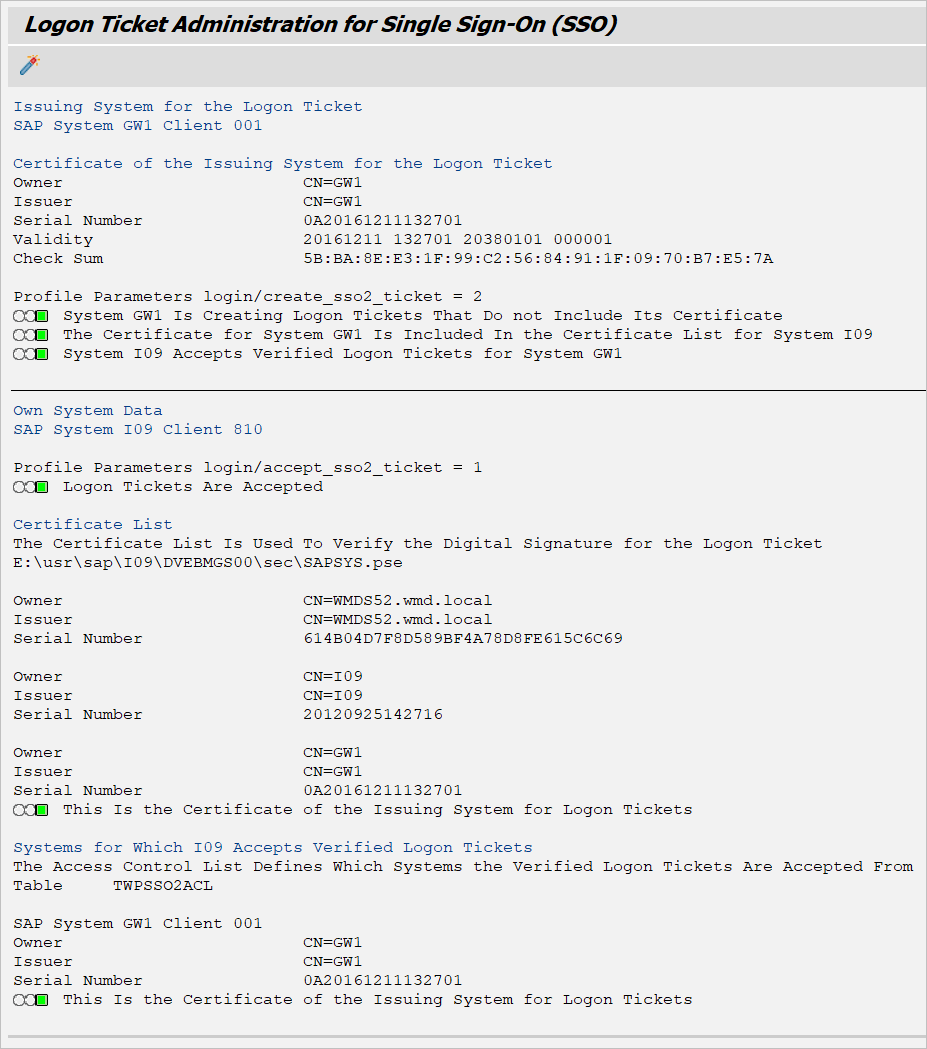
You will find more information on configuration of the internet in the SAP online documentation, for example as follows: