Creating follow-up documents
You can create follow-up documents from existing purchase orders. Possible follow-up documents are order confirmations, shipping notifications, invoices and credit notes. The follow-up documents are created dynamically and stored as PDFs.
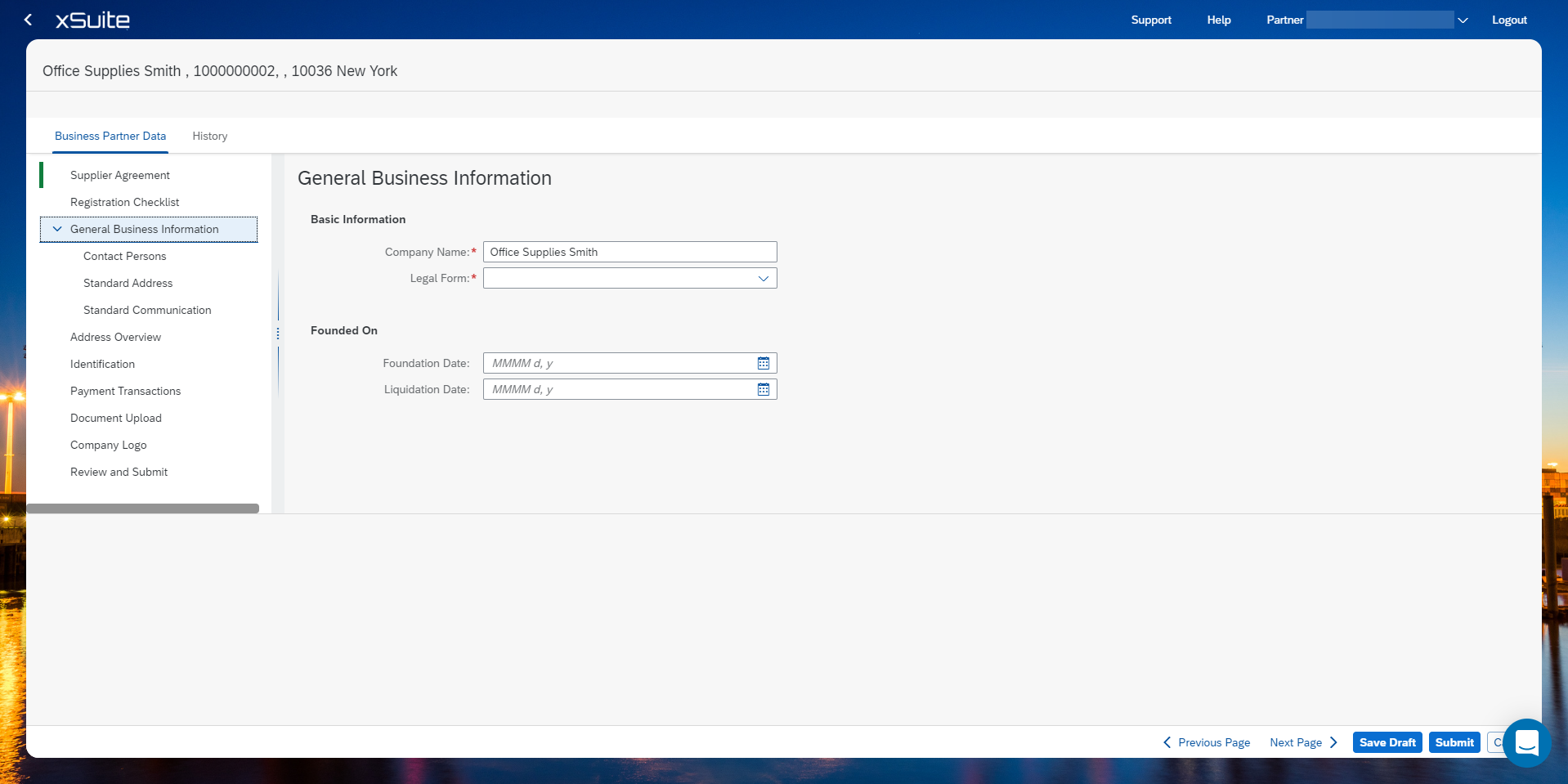
Managing company data
This tab provides an overview of the master data in Manage my company data. As a business partner, you can maintain or change your master data here. Each change starts a workflow that requires customer approval. Each item in the sidebar will be marked with a green line once mandatory fields are filled. If mandatory fields have been left unfilled, the item in the sidebar will be marked with a red line to the left. With the last topic field of the Check and Submit list, the information can be saved and released for checking. The History tab lists all actions and changes.
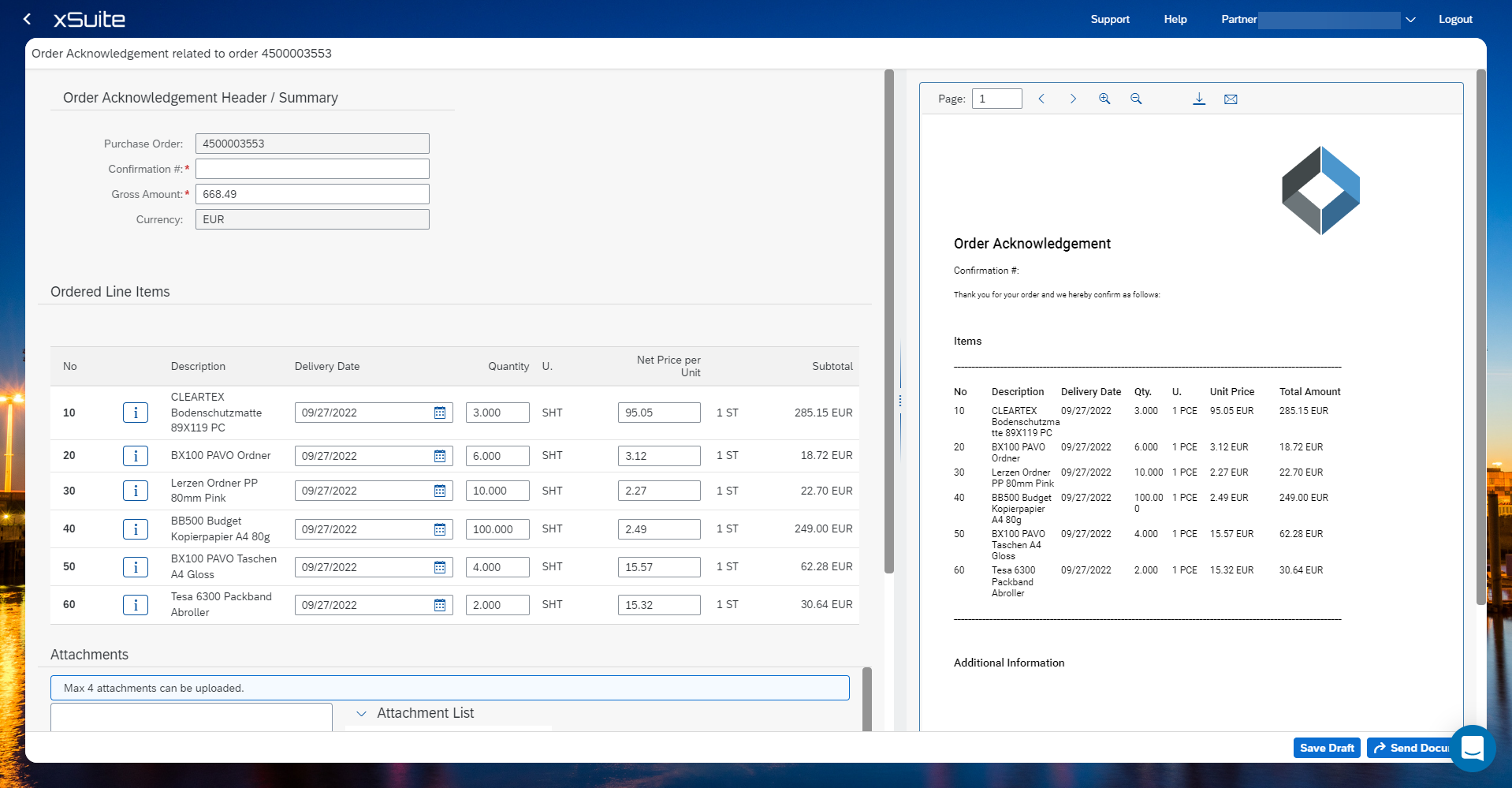
Creating an order confirmation
Click on an order.
Click Actions and choose Create Order Acknowledgement.
Enter a confirmation number.
Change the item data, if necessary. The fields delivery date, quantity, net price per unit, and tax are changeable.
Add a note if needed.
Click Submit Document to send the document or save the entries as a draft via Save Draft. The draft can be edited at a later stage. See Uploading documents.
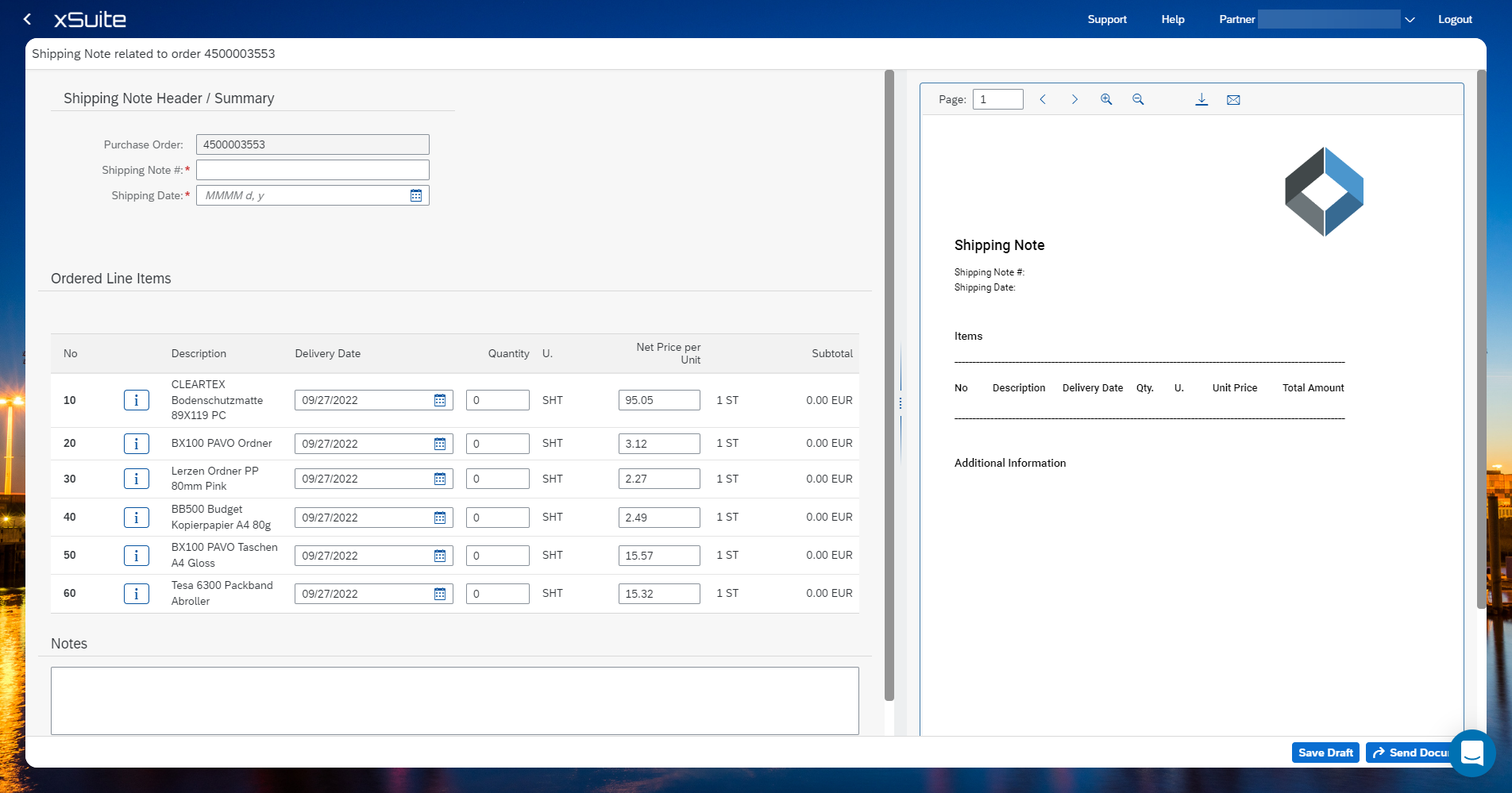
Create a Shipping Note
Click on an order.
Click Actions and choose Create Shipping Notification.
Enter a shipping note number.
Enter the shipping date.
Enter the delivery date.The fields delivery date, quantity, and net price per unit are changeable.
Add a note if needed.
Click Submit Document to send the document or save the entries as a draft via Save Draft. The draft can be edited at a later stage. See Uploading documents.
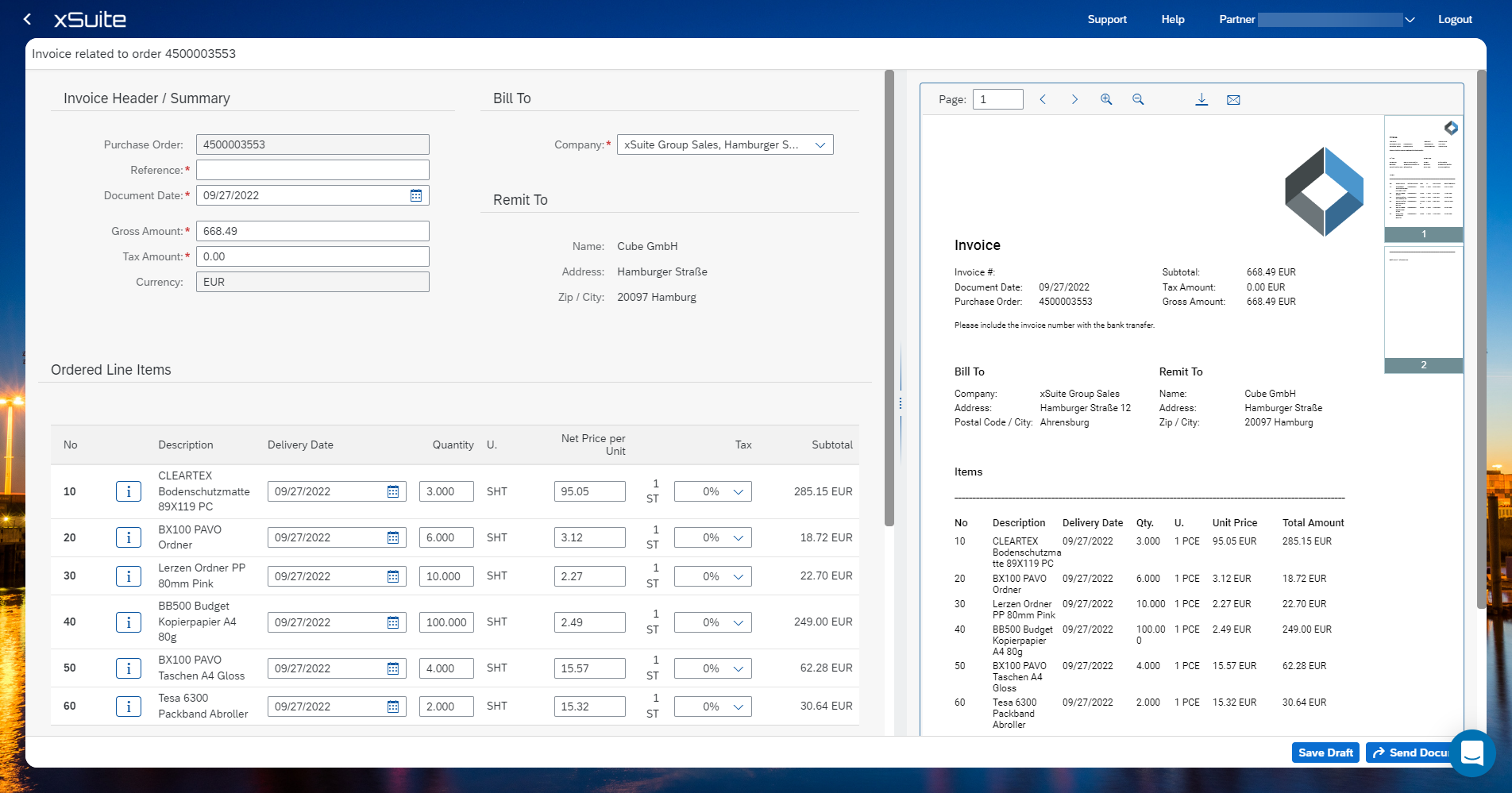
Create an Invoice
Click on an order.
Click Actions and choose Create Invoice.
The fields purchase oder and currency are not changeable and prefilled.
Enter a reference.
Enter the document date. The today's date is prefilled.
The determination of the amount takes place at item level. Change the gross amount only if necessary.
The bill to company code is prefilled. Change the company code if necessary.
Change the item data, if necessary. The fields delivery date, quantity, net price per unit and tax are changeable.
Add a note if needed.
Click Submit Document to send the document or save the entries as a draft via Save Draft. The draft can be edited at a later stage. See Uploading documents.
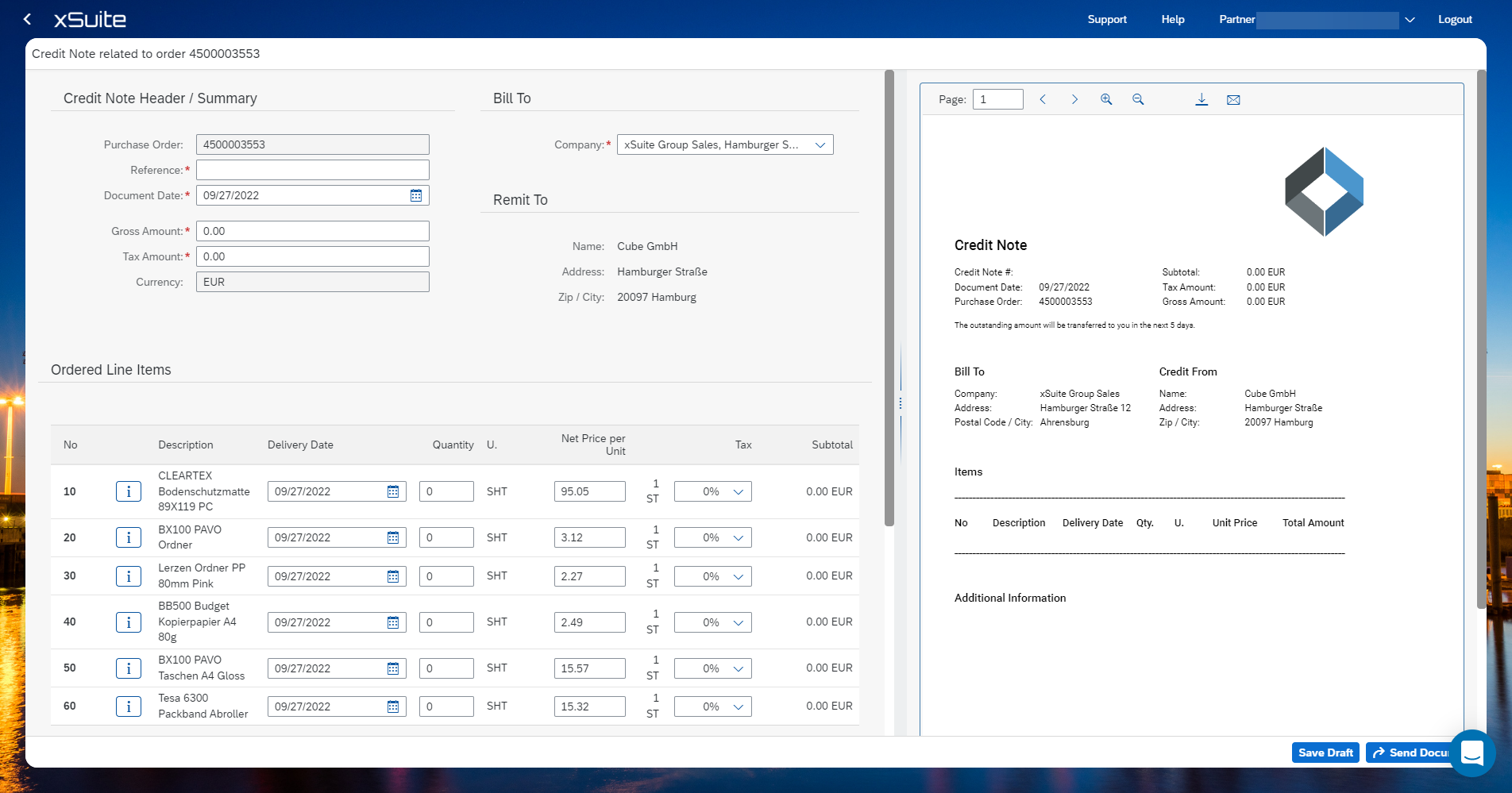
Create a Credit Note
Click on an order.
Click Actions and choose Create Credit Note.
The fields Purchase order and Currency are prefilled and cannot be changed.
Enter a reference.
Enter the document date. The today's date is prefilled.
The determination of the amount takes place at item level. Change the gross amount only if necessary.
The bill to company code is prefilled. Change the company code if necessary.
Change the item data, if necessary. The fields delivery date, quantity, net price per unit and tax are changeable.
Add a note if needed.
Click Submit Document to send the document or save the entries as a draft via Save Draft. The draft can be edited at a later stage. See Uploading documents.