Feeder Workflow: Steps
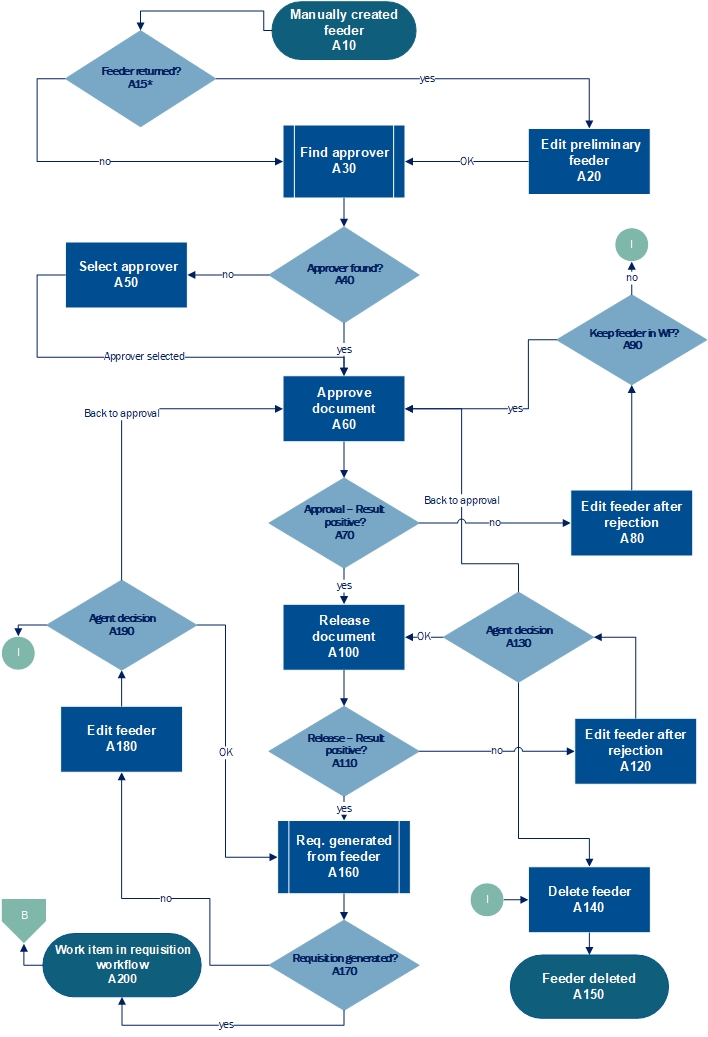 |
Workflow element | Description | Role | |
|---|---|---|---|
A10 | Feeder created manually | The workflow may start with a manually created feeder (requisition). A work item can be saved and returned to the inbox for later editing, or simply saved. Saving the feeder sends it to the step A30. | ––– |
A15 | Feeder returned? | Depending on whether the feeder has been returned to the inbox, it will enter workflow step A20 or A30. If the feeder has been created and returned to the inbox, it will enter the "Edit Preliminary Feeder" workflow step. If the feeder has not been returned to the inbox after creation, it will enter the "Find approver" workflow step. | ––– |
A20 | Complete preliminary feeder | The agent can edit and then save the feeder, or return it to the inbox for later editing. | PFCC |
A30 | Find approver | The xSuite Workflow Engine uses the agent determination function to search for an approver. | ––– |
A40 | Approver found? | The approvers that xSuite Workflow Engine finds are derived from the entries available in the agent determination function. If there are no correct entries, the xSuite Workflow Engine will not find any approvers. | ––– |
A50 | Select approver | If the xSuite Workflow Engine does not find any approvers, the agent responsible must select them manually in this step. | PFSV |
A60 | Approve feeder | The approver confirms the feeder details as correct or rejects them as incorrect. | PFVA |
A70 | Approval – result positive? | If the approver has confirmed the feeder details as correct, the outcome will show as positive. In this case, the feeder will enter the workflow step "Release feeder" (A100). If the approver rejects feeder details as incorrect, the workflow step will branch to a negative outcome, and the work item will be sent to the workflow step "Edit feeder after rejection" (A80). | ––– |
A80 | Edit feeder after rejection | If the approver has rejected feeder details as incorrect, another agent will receive the feeder to correct it in the PFER role. The agent in the PFER role can correct the header and item data. | PFER |
A90 | Keep feeder in workflow? | In this step, the agent decides whether the feeder is to remain in the workflow. If so, the feeder will branch to the "Check feeder" task (A60). The agent has the option of deleting the feeder if editing does not serve a purpose (A140). | ––– |
A100 | Release feeder | In this step, an agent releases or rejects the feeder. When all items have been released, the feeder will qualify as released. If any items are rejected, the feeder will qualify as rejected. | PFRE |
A110 | Release – result positive? | In this step, an agent makes the decision as to whether the feeder is to be released and sent to the workflow step "Requisition generated from feeder" (A160), or whether to reject it. If the agent rejects the feeder, it will enter the workflow step "Edit feeder after rejection" (A120). | ––– |
A120 | Edit feeder after rejection | If the feeder has been rejected by the releaser as incorrect, it will be assigned to an agent for correction in the role PFER. The agent in the PFER role can correct the header and item data. | PFER |
A130 | Agent decision | In this step, the agent sends the feeder back to the release step (A100) after editing, or sends it to be checked again (A60). The agent has the option of deleting the feeder if editing does not serve a purpose (A140). NoticeIt is technically possible to delete work items in this workflow step; however, we do not recommend this as it is not generally considered acceptable practice. A work item should only be deleted at this point if the releasing agent has requested deletion. | ––– |
A140 | Delete feeder | In the release step, the releaser can reject the feeder and write a comment in the comment field requesting that the next agent in the workflow delete it. The agent handling the rejected feeder can delete it from the workflow using the Delete button. | ––– |
A150 | Feeder deleted | Feeder deletion is a potential final outcome of the feeder workflow. | ––– |
A160 | Requisition generated from feeder | Following release of the feeder, a purchase requisition is ideally generated. | PFCR |
A170 | Requisition generated? | From this node, the workflow branches depending on whether the system succeeded in generating a purchase requisition based on the feeder. If the system was able to generate a purchase requisition based on the feeder, then the work item will move on to the purchase requisition workflow. If the system did not succeed in generating a purchase requisition, then the work item will be cycled back into the feeder workflow, moving into the "Edit feeder" workflow step (A180). A message will inform the user of the reason. | ––– |
A180 | Edit feeder | If the system did not succeed in generating a purchase requisition, an agent with the PFET role will receive the feeder to edit it. | PFET |
A190 | Agent decision | The agent can use the OK button to send it to the workflow step for generating the purchase requisition, provided that the edited feeder is suitable as a basis for generating a purchase requisition. The agent may, however, be unable to change the feeder, or may be unsure as to whether changes are in line with upstream approval and release. In such a case, the feeder can be sent back to the approval step for review. | ––– |
A200 | Work item in requisition workflow | Successful generation of a purchase requisition is one potential outcome of the feeder workflow. | ––– |